

Introduction
There will be a certain scenario where, based on the user's convenience, we should provide a two-time format (12hrs/24hrs). This blog will explain how to work with Kendo Time Picker to format the time based on the user's selection of time format.
Kendo Time Picker
Kendo Time Picker is a widget to pick the time from the control, here the code to implement the Kendo Time Picker control.
KendoTimePicker.html
- <!DOCTYPE html>
- <html>
- <head>
- <base href="https://demos.telerik.com/kendo-ui/timepicker/index">
- <style>html { font-size: 14px; font-family: Arial, Helvetica, sans-serif; }</style>
- <title></title>
- <link rel="stylesheet" href="https://kendo.cdn.telerik.com/2018.1.117/styles/kendo.common-material.min.css" />
- <link rel="stylesheet" href="https://kendo.cdn.telerik.com/2018.1.117/styles/kendo.material.min.css" />
- <link rel="stylesheet" href="https://kendo.cdn.telerik.com/2018.1.117/styles/kendo.material.mobile.min.css" />
- <script src="https://kendo.cdn.telerik.com/2018.1.117/js/jquery.min.js"></script>
- <script src="https://kendo.cdn.telerik.com/2018.1.117/js/kendo.all.min.js"></script>
- </head>
- <body>
- <div id="example">
- <div class="demo-section k-content">
- <h4>Set alarm time</h4>
- <input id="timepicker" value="12:00 AM" title="timepicker" style="width:100%;"/>
- </div>
- <script>
- $(document).ready(function () {
- $("#timepicker").kendoTimePicker({
- dateInput: true
- });
- });
- </script>
- </div>
- </body>
- </html>
Result
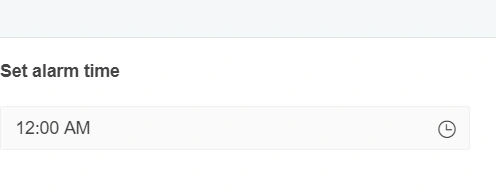
Figure 1
Now, I'm going to include the two-time format in the Kendo Time Picker using the setOptions function based on the radio button selection.
KendoTimePicker.html
- <!DOCTYPE html>
- <html>
- <head>
- <base href="https://demos.telerik.com/kendo-ui/timepicker/index">
- <style>html { font-size: 14px; font-family: Arial, Helvetica, sans-serif; }</style>
- <title></title>
- <link rel="stylesheet" href="https://kendo.cdn.telerik.com/2018.1.117/styles/kendo.common-material.min.css" />
- <link rel="stylesheet" href="https://kendo.cdn.telerik.com/2018.1.117/styles/kendo.material.min.css" />
- <link rel="stylesheet" href="https://kendo.cdn.telerik.com/2018.1.117/styles/kendo.material.mobile.min.css" />
- <script src="https://kendo.cdn.telerik.com/2018.1.117/js/jquery.min.js"></script>
- <script src="https://kendo.cdn.telerik.com/2018.1.117/js/kendo.all.min.js"></script>
- </head>
- <body>
- <div id="example">
- <div class="demo-section k-content">
- <ul class="fieldlist">
- <li>
- <input type="radio" name="hrs" id="12hrs" value="12hrs" class="k-radio" checked="checked">
- <label class="k-radio-label" for="12hrs">12hrs</label>
- </li>
- <li>
- <input type="radio" name="hrs" id="24hrs" value="24hrs" class="k-radio" >
- <label class="k-radio-label" for="24hrs">24hrs</label>
- </li>
- </ul>
- <h4>Set alarm time</h4>
- <input id="timepicker" value="12:00 AM" title="timepicker" style="width:50%;"/>
- </div>
- <script>
- $(document).ready(function () {
- $("#timepicker").kendoTimePicker({
- dateInput: true
- });
- });
- $("input[name='hrs']").click(function(){
- var timepicker = $("#timepicker").data("kendoTimePicker");
- if($('input:radio[name=hrs]:checked').val() == "24hrs"){
- timepicker.setOptions({
- format: 'HH: mm '
- })
- }
- else
- {
- timepicker.setOptions({
- format: 'hh:mm tt'
- })
- }
- });
- </script>
- <style>
- .fieldlist {
- margin: 0 0 -1em;
- padding: 0;
- }
- .fieldlist li {
- list-style: none;
- padding-bottom: 1em;
- }
- </style>
- </div>
- </body>
- </html>
From the above code, it is clear that based on radio button selection the time format of the Time Picker will get changed.
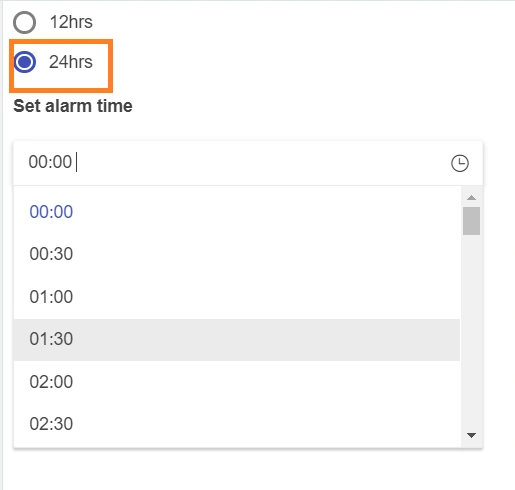
Figure 2
I hope you have learned from this blog. Your valuable feedback, questions, or comments about this blog are always welcome.
Join the conversation! Your thoughts help the community grow.