

Introduction
LightSwitch is a Microsoft application which is used for create the business application. Using this article one can sort and filter business application data. In this article I will tell you how to sort and filter data on screen in a LightSwitch application.
Sort and Filter Data on a Screen in a LightSwitch Application step by step.
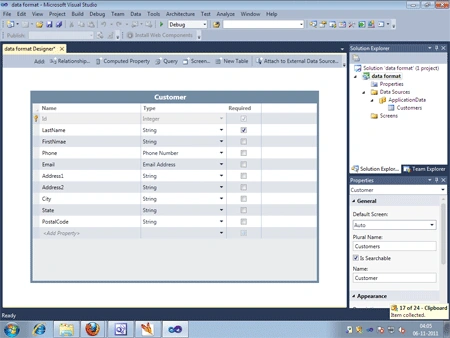
Step 1. First of all we created a table(Customer) in LightSwitch likes below image.
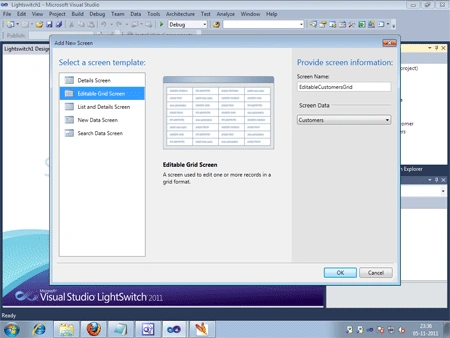
Step 2. Screen-> Right click-> Add screen-> Editable grid screen-> Select Customer-> Ok.
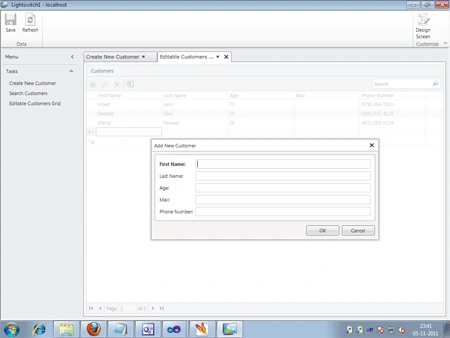
Step 3. Now run application-> Click editable customer grid-> Click + sign-> Fill data-> Ok-> Save-> Refresh-> Close page.
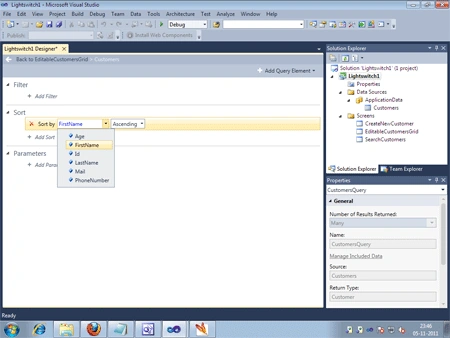
Step 4. Click edit query.
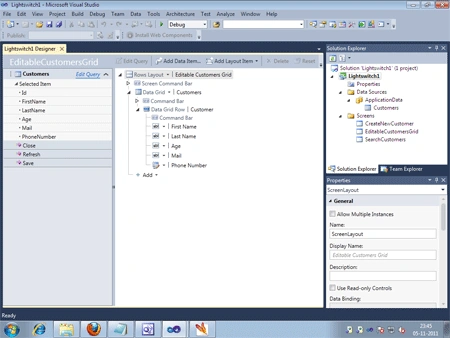
Step 5. Add sort-> Save.
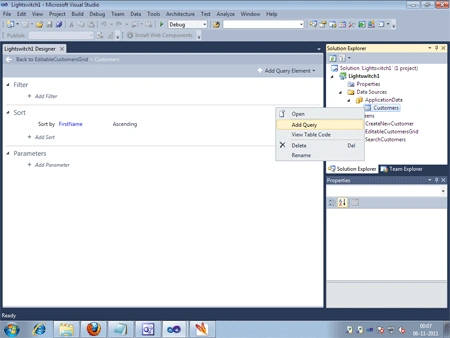
Step 6. Customer table-> Right click-> Add query.
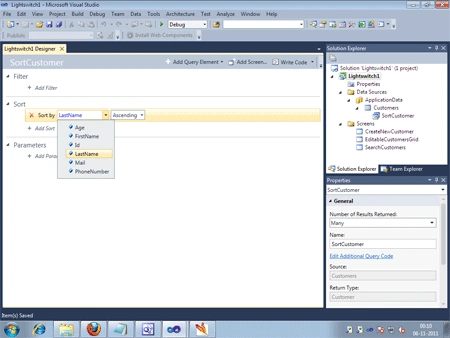
Step 7. Change query name (SortCustomer)-> Add sort-> Save.
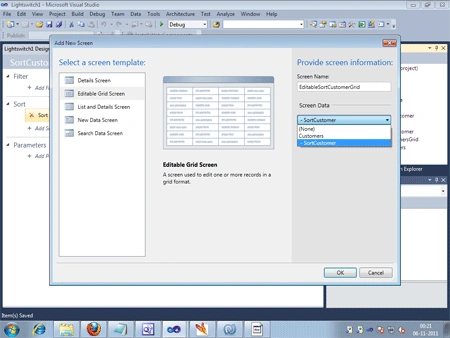
Step 8. Screen-> Right click-> Editable grid screen-> Select screen data (sort Customer)-> Ok.
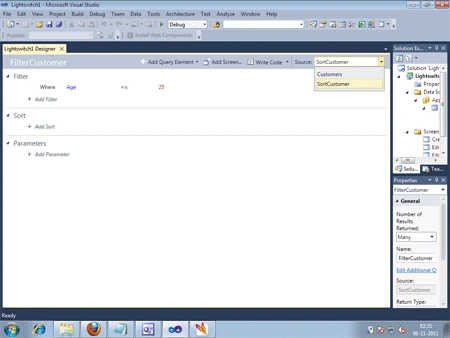
Step 9. Customer table-> Right click-> Add query-> Change query name (filter Customer)-> Add filter (write query)-> Select source (sortcustomer)-> Save.
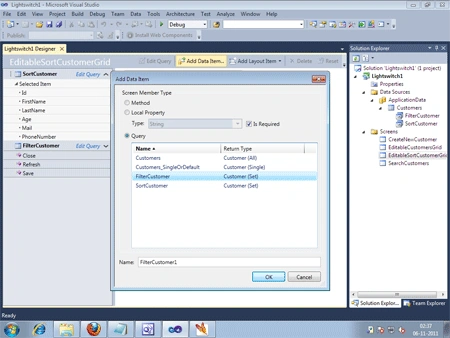
Step 10. Screen-> Click editable sort customer-> Add data item-> Click query-> Select filter Customer-> Ok.
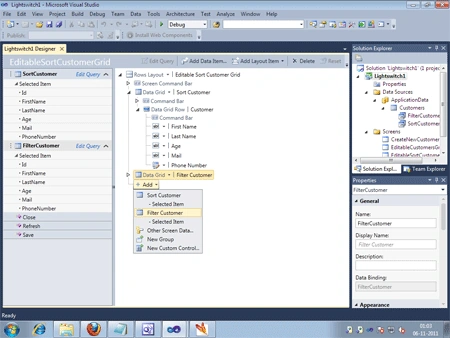
Step 11. Now add-> Filter Customer.
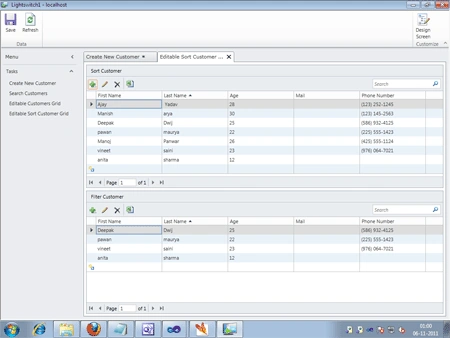
Step 12. Now run application-> Click editable Customer grid-> Click + sign-> Fill data-> Ok-> Save-> Refresh.
Summary
So this article is very useful for sorting and filtering data on a screen in LightSwitch application.
Using this article one can easily understand how to sorting and filtering data
on screen in LightSwitch application.
Join the conversation! Your thoughts help the community grow.