

Introduction
In this article we will show some animation in a Metro Style Application using the plugin jQuery. So here we will create a snowfall animation scenery in a HTML page of a Metro application.
In the following we are including the entire code of the HTML file and the JavaScript file to create this mini application.
Step 1 : First, you will create a new Metro Style Application. Let us see the description with images of how to create it.
- Open Visual Studio 2012
- File -> New -> Project
- Choose Template -> JavaScript -> Metro Style Application
- Rename the application

Step 2 : In the Solution Explorer there are two files that we will primarily work with; the Default.Html file:
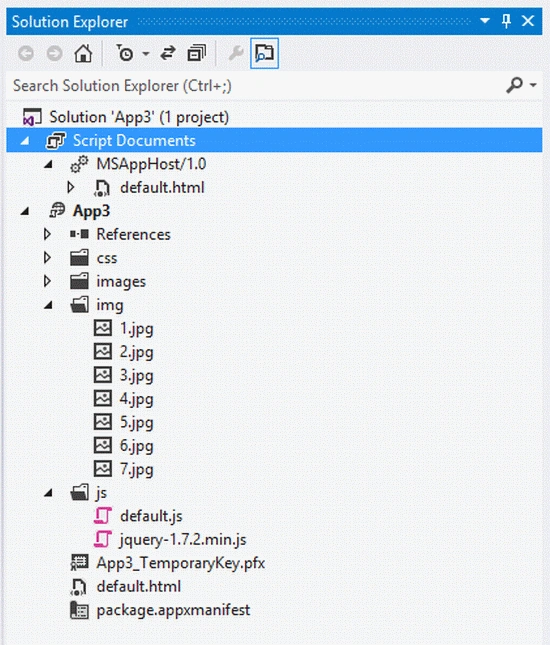
Step 3 : First of all we add a jQuery library to our project. The JavaScript code and the style sheet code is written in the header section. The following are the contents of the project:
-
JavaScript Code
-
Style Sheet Code
Code :
<script type="text/javascript" src="jquery-1.7.2.min.js"></script>
<script type="text/javascript" src="snowfall.jquery.js"></script>
<script src="/js/default.js"></script>
<script type="text/javascript">
$(document).ready(function () {
$('#click1').click(function () {
$('#snow_fall').snowfall({
flakeCount: 90,
flakeColor: '#ffffff',
flakeIndex: 999999,
minSize: 1,
maxSize: 6,
minSpeed: 2,
maxSpeed: 5
});
});
$('#input1').click(function () {
$('#view').show();
$('#view').snowfall({ flakeCount: 100, maxSpeed: 10 });
});
});
</script>
Code :
<style type="text/css">
.div1
{
background: -webkit-gradient(linear, left top, left bottom, color-stop(0%,rgba(76,76,76,1)),
color-stop(0%,rgba(0,0,0,1)),
color-stop(12%,rgba(89,89,89,1)),
color-stop(25%,rgba(102,102,102,1)),
color-stop(39%,rgba(71,71,71,1)),
color-stop(50%,rgba(44,44,44,1)),
color-stop(60%,rgba(17,17,17,1)),
color-stop(76%,rgba(43,43,43,1)),
color-stop(91%,rgba(28,28,28,1)),
color-stop(100%,rgba(19,19,19,1)));
height:400px;
width:600px;
border:5px groove Navy;
}
.h1
{
font-family:Comic Sans MS;
background:black;
}
.input
{
background-color:Maroon;
height:30px;
width:120px;
font-family:Comic Sans MS;
font-size:larger;
color:Yellow;
margin:150px 0px 0px 750px;
}
.img
{
position:absolute;
margin-top:-310px;
border:5px groove yellow;
}
</style>
Step 4 : The complete code of this application is written below. It contains the code of HTML file code and JavaScript file code.
Code :
<!DOCTYPE html>
<html>
<head>
<meta charset="utf-8" />
<title>App21</title>
<!-- WinJS references -->
<link href="//Microsoft.WinJS.1.0.RC/css/ui-dark.css" rel="stylesheet" />
<script src="//Microsoft.WinJS.1.0.RC/js/base.js"></script>
<script src="//Microsoft.WinJS.1.0.RC/js/ui.js"></script>
<!-- App21 references -->
<link href="/css/default.css" rel="stylesheet" />
<script type="text/javascript" src="jquery-1.7.2.min.js"></script>
<script type="text/javascript" src="snowfall.jquery.js"></script>
<script src="/js/default.js"></script>
<script type="text/javascript">
$(document).ready(function () {
$('#click1').click(function () {
$('#snow_fall').snowfall({
flakeCount: 90,
flakeColor: '#ffffff',
flakeIndex: 999999,
minSize: 1,
maxSize: 6,
minSpeed: 2,
maxSpeed: 5
});
});
$('#input1').click(function () {
$('#view').show();
$('#view').snowfall({ flakeCount: 100, maxSpeed: 10 });
});
});
</script>
<style type="text/css">
.div1
{
background: -webkit-gradient(linear, left top, left bottom, color-stop(0%,rgba(76,76,76,1)),
color-stop(0%,rgba(0,0,0,1)),
color-stop(12%,rgba(89,89,89,1)),
color-stop(25%,rgba(102,102,102,1)),
color-stop(39%,rgba(71,71,71,1)),
color-stop(50%,rgba(44,44,44,1)),
color-stop(60%,rgba(17,17,17,1)),
color-stop(76%,rgba(43,43,43,1)),
color-stop(91%,rgba(28,28,28,1)),
color-stop(100%,rgba(19,19,19,1)));
height:400px;
width:600px;
border:5px groove Navy;
}
.h1
{
font-family:Comic Sans MS;
background:black;
}
.input
{
background-color:Maroon;
height:30px;
width:120px;
font-family:Comic Sans MS;
font-size:larger;
color:Yellow;
margin:150px 0px 0px 750px;
}
.img
{
position:absolute;
margin-top:-310px;
border:5px groove yellow;
}
</style>
</head>
<body>
<form id="form1" runat="server">
<div id="snow_fall" class="div1" >
<img src="kasmir.jpg" style="width:600px;height:400px" />
</div>
<div><h1 id="click1" class="h1">Show Snowfall Effect</h1></div>
</form>
</body>
</html>
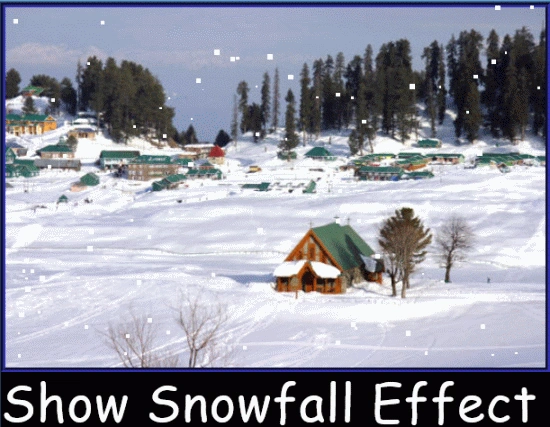
Step 5 : After running this code the output looks like this:
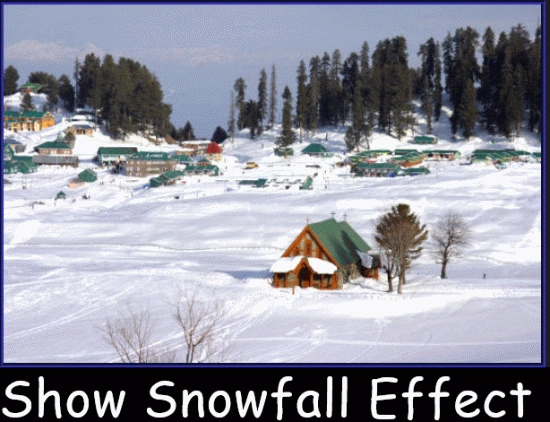
Click on Text to start the snow falling.
Join the conversation! Your thoughts help the community grow.