

Before starting the implementation of Templates we must know the meaning and use of Templates. Templates in case of ASP.NET MVC Application is a mixture of elements and controls that are used in any application to form the layout of a particular area.
Basically Templates are used for modification in the appearance.
Steps for the Implementation of Templates
in ASP.NET MVC Application are as follows:
Step 1
- First step begins with the creation of a new ASP.NET MVC Web Application by opening Visual Studio 2010:
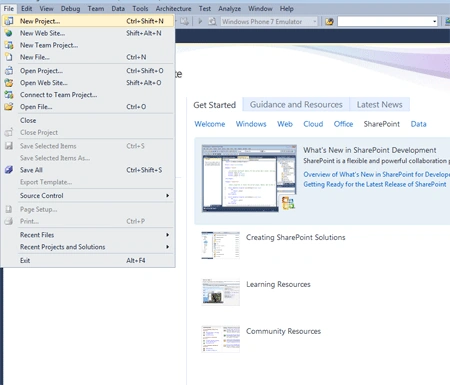
- Then click on File from the menu strip:
- Then chose New Project option:
- Then chose Web from installed template:
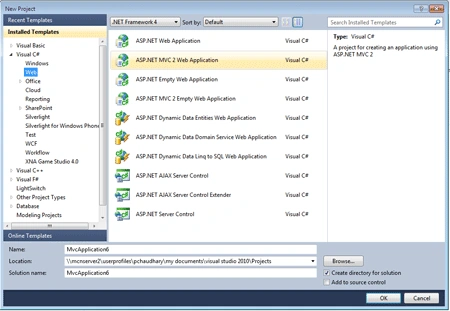
- At last click on ASP.NET MVC Web
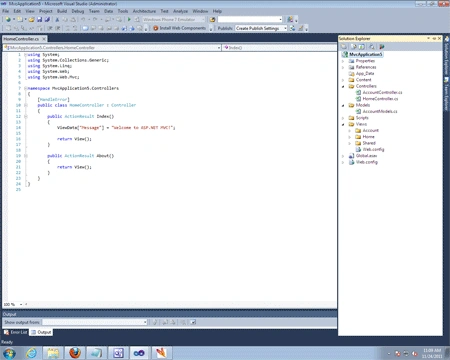
Application and get the welcome webpage:
Step 2
Now start the code to form a simple Model for say MCNEMPLOYEE:
using
System;
using
System.Collections.Generic;
using
System.Linq;
using
System.Web;
namespace
MvcApplication4.Models
{
public
class EmployeeModel
{
public
string FirstName { get;
set; }
public
string LastName { get;
set; }
public
DateTime? DateOfBirth {
get; set; }
}
}
Step 3
Now after coding the Model now code the Controller
using System;
using
System.Collections.Generic;
using
System.Linq;
using
System.Web;
using
System.Web.Mvc;
namespace
MvcApplication4.Controllers
{
[HandleError]
public
string
EmployeeController : Controller
{
[HttpGet]
public
ActionResult
indexer()
{
return
Veiw ();
}
}
}
To generate View of the Sample project Employee follow the steps and image given below:
- Now first give name to the View
- Click in the CheckBox "Create a strongly-typed view"
- And then select the Employee model as data class
- At last select "Create" as View content
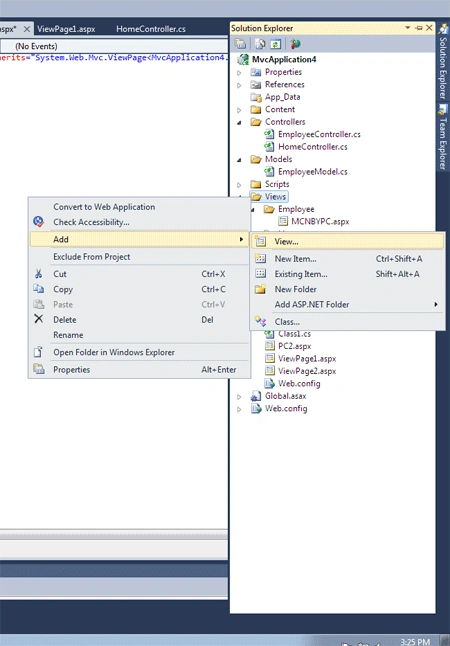
This View will Generate the Code automatically and that will be:
<%@
Page Title=""
Language="C#"
MasterPageFile="~/Views/Shared/Site.Master"
Inherits="System.Web.Mvc.ViewPage<MvcApplication4.Models.EmployeeModel>"
%>
<asp:content
id="Content3" contentplaceholderid="TitleContent"
runat="server">
Index
</asp:content>
<asp:content
id="Content4" contentplaceholderid="MainContent"
runat="server">
<span
id="Index"><h2>Index</h2></span>
<% using
(Html.BeginForm()) {%>
<%= Html.ValidationSummary(true)
%>
<fieldset>
<legend>Fields</legend>
<div
class="editor-label">
<%=
Html.LabelFor(model => model.FirstName) %>
</div>
<div
class="editor-field">
<%=
Html.TextBoxFor(model => model.FirstName) %>
<%= Html.ValidationMessageFor(model =>
model.FirstName) %>
</div>
<div
class="editor-label">
<%=
Html.LabelFor(model => model.LastName) %>
</div>
<div
class="editor-field">
<%=
Html.TextBoxFor(model => model.LastName) %>
<%= Html.ValidationMessageFor(model =>
model.LastName) %>
</div>
<div
class="editor-label">
<%=
Html.LabelFor(model => model.DateOfBirth) %>
</div>
<div
class="editor-field">
<%=
Html.TextBoxFor(model => model.DateOfBirth) %>
<%= Html.ValidationMessageFor(model =>
model.DateOfBirth) %>
</div>
<input
value="Create"
type="submit">
</fieldset>
<% } %>
<div>
<%=
Html.ActionLink("Back to List",
"Index") %>
</div>
</asp:content>
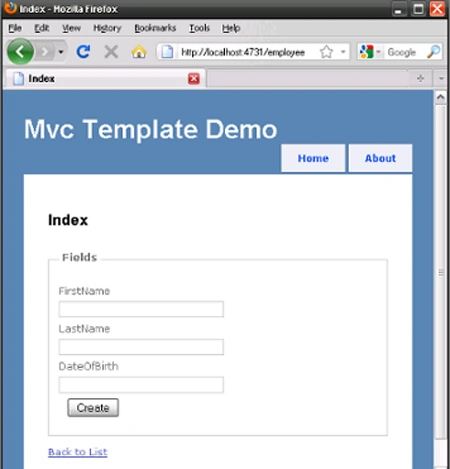
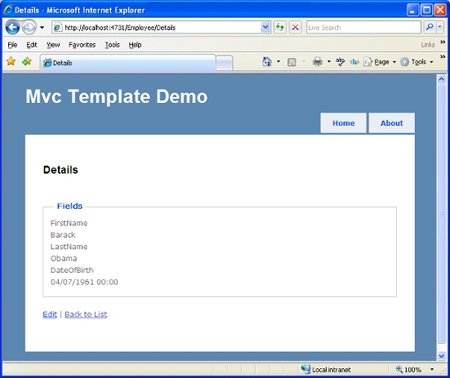
After generation of form fill the details in BeginForm that will the output
Step 4
After creating the View next step is to add your own Template that can be done by following the steps and image given below:
- First give name to the Template
- Click in CheckBox "Create a partial view"
- Click in CheckBox "Create a strongly-typed view"
- Type in "string" as the view data class
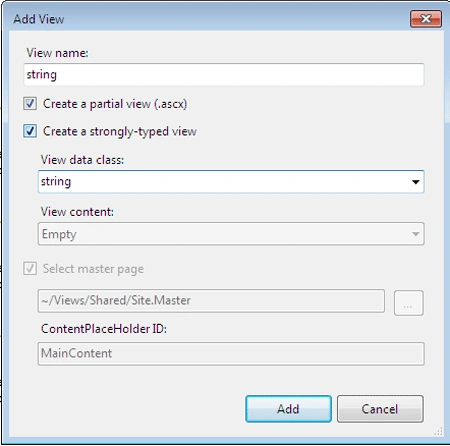
Now code the Template as the sample code given below:
<%@ Control Language="C#"
Inherits="System.Web.Mvc.ViewUserControl<string>"
%>
<div class="display-label"><strong><%=Html.LabelFor(model
=> model)%></strong></div>
<div class="display-field"><%=Html.Encode(Model)%></div>
Similarly add the template to use DateTime for the View name and View data class.
<%@ Control Language="C#"
Inherits="System.Web.Mvc.ViewUserControl<DateTime?>"%>
<div class="display-label"><strong><%=Html.LabelFor(model
=> model)%></strong></div>
<div class="display-field"><%=Html.Encode(Model.HasValue
? Model.Value.ToLongDateString() : string.Empty)%></div>
Step 5
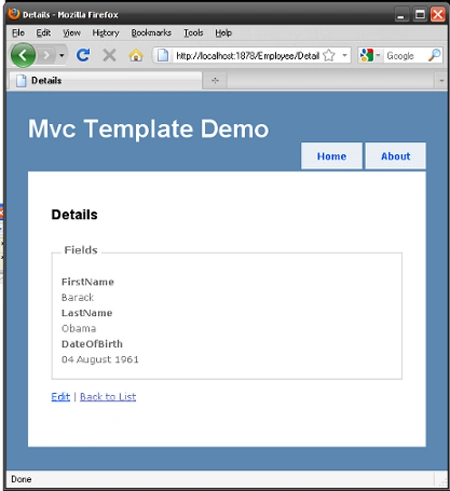
Now to perform the function you required by
using Template change the View of Employee by this code as follow:
<%@ Page Title=""
Language="C#" MasterPageFile="~/Views/Shared/Site.Master"
Inherits="System.Web.Mvc.ViewPage<MvcTempDemo1.Models.EmployeeModel>">
<asp:content id="Content1"
contentplaceholderid="TitleContent" runat="server">
Details
</asp:content>
<asp:content id="Content2"
contentplaceholderid="MainContent" runat="server">
<span id="Details_2"><h2>Details</h2></span>
<fieldset>
<legend>Fields</legend>
<%=Html.DisplayFor(model => model.FirstName)%>
<%=Html.DisplayFor(model => model.LastName)%>
<%=Html.DisplayFor(model => model.DateOfBirth)%>
</fieldset>
<%= Html.ActionLink("Edit",
"Edit", new {
/* id=Model.PrimaryKey */ }) %>
<%= Html.ActionLink("Back to List",
"Index") %>
</asp:content>
Join the conversation! Your thoughts help the community grow.