

Introduction: As while developing any application in ASP.NET MVC, there are various features that a user can apply to their application and one of them is to use multiple buttons in an application for different purposes. To do so just take a number of buttons and apply various functions as per your requirement that can be for navigation or to check validations.
Steps to show the use of multiple buttons
Step1: Open Visual Studio 2010.
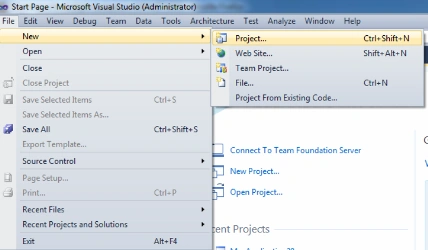
- Click on file menu and choose new
- New>project
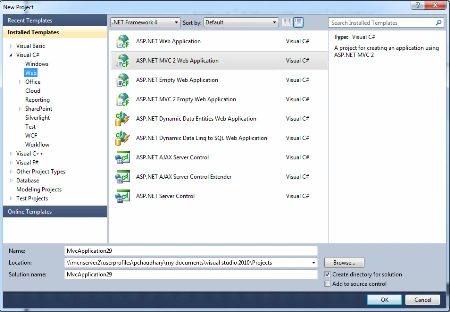
- Now Click on ASP.NET MVC web application from the installed template
Step 2: Now first add a Model to it.
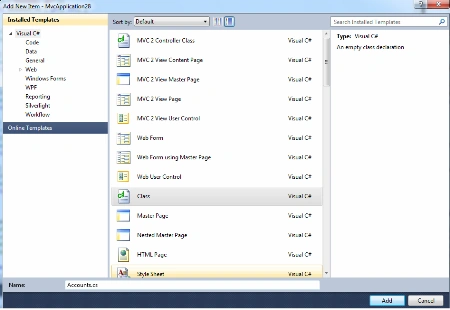
- Right click on the models folder
- Choose add > class
- Now name the class
As Model is used to deal with logic and to
connect the database hence to do so manipulate the code of the model class as
per the requirement.
using
System;
using
System.Collections.Generic;
using
System.ComponentModel;
using
System.ComponentModel.DataAnnotations;
using
System.Globalization;
using
System.Linq;
using System.Web;
using
System.Web.Mvc;
using
System.Web.Security;
namespace
MvcApplication28.Models
{
public
class
LogOnModel
{
[Required]
[DisplayName("User
name")]
public string
UserName { get; set;
}
[Required]
[DataType(DataType.word)]
[DisplayName("word")]
public string
word { get; set;
}
[DisplayName("Remember
me?")]
public bool
RememberMe { get; set;
}
}
}
Step 3 : After that now add a controller that has a reference to the model class.
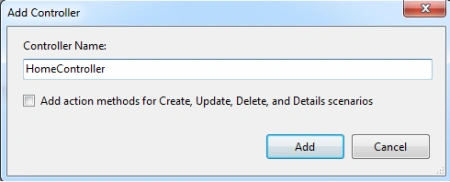
Choose add controller
- Right click on the controllers folder
- Name the controller
Now as controller work for providing the controls over model class and for user
interface as well hence we have to manipulate the code according to over
requirements to deal with model class and the view.
Code the controller
using System;
using
System.Collections.Generic;
using
System.Diagnostics.CodeAnalysis;
using
System.Linq;
using
System.Security.Principal;
using System.Web;
using
System.Web.Mvc;
using
System.Web.Routing;
using
System.Web.Security;
using
MvcApplication28.Models;
namespace
MvcApplication28.Controllers
{
[HandleError]
public class
AccountController :
Controller
{
public ActionResult
MultipleButtonsInSamePage(string ButtonClick)
{
if (ButtonClick.Equals("Button1"))
{
//Perform
function for button1 click
}
else if
(ButtonClick.Equals("Button2"))
{
//Perform
function for button2 click
}
else if
(ButtonClick.Equals("Button3"))
{
//Perform
function for button2 click
}
return View();
}
public
ActionResult LogOn()
{
return View();
}
[HttpPost]
public
ActionResult LogOn(LogOnModel model,
string returnUrl)
{
if (ModelState.IsValid)
{
if (MembershipService.ValidateUser(model.UserName,
model.word))
{
FormsService.SignIn(model.UserName, model.RememberMe);
if (!String.IsNullOrEmpty(returnUrl))
{
return
Redirect(returnUrl);
}
else
{
return RedirectToAction("Index",
"Home");
}
}
else
{
ModelState.AddModelError("",
"The user name or word provided is incorrect.");
}
}
// If we got this
far, something failed, redisplay form
return View(model);
}
Step 4:
Now add a view for
the user interface.
- To do so right click on action method
- Click on add view
- Name the view and check for strong view
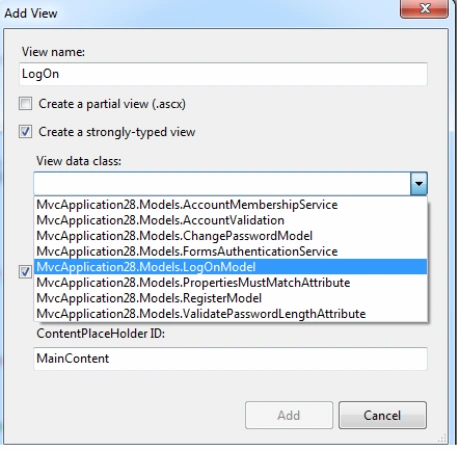
Code the view.
<%@
Page Language="C#"
MasterPageFile="~/Views/Shared/Site.Master"
Inherits="System.Web.Mvc.ViewPage<MvcApplication28.Models.LogOnModel>"
%>
<asp:Content
ID="loginTitle" ContentPlaceHolderID="TitleContent"
runat="server">
</asp:Content>
<asp:Content
ID="loginContent" ContentPlaceHolderID="MainContent"
runat="server">
<h2>Check
this out</h2>
<p>
Please enter your username and word.
<%:
Html.ActionLink("GO",
"Register")
%> if you don't have an account.
</p>
<% using
(Html.BeginForm()) { %>
<%:
Html.ValidationSummary(true,
"Login was unsuccessful. Please correct the errors
and try again.")
%>
<div>
<fieldset>
<legend>Account
Information</legend>
<div
class="editor-label">
<%:
Html.LabelFor(m => m.UserName)
%>
</div>
<div
class="editor-field">
<%:
Html.TextBoxFor(m => m.UserName)
%>
<%:
Html.ValidationMessageFor(m => m.UserName)
%>
</div>
<div
class="editor-label">
<%:
Html.LabelFor(m => m.word)
%>
</div>
<div
class="editor-field">
<%:
Html.wordFor(m => m.word)
%>
<%:
Html.ValidationMessageFor(m => m.word)
%>
</div>
<div
class="editor-label">
<%:
Html.CheckBoxFor(m => m.RememberMe)
%>
<%:
Html.LabelFor(m => m.RememberMe)
%>
</div>
<p>
<input
type="submit"
value="LogOn"
/>
<input
type="submit"
value="Button 2"
/>
<input
type="submit"
value="Button 3"
/>
</p>
</fieldset>
</div>
<% }
%>
</asp:Content>
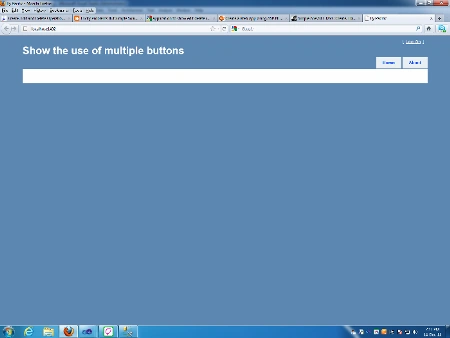
Now you can run your application and can see the demo by pressing f5.
Initial Screen
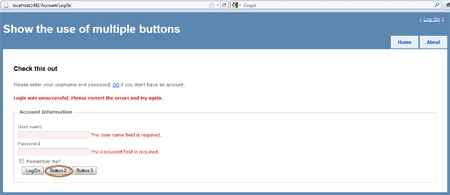
Use of Button2
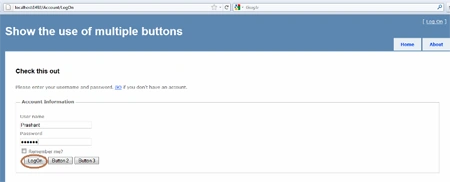
Use of Button LogOn
manish kumarPosted Jul 28, 2013, 12:53 PM
This is also useful post http://www.mixedresponse.com/Blog/Details/3
Ashutosh ChaturvediPosted Jun 19, 2013, 6:55 AM
Thank you very much ...........this article helped me alot. :)