

Introduction
The Package Manager Console is a PowerShell console within Visual Studio used to interact with NuGet and automate Visual Studio. You can access the Package Manager Console from within Visual Studio by going to Tools -> Library Package Manager -> Package Manager Console.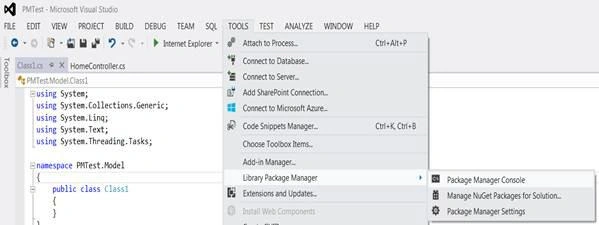
The following is a screen shot for the console:
Benefits of using Package Manager Console (PMC)
So, why should you bother to use PMC given that you have a nice UI for the NuGet system integrated in Visual Studio? The following are the benefits of using PMC over the NuGet UI:
- Using PMC, you can automate the addition of packages into your solution instead of each team member going to the NuGet UI to add packages.
- The PMC scripts can be part of the Visual Studio solution itself so that any new team member can simply run those scripts when setting up the solution.
- NuGet will always install the latest version of a package however, using PMC you can specify the version number of the package to install.
- PMC is useful if you wish to manage the dependencies manually without using NuGet, for example to install a package without dependencies use the flag -IgnoreDependencies.
- PMC can also be useful to reinstall a package using the -reinstall flag. This provides a kind of repair functionality.
- The PMC scripts can also be part of the continuous integration system.
- PMC is not just an alternative to NuGet. Many packages add commands to PMC for additional functionality. For example: EntityFramework adds a host of commands to manage code first migrations.

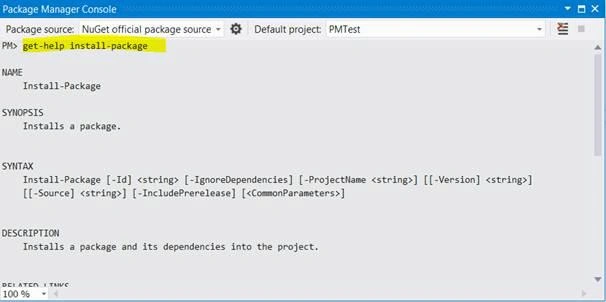
To get help on any command, you can type the command Get-help <command>.
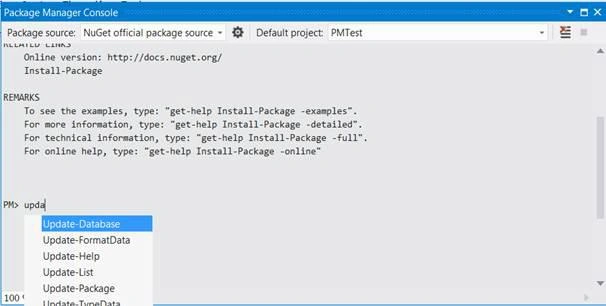
You can press the Tab key after entering a few characters to trigger the autocomplete functionality. You can even resolve the package names using the Tab key when using the install-package command.
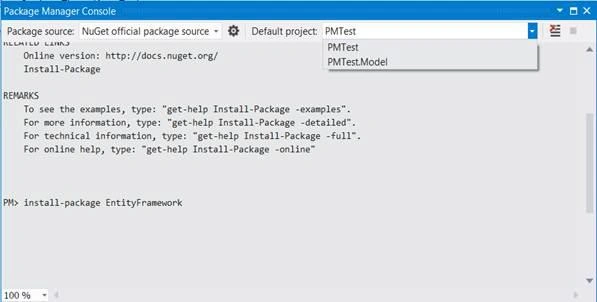
You can change the default project from the top right drop down. The commands will be applied to the selected project only.
Ketak BhalsingPosted Apr 22, 2016, 3:00 AM
Thanks everyone for this much of views for this article... Was busy with some personal things..Now will be back for technical contribution to this community :)
Guest UserPosted Nov 25, 2014, 7:54 AM
per my knowledge you can run like msbuild project1.sln /t: abc
Ketak BhalsingPosted Nov 25, 2014, 2:21 AM
Thanks Sumit. As per my information they can not be a part of solution directly. We need to explicitly run the commands to set-up our solution. Please share your thoughts on this.
Guest UserPosted Nov 25, 2014, 2:00 AM
Good job, can you please share more info on practical aspect of "The PMC scripts can be part of the VS solution itself so that any new team member can simply run those scripts while setting up the solution."