

Introduction
This article explains how to use the DropDrownList helper for creating a DropDrownList. Here I provide a simple example. The DropDownList control needs two things, first select the value from the ViewData and display the item list in the dropdown list, we use the ViewBag object for displaying the data in the dropdownlist.
Now we see the Method signature of the DropdownList helper:
- Html.DropDownList(
- tring name,
- IEnumerable<SelectListItem> selectList,
- String optionLable,
- object htmlAttributes)
Description of the parameters:
- name: It selects the element. It is a view model property name for binding to the element.
-
selectList: The choice list item of the select list.
-
optionLable: It defines the normal text that is added at the top of the Select list such as "select" and here we add "---select---".
-
htmlAttributes: It is the dictionary type HTML attribute that we can add with the HTML attribute.
The "SelectListItem" Class initializes the new instance of the SelectListItem class. It has the following properties:
-
Text: The use of this, gets and sets the text of the selected item.
-
Value: The use of this gets and sets the value of the selected item.
-
Selected: The use of this, gets or sets the value of the selected item from the SelectList.
Let's see an example of "DropDownList".
Step 1
Create the Web API application as in the following:
-
Start Visual Studio 2012.
-
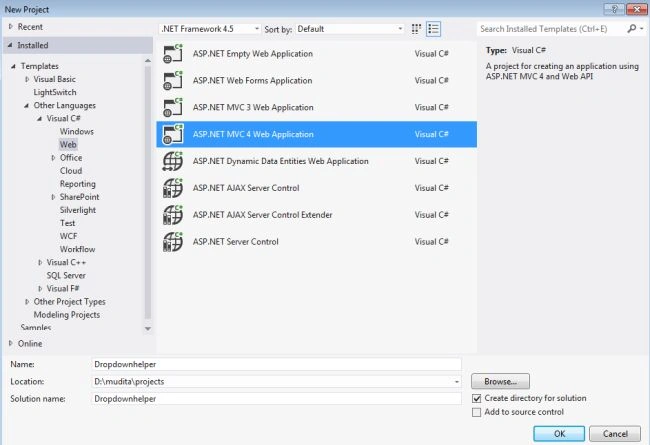
From the start window select "New Project".
-
In the Template Window select "Installed" -> "Visual C#" -> "Web".
-
Select "ASP.NET MVC 4 Web Application" and click on "OK".
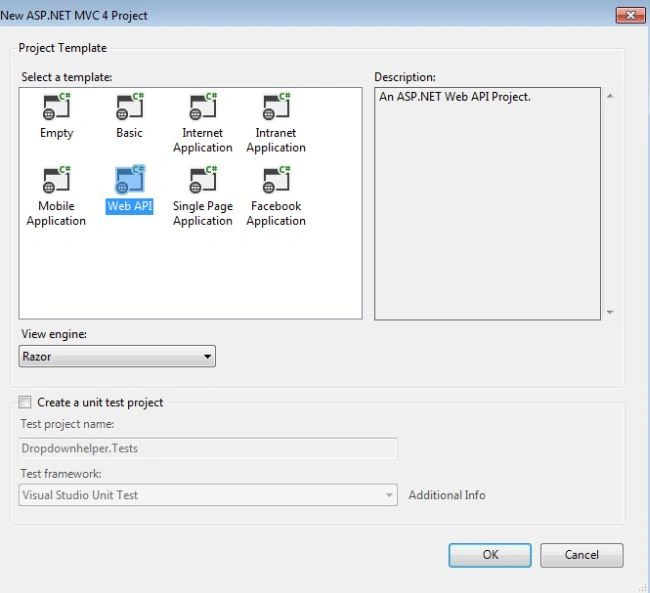
From the "MVC4 Project" window select "Web API".
Step 2
Create a model class "State.cs":
-
In the "Solution Explorer".
-
Right-click on the "model" -> "add" -> "class".
-
Select "Installed" -> "Visual C#" and select "Class".
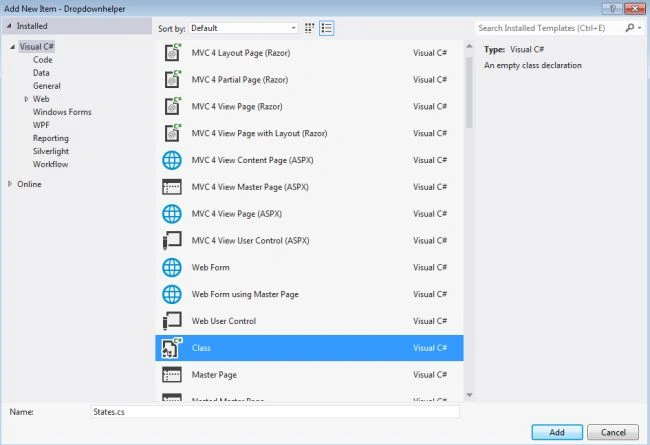
Click the "OK" button.
Add this code:
- using System;
- using System.Collections.Generic;
- using System.Linq;
- using System.Web;
- namespace Dropdownhelper.Models
- {
- public class States
- {
- public string StateName { get; set; }
- }
- }
Step 3
Now we write a "DropDownList" in the "HomeController" file.
-
In the "Solution Explorer".
-
Select "Controller" -> "HomeController".
Add this code for writing the DropDownList:
- using System;
- using System.Collections.Generic;
- using System.Linq;
- using System.Web;
- using System.Web.Mvc;
- using Dropdownhelper.Models;
- namespace Dropdownhelper.Controllers
- {
- public class HomeController : Controller
- {
- [HttpGet]
- public ActionResult Index()
- {
- List<SelectListItem> statelist = new List<SelectListItem>();
- statelist.Add(new SelectListItem
- {
- Text = "Utter Pradesh",
- Value = "utter Pradesh"
- });
- statelist.Add(new SelectListItem
- {
- Text = "Delhi",
- Value = "Delhi"
- });
- statelist.Add(new SelectListItem
- {
- Text = "Madhya Pradesh.",
- Value = "Madhya Pradesh."
- });
- statelist.Add(new SelectListItem
- {
- Text = "Assam",
- Value = "Assam"
- });
- statelist.Add(new SelectListItem
- {
- Text = "Andra Pradesh",
- Value = "Andra Pradesh"
- });
- statelist.Add(new SelectListItem
- {
- Text = "Goa",
- Value = "Goa"
- });
- ViewBag.StateList = statelist;
- statelist.Add(new SelectListItem
- {
- Text = "Kerala",
- Value = "Kerala"
- });
- ViewBag.StateList = statelist;
- statelist.Add(new SelectListItem
- {
- Text = "Rajasthan",
- Value = "Rajasthan"
- });
- ViewBag.StateList = statelist;
- return View();
- }
- [HttpPost]
- public string Index(States temp)
- {
- return temp.StateName;
- }
- }
- }
Step 4
Now we write the method of the DropDownList Helper in "index.cshtml" as in the following:
-
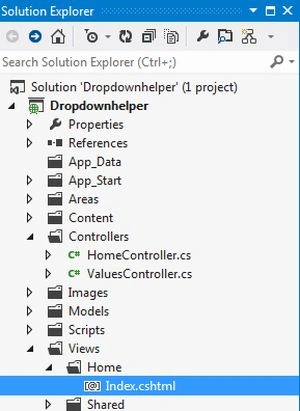
In the "Solution Explorer".
-
Select "Views' -> "Home" -> "index.cshtml".
Add this line of code:
- @model Dropdownhelper.Models.States
- @{
- ViewBag.Title = "Index";
- }
- <h2>
- Creating a dropdown list of States in India</h2>
- @using (Html.BeginForm())
- {
- <label>
- Select City</label>
- @Html.DropDownList("StateName", (IEnumerable<SelectListItem>)ViewBag.statelist,"---Select---");
- <p>
- <input type="Submit" value="Submit" />
- </p>
- }
Step 5
Execute the application "Press F5".
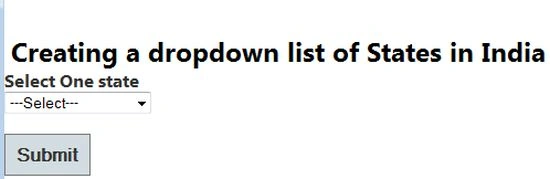
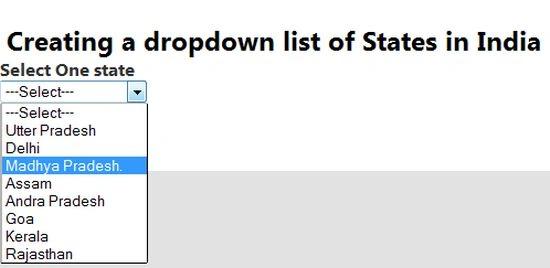
Select an item click on the submit button.
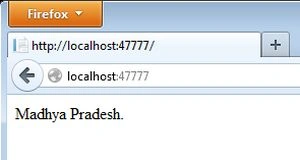
It displays the selected State:
Bhupendra ShuklaPosted Jan 16, 2014, 12:51 AM
You are using Normal Controller not Web API controller. Why you confusing your readers.