

Introduction
This article provides an example of a Multipart MIME in the ASP.NET Web API. Multipurpose Internet Mail Extension (MIME) allows entities to be encapsulated. Multipart MIME is associated with the "Media Types Family".
Procedure of accessing Multipart MIME in the Web API.
Step 1
Create the Web API application.
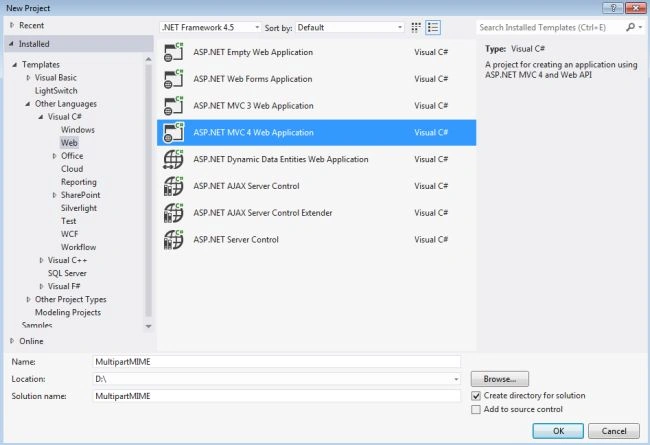
- Start Visual Studio 2012 and select "New Project".
- In the template window select "Installed Template" -> "Visual C#" -> "web".
- Choose application "ASP.NET MVC 4 Web Application".
- Click on the "OK" button.
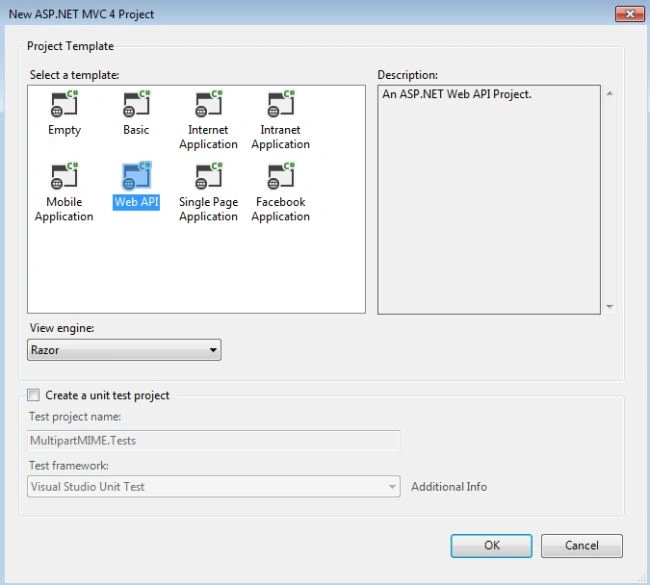
- From the MVC 4 Project window select Web API.
Step 2
Add a controller to the project as in the following:
- In the "Solution Explorer".
- Right-click on the "Controller" folder then select "Add" -> "Controller".
- Now open an Add controller window.
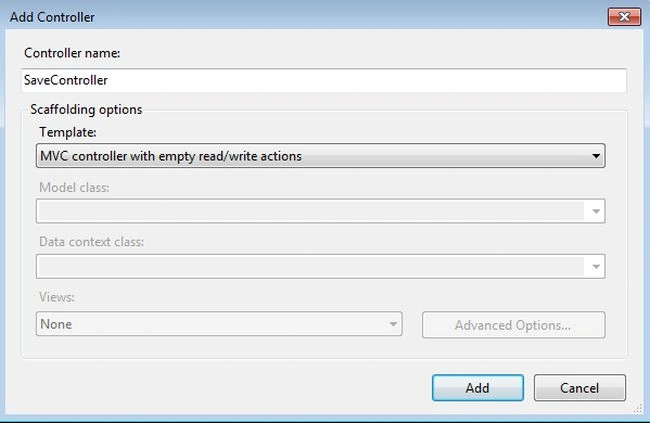
- Change the name of the controller and click on the "OK" button.
Add these namespaces:
- using System.IO;
- using System.Threading.Tasks;
- using System.Diagnostics;
- namespace MultipartMIME.Controllers
- {
- public class SaveController : ApiController
- {
- public async Task<HttpResponseMessage> Doc()
- {
- if (!Request.Content.IsMimeMultipartContent())
- {
- throw
- new HttpResponseException(HttpStatusCode.UnsupportedMediaType);
- }
- string info = HttpContext.Current.Server.MapPath("~/App_Data");
- var generator = new MultipartFormDataStreamProvider(info);
- try
- {
- StringBuilder str = new StringBuilder();
- await Request.Content.ReadAsMultipartAsync(generator);
- foreach (var gen in generator.FormData.AllKeys)
- {
- foreach (var data in generator.FormData.GetValues(gen))
- {
- str.Append(string.Format("{0}: {1}\n", gen, data));
- }
- }
- return new HttpResponseMessage()
- {
- Content = new StringContent(str.ToString())
- };
- }
- catch (System.Exception x)
- {
- return Request.CreateErrorResponse(HttpStatusCode.InternalServerError, x);
- }
- }
- }
- }
The "IsMimeMultipartContent()" method checks the Multipart MIME message, if none then it returns the unsupported media type.
The "ReadAsMultipartAsync" method reads all the Multipart messages and it produces an HttpContent as a result.
Step 3
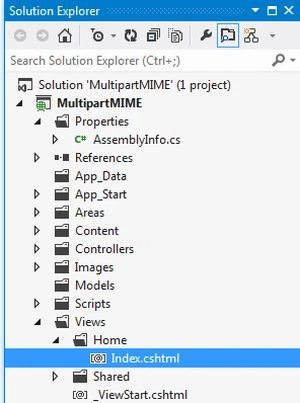
Open the "Index.cshtml" file.
-
In the "Solution Explorer".
-
Select "View" -> "Home" -> "index.cshtml".
Write this code:
- <header>
- <div class="content-wrapper">
- <div class="float-left">
- <p class="site-title">
- <a href="~/">ASP.NET Web API</a>
- </p>
- </div>
- </div>
- </header>
- <div id="body">
- <h2>Using MIME Multipart</h2>
- <section class="main-content clear-fix">
- <form name="tour_search" method="post" enctype="multipart/form-data" action="api/save">
- <fieldset>
- <legend>Example train selection</legend>
- </fieldset>
- <label for="tour">Tour</label>
- <div>
- <input type="radio" name="tour" value="return-journey" checked="checked"/>
- Return journey
- </div>
- <div>
- <input type="radio" name="tour" value="one-way"/>
- One-Way
- </div>
- <label for="class">Class</label>
- <div>
- <input type="checkbox" name="options" value="Sleeper" />
- Sleeper
- </div>
- <div>
- <input type="checkbox" name="options" value="first-AC" />
- First AC
- </div>
- <div>
- <input type="checkbox" name="options" value="Second-AC" />
- Second AC
- </div>
- <div>
- <input type="checkbox" name="options" value="Third-AC" />
- Third AC
- </div>
- <div>
- <label for="seat">Choice if any</label>
- <select name="seat">
- <option value="select">Select</option>
- <option value="upper">Upper</option>
- <option value="middle">Middle</option>
- <option value="lower">Lower</option>
- <option value="No choice">No Choice</option>
- </select>
- </div>
- <div>
- <input type="submit" value="Send" />
- </div>
- </form>
- </section>
- </div>
Step 4
Execute the application by pressing F5.
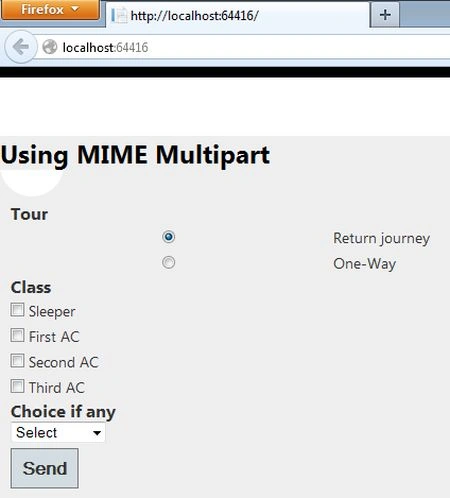
Select the information.
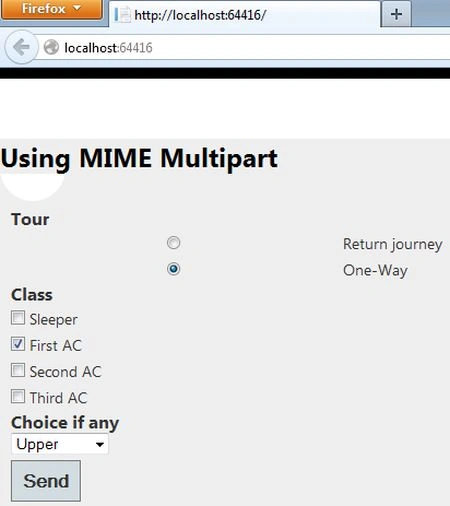
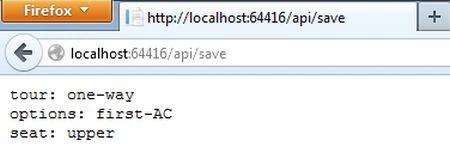
Click on the "Send" button.
Join the conversation! Your thoughts help the community grow.