
Introduction
AJAX (Asynchronous JavaScript and XML) is new web development technique used for the interactive websites. AJAX can help develop web applications and retrieve a small amount of data from a web server. AJAX consists of a different type of technology.
- JavaScript
- Xml
- Asynchronous call to the server
Dynamically Populating Control
The DynamicPopulate Control in the ASP.NET AJAX can call a page method and fill the resulting value in the target control on the page without a page refresh. The method call returns a form of HTML string that is inserted as a child of the target element. The AJAX controls work automatically. While it's possible to call (_doPostBack()) from JavaScript to trigger for a partial update. When we use the ASP.NET DropDownList control, ASP.NET will verify that the items in the list are the same items the list contained when the page was rendered. Since we are adding items on the client side, a postback results in an ASP.NET validation error. This postback validation is designed to prevent users from editing your web pages and trying to submit invalid data. You can disable this validation but, for our purposes, it's simpler just to use a <select> tag.
Step 1 : Open Visual Studio 2010.
- Go to File->New->WebSite
- Select ASP.NET Empty WebSite

Step 2 : Go to Solution Explorer and right-click.
- Select Add->New Item
- Select WebForm
- Default.aspx page open

Step 3 : Go to Default.aspx page and click on the [Design] option and drag control from Toolbox.
- Drag Panel control, Label, Button, Drop List control, ScriptManager control.
Step 4 : The page contain a button with the ID PopList. The onclick attribute of this attribute calls the PopulateList() JavaScript function.
JavaScript Function
<title>my
ajax application</title>
<style
type="text/css">
body
{
font-family:
@BatangChe
font-size:
small;
color:
#555555;
}
</style>
<script
type="text/javascript">
function PopulateList() {
PageMethods.GetListData(1, OnPopulateList);
}
function OnPopulateList(list) {
var dropList =
document.getElementById('DropList');
for (i = 1; i < 10; i++) {
var option =
document.createElement('OPTION');
option.text = list[i].text;
option.value = list[i].value;
dropList.options.add(option);
}
}
</script>
Step 5 : Go to
Default.aspx[Source] option and define the condition EnablePageMethod is "True"
with ScriptManager and write a code.
Code :
<form
id="form1"
runat="server"
style="background-color:
#330D1E">
<div>
<asp:ScriptManager
ID="ScriptManager1"
runat="server"
EnablePageMethods="True">
</asp:ScriptManager>
<p
style="background-color:
#2FC8D0">
</p>
<p
style="background-color:
#C0D1AF">
How to populate control in ajax
</p>
<p
style="background-color:
#B8C9C9">
<input
id="PopList"
type="button"
value="Populate List"
onclick="PopulateList();"
style="background-color:
#A5DCBD" />
</p>
<p
style="background-color:
#784847">
<select
id="DropList"
name="DropListName"
style="width:
200px; background-color:
#B3CEC6;">
</select>
</p>
<p
style="background-color:
#808080">
<asp:Button
ID="btnSubmit"
runat="server"
Text="Submit"
/>
</p>
<p
style="background-color:
#9A96E9">
<asp:Label
ID="lblSubmitValue"
runat="server"
BackColor="#FFFFCC"
BorderWidth="15px"></asp:Label>
</p>
</div>
</form>
Create List Data
Step 6 : Now we create List Data
Class. The data returns a list of objects for this class.
- The class consist two member Text, Value.
List :
public
class ListData
{
public
string text { get;
set; }
public int
value { get; set;
}
}
Step 7 : Now we define the
method for Client Side JavaScript and method return the data (List Data object).
Method
public
static IEnumerable<ListData>
GetListData(int arg)
{
List<ListData>
list = new List<ListData>();
for (int
i = 0; i < 100; i++)
list.Add(new
ListData()
{
text = String.Format("List
Item {0}", i),
value = i
});
return list;
}
Namespace
Step 8 : The collection represents the raw values being posted to the page of List Data Items. Then these data items consist of the following namespace are use it.
using
System.Collections.Generic;
Step 9 : Now go to
the Default.aspx.cs file; write code for the method to be called from
client-side JavaScript.
Code :
using
System;
using
System.Collections.Generic;
using
System.Linq;
using
System.Web;
using
System.Web.UI;
using
System.Web.UI.WebControls;
public
partial class
_Default : System.Web.UI.Page
{
protected void
Page_Load(object sender,
EventArgs e)
{
if (Request.Form["DropListName"]
!= null)
lblSubmitValue.Text = String.Format("Submitted
Value: \"{0}\"",
Request.Form["DropListName"]);
}
public class
ListData
{
public
string text { get;
set; }
public int
value { get; set;
}
}
[System.Web.Services.WebMethod]
[System.Web.Script.Services.ScriptMethod]
public static
IEnumerable<ListData>
GetListData(int arg)
{
List<ListData>
list = new List<ListData>();
for (int
i = 0; i < 100; i++)
list.Add(new
ListData()
{
text = String.Format("List
Item {0}", i),
value = i
});
return list;
}
}
Step 10 :
Now
run the application pressing F5.
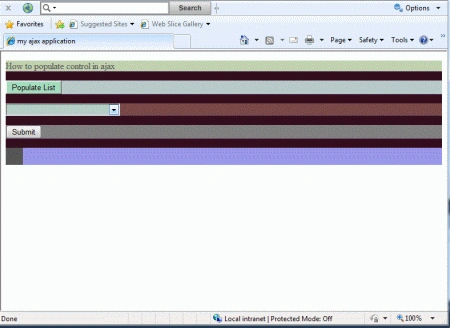
This page demonstrate how to dynamically populate a control using AJAX.
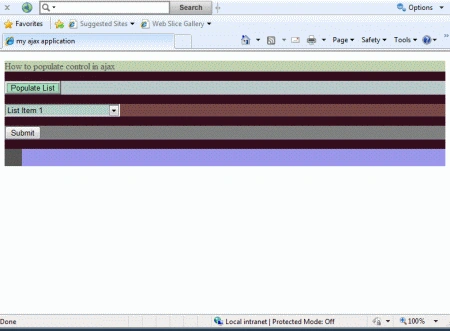
Step 11 : Click on the populate list button to populate the dropdown list.
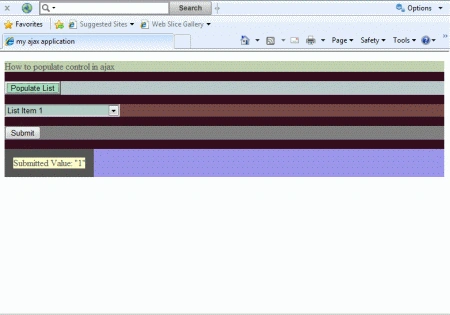
Step 12 : Now click on the Submit button to submit the selected value back to the server.
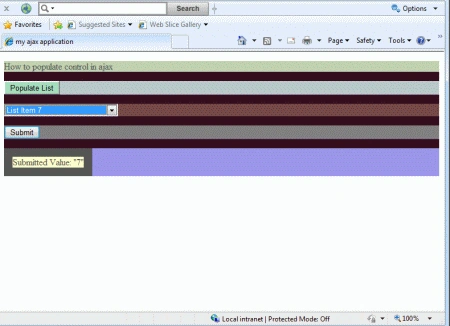
Step 13 : Now you will change the dropdown list item and click on the submit button to again submit the selected value back to the server.
Resource :
Digvijaysinh GhatgePosted May 30, 2012, 7:22 AM
I am trying to populate the gridview using dynamicpopup extender. I also want to add event while rendering the control. How can I do that?
Sonakshi SinghPosted Jan 16, 2012, 6:24 AM
Nice explanation Davin...