

Here we will create a service model for the image uploaded in azure.
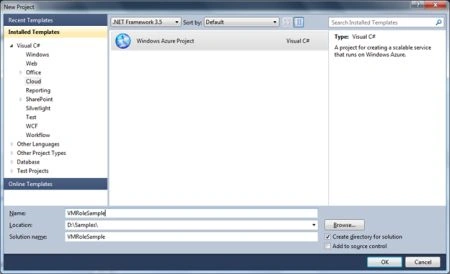
- Start Visual Studio 2010. Create new
project. From the Visual C# template, click Cloud. Give a name to the
project and click OK.
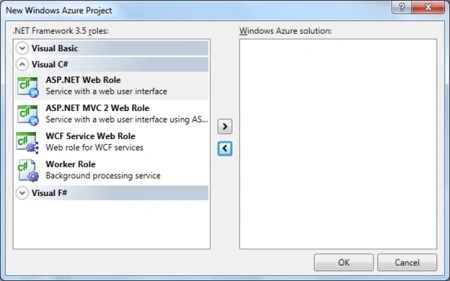
- Now Click OK, without selecting any role.
- Now add a new VM role. For this right
click the Roles select Add and then select New Virtual Machine Role.
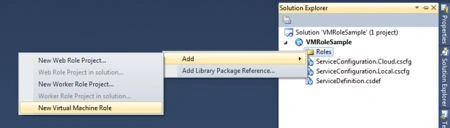
In case if didn't find the "New Virtual Machine Role", you have to run the scripts below to add new registry key or just change the following [dword] registry key:
HKEY_CURRENT_USER\SOFTWARE\Wow6432Node\Microsoft\Windows Azure Tools for Microsoft Visual Studio 2010\1.0\VirtualMachineRoleEnabled=1
- Now in properties of the VMRole, select
Virtual Hard Disk tab, and select an account for the VHD. If you are using
it for first time then you will not find any account there, and either you
have to import or manage it.
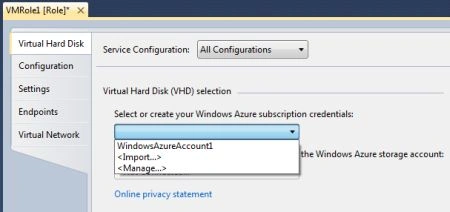
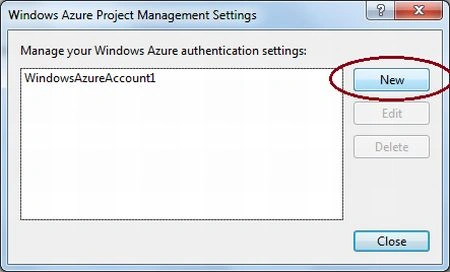
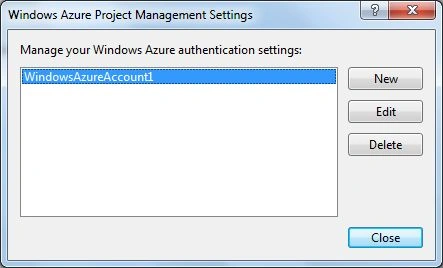
- Now click on manage, It opens a window and
then click New.
- Now select a certificate
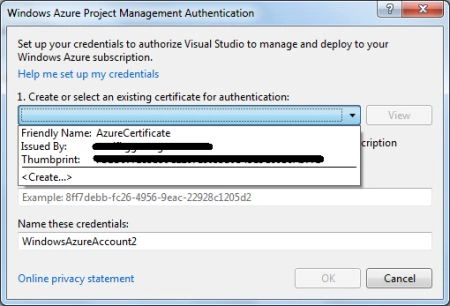
- You can either choose an existing certificate, or can create a new one. To create a new certificate click "Create". It asks for a friendly name. Give name and click ok.
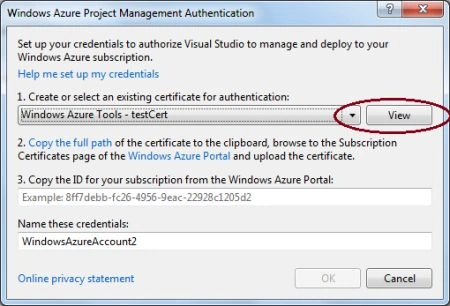
- You can view the certificate. Just select
the certificate and click View.
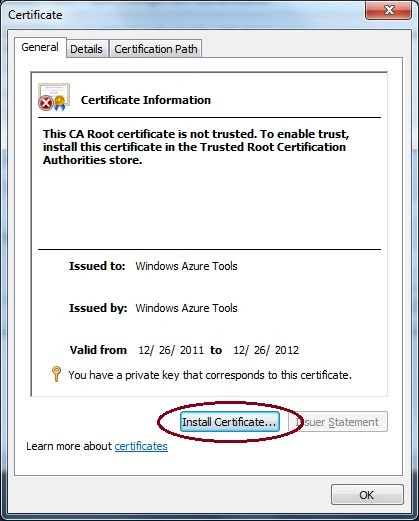
- You can install the certificate and create
a .pfx for it. Just click on the Install.
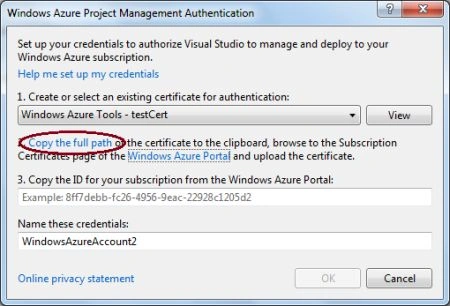
- Now you have to upload the newly created
certificate to the management portal. For this click "Copy the full path".
Now click on the "Window Azure Portal"
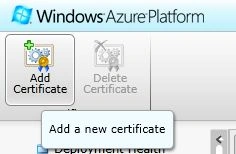
- On the portal, click on the Add
Certificate.
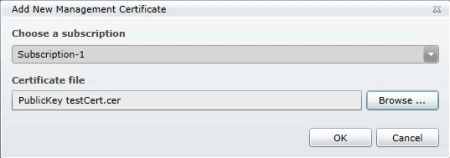
- Now select the certificate, by pasting the
path of the certificate. And click OK.
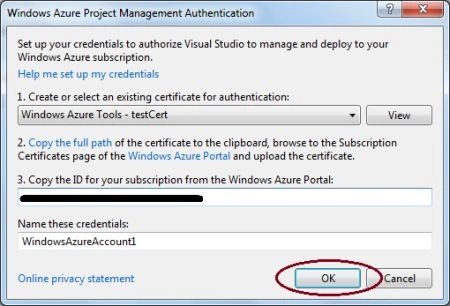
- Now enter the subscription Id on which
certificate is uploaded and click OK.
- Now select the account and click Close.
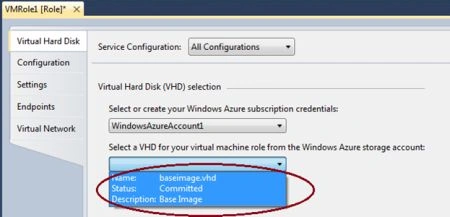
- Now it will try to get the vhd's of the
account. Then select the VHD uploaded.
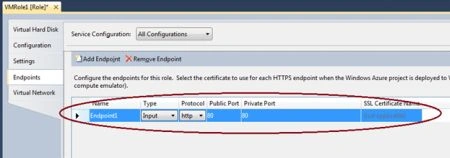
- Now configure endpoints to allow external
connection. For this click on the Endpoints tab, and then click Add
Endpoint. Now define Http as the protocol and port 80 for both public and
private ports.
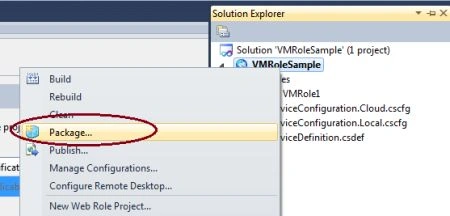
- Now configure the remote desktop
connection for the role. Right click the VM role solution and click Package..
- Now click the enable Remote desktop for
all roles.
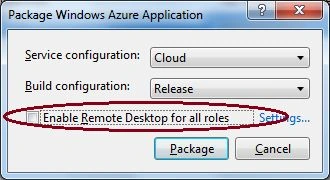
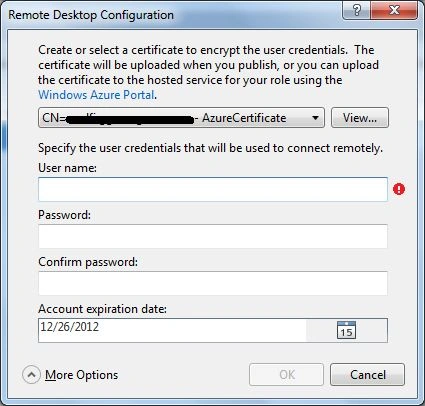
- Now here select an existing certificate or
you can create a new one. And enter username and password for remote desktop
connection. Also select the expiration date. And then click OK.
- Now click on the Package.
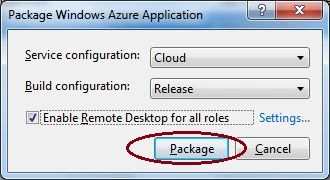
- It creates the .cspkg and .cscfg file for deployment. And open the location in windows explorer.
Reeta Singh LodhiPosted Dec 30, 2011, 12:32 AM
Thanks everyone.
Emmy DickensPosted Dec 30, 2011, 12:00 AM
thanku so very much, i will surely try this
Stephen JohnsonPosted Dec 28, 2011, 11:07 PM
Very nicely presented. I will surely implement this.
Abhi KumarPosted Dec 28, 2011, 11:07 PM
Very useful article..
Arjun PanwarPosted Dec 28, 2011, 12:26 PM
Thanks for nice presentation
Vineet Kumar SainiPosted Dec 28, 2011, 11:51 AM
I will try this work......
Sonakshi SinghPosted Dec 28, 2011, 12:54 AM
Its so well-explained, no doubts in any thing to understand.
Emmy DickensPosted Dec 28, 2011, 12:22 AM
I will also try this application.. thanks for sharing
Andrew FinlanderPosted Dec 28, 2011, 12:11 AM
Thanks for sharing nice work Reeta