

Introduction
Having a menu and sub menus with links is very normal in a Web application. Typically, we create static menu and menu items. But sometimes we need dynamic menus when we do not know what the menu names and links will be called.
In this article, we will see how to create dynamic menu and sub menus in an ASP.NET application.
Mainly
in CMS application we require to customary web layout, Menu and Submenu Items.
In this article, you learn how to dynamically add Menu and Sub Menu Links for our
Web Application.
Step 1: Create Database say (Database.mdf)
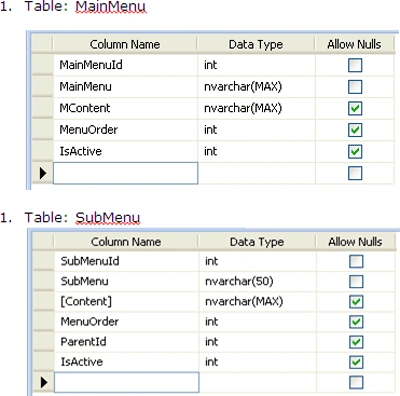
Add 2 tables to the database - MainMenu and SubMenu. The table design looks like the following:
Step 2: add ConnectionString in web.config. as given below.
- <connectionStrings>
- <add name="ConnectionString" connectionString="Data Source=.; AttachDbFilename= DynamicallyControlCreationOfMenuSubmenuItems \App_Data\Database.mdf;User ID=**;Password=*****;Pooling=False" providerName=".NET Framework Data Provider for SQL Server"/>
- </connectionStrings>

Step 4: Open Solution Explorer ->Add New item
Add CreateMenu.aspx

Step 5: Design the page and Place required Controls in it. As you can see from this design, a user can enter a Menu name, content, order and activate it. Same applies to the sub menu except the fact that user will have to select a main menu.


Step 6: Add Main Menu Items by double click on submit Button -> Now write the below code.
- protected void btnMainmenu_Click(object sender, EventArgs e)
- {
- int active;
- if (chkMActive.Checked)
- {
- active = 1;
- }
- else
- {
- active = 0;
- }
- SqlConnection conn = new SqlConnection(connection);
- string sql = "INSERT INTO MainMenu(MainMenu, MContent, MenuOrder, IsActive)VALUES('" + txtMainmenu.Text + "','" + txtMContent.Text + "'," + Convert.ToInt16(ddlMOrder.SelectedItem.Value) + "," + active + ")";
- SqlCommand cmd = new SqlCommand(sql, conn);
- conn.Open();
- cmd.CommandType = CommandType.Text;
- cmd.ExecuteNonQuery();
- conn.Close();
- FillddlMainMenu();
- Response.Redirect("SuccessMsg.aspx");
- }
- For this we first need to populate
dropdown of Main Menu. Below is the code.
- protected void Page_Load(object sender, EventArgs e)
- {
- if (!IsPostBack)
- {
- FillddlMainMenu();
- }
- }
- public void FillddlMainMenu()
- {
- SqlConnection conn = new SqlConnection(connection);
- DataSet DS = new DataSet();
- SqlDataAdapter dataadapter = new SqlDataAdapter();
- SqlCommand cmd = new SqlCommand("Select MainMenuId,MainMenu from MainMenu", conn);
- //cmd.CommandType = CommandType.Text;
- dataadapter.SelectCommand = cmd;
- dataadapter.Fill(DS);
- ddlMainMenu.DataSource = DS;
- ddlMainMenu.DataBind();
- }
- Double click on submit Button -> Now write
the below code.
- protected void btnSubmenu_Click(object sender, EventArgs e)
- {
- int active;
- if (chkSActive.Checked)
- {
- active = 1;
- }
- else
- {
- active = 0;
- }
- SqlConnection conn = new SqlConnection(connection);
- string sql = "INSERT INTO SubMenu(SubMenu, Content, MenuOrder,ParentId, IsActive)VALUES('" + txtSubmenu.Text + "','" + txtSContent.Text + "'," + Convert.ToInt16(ddlSOrder.SelectedItem.Value) + "," + Convert.ToInt16(ddlMainMenu.SelectedItem.Value) + "," + active + ")";
- SqlCommand cmd = new SqlCommand(sql, conn);
- conn.Open();
- cmd.CommandType = CommandType.Text;
- cmd.ExecuteNonQuery();
- conn.Close();
- Response.Redirect("SuccessMsg.aspx");
- }
Step 8: Now to Show Menu Items we need to add another page. Add 2 Data lists for Main Menu(Horizontally) Submenus Items(Vertically).

Step 9: Now Write Code for populating Main Menu Items in datalist to show as menuBar.
- protected void Page_Load(object sender, EventArgs e)
- {
- FillMenu();
- }
- public void FillMenu()
- {
- DataSet ds = new DataSet();
- SqlConnection conn = new SqlConnection(connection);
- SqlDataAdapter dataadapter = new SqlDataAdapter();
- SqlCommand cmd = new SqlCommand("Select * from MainMenu ORDER BY MenuOrder", conn);
- //cmd.CommandType = CommandType.Text;
- dataadapter.SelectCommand = cmd;
- dataadapter.Fill(ds);
- return ds;
- dlSubMenu.DataSource = ds1;
- dlSubMenu.DataBind();
- }
Now we need to populate submenus on selected mainmenu link. We will write code
on datalist ItemCommand event.
Step 10: datalist ->Properties ->Add ItemCommand Event.
- protected void dlMenu_ItemCommand(object source, DataListCommandEventArgs e)
- {
- LinkButton lnkLink = e.Item.FindControl("lnkLink") as LinkButton;
- Label lblPageId = e.Item.FindControl("lblpageId") as Label;
- Session["Sublink"] = lblPageId.Text;
- if (lnkLink.Text != null)
- {
- Session["Choice"] = "Main";
- DataSet ds1 = new DataSet();
- SqlConnection conn = new SqlConnection(connection);
- SqlDataAdapter dataadapter = new SqlDataAdapter();
- SqlCommand cmd = new SqlCommand("Select * from SubMenu where IsActive=1 and ParentId='" + Convert.ToInt16(lblPageId.Text) + "' ORDER BY MenuOrder", conn);
- dataadapter.SelectCommand = cmd;
- dataadapter.Fill(ds1);
- dlSubMenu.DataSource = ds1;
- dlSubMenu.DataBind();
- }
- }
Step 11: Run application (Press F5).
Summary
The Final Layouts Will be as given Below.


Summary
In this article, we discussed how to create a Web site with dynamic menus. The menus and related links were stored in a database and the menus were created at run-time by reading values from the database.
Dinesh GabhanePosted Nov 13, 2019, 12:12 AM
Nice Article...
Habibul RehmanPosted Aug 29, 2019, 12:42 PM
Nice Article...
Sibeesh VenuPosted Dec 30, 2015, 4:02 AM
Nice Share
Dhanik SahniPosted Nov 19, 2015, 1:10 AM
Easy to follow
Sujeet SumanPosted Oct 17, 2015, 3:47 AM
Nice Article...............
Ashutosh TripathiPosted Oct 16, 2015, 4:35 AM
very nice article
Ekrem TapanPosted Oct 16, 2015, 3:06 AM
nice article
Rajeesh MenothPosted Aug 16, 2015, 1:32 AM
Good One
Anand VigneshPosted Aug 14, 2015, 2:16 AM
useful article
vinayaga jothiPosted Aug 12, 2015, 2:30 AM
nice
BANNARI IT DepartmentPosted Jun 16, 2015, 7:47 AM
Hi Parul..Can u Please update the Menu Based on Roles...
Upendra Pratap ShahiPosted May 26, 2015, 2:01 AM
nice..
Najim MullaPosted Dec 10, 2014, 5:51 AM
but how can constant menu when loging user untill loggout time.............
Satish SharmaPosted Sep 3, 2014, 2:11 PM
Realy Nice Article
Ashok SharmaPosted Aug 7, 2014, 5:31 AM
Nice article
Pankil AgrawalPosted Aug 5, 2014, 7:39 AM
thx
Amit KumarPosted May 10, 2014, 7:16 AM
nice article.
Amit KumarPosted May 10, 2014, 7:16 AM
thanks Parul ........................
ram zyPosted Apr 26, 2014, 8:21 AM
nice article :)
Kailas PawasePosted Apr 3, 2014, 3:31 AM
very good article for fresher, really helpfull.............
Majid AliPosted Mar 19, 2014, 2:44 PM
good one
sandeep chowdaryPosted Oct 6, 2012, 6:58 AM
i must appreciate...
sanju vishPosted Aug 31, 2012, 7:36 AM
Very nice and explain in very easy format, if u ve menu-->sub menu--> sub-submenu or mean to say multilevel menu code, plz share with us, really appreciated....
vamsidhar JeditedPosted Aug 28, 2012, 1:12 PMEdited Aug 28, 2012, 1:12 PM
really good one...and more important...keep this type of elaborated code, for step by step understanding..for different modules.really appreciated....
Paresh SojitraPosted Jul 8, 2012, 10:15 AM
nice Article, i'm finding this from many days, i was tried to do this but i was not completed this!
NaveenPosted Jul 3, 2012, 3:17 AM
Nice code...Thanks
Jitendra KumarPosted Jun 27, 2012, 5:29 AM
nice
Biswarup SahaPosted Jun 27, 2012, 3:05 AM
Great resource...thanks for sharing... Keep posting.. Happie Koding [:)]
salman ansariPosted Jun 8, 2012, 3:56 AM
Nice Code
satish chhalotrePosted Mar 29, 2012, 10:09 AM
Acutually mam mujhe menu ke mouseover par submenu show karne hai...... How solve this problem... please help me.........
george wambuiPosted Mar 28, 2012, 2:43 AM
thank you alot for your help, but when i use the code it give me an error of 'ds' and 'dll' doesnot contain in the context. please advice me accordly and am using odbc connection. regard george
satish chhalotrePosted Feb 3, 2012, 7:34 AM
Very Good Article Mam............
Gohil JayendrasinhPosted Dec 20, 2011, 12:03 AM
Good For Beginners...
Dinesh BeniwalPosted Dec 3, 2011, 10:26 PM
Good start Parul.
Satyapriya NayakPosted Dec 3, 2011, 12:29 PM
Nice!!!