

Introduction
Today, in this article let's play around with one of the interesting and most useful concepts in LINQ to XML.
Question: What is select data from XML with where clause using LINQ to XML?
In simple terms "It provides flexibility to pull out the data from XML using a LINQ query by filtering the data based on element."
Step 1: Create a new "ASP.Net Web Forms Application"
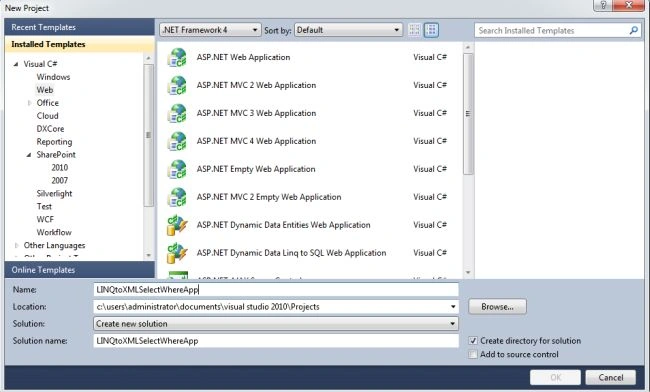
Step 2: The complete code of Employee.xml looks like this
- <?xml version="1.0" encoding="utf-8" ?>
- <Employees>
- <Employee>
- <FirstName>Vijay</FirstName>
- <Age>26</Age>
- </Employee>
- <Employee>
- <FirstName>Ram Reddy</FirstName>
- <Age>29</Age>
- </Employee>
- </Employees>
- <%@ Page Language="C#" AutoEventWireup="true" CodeBehind="WebForm1.aspx.cs" Inherits="LINQtoXMLSelectApp.WebForm1" %>
- <!DOCTYPE html PUBLIC "-//W3C//DTD XHTML 1.0 Transitional//EN" "http://www.w3.org/TR/xhtml1/DTD/xhtml1-transitional.dtd">
- <html xmlns="http://www.w3.org/1999/xhtml">
- <head id="Head1" runat="server">
- <title></title>
- </head>
- <body>
- <form id="form1" runat="server">
- <center>
- <div>
- <table>
- <tr>
- <td colspan="2">
- <asp:Label ID="Label1" runat="server" Text="Select Data with Where Clause using LINQ to XML"
- Font-Bold="true" Font-Size="Large" Font-Names="Verdana" ForeColor="Maroon"></asp:Label>
- </td>
- </tr>
- <tr>
- <td colspan="2" align="center">
- <asp:Button ID="Button1" runat="server" Text="Select Data" Font-Names="Verdana" Width="213px"
- BackColor="Orange" Font-Bold="True" OnClick="Button1_Click" />
- </td>
- </tr>
- <tr>
- <td colspan="2" align="center">
- <br />
- <asp:GridView ID="GridView1" runat="server" BackColor="LightGoldenrodYellow" BorderColor="Tan"
- BorderWidth="1px" CellPadding="2" EnableModelValidation="True" ForeColor="Black"
- GridLines="None" AutoGenerateColumns="False">
- <AlternatingRowStyle BackColor="PaleGoldenrod"></AlternatingRowStyle>
- <FooterStyle BackColor="Tan"></FooterStyle>
- <HeaderStyle BackColor="Tan" Font-Bold="True"></HeaderStyle>
- <PagerStyle HorizontalAlign="Center" BackColor="PaleGoldenrod" ForeColor="DarkSlateBlue">
- </PagerStyle>
- <SelectedRowStyle BackColor="DarkSlateBlue" ForeColor="GhostWhite"></SelectedRowStyle>
- <Columns>
- <asp:BoundField DataField="FirstName" HeaderText="First Name" ReadOnly="true" />
- <asp:BoundField DataField="Age" HeaderText="Age" ReadOnly="true" />
- </Columns>
- </asp:GridView>
- </td>
- </tr>
- </table>
- </div>
- </center>
- </form>
- </body>
- </html>
- using System;
- using System.Collections.Generic;
- using System.Linq;
- using System.Web;
- using System.Web.UI;
- using System.Web.UI.WebControls;
- using System.Xml.Linq;
- namespace LINQtoXMLSelectApp
- {
- public partial class WebForm1 : System.Web.UI.Page
- {
- protected void Page_Load(object sender, EventArgs e)
- {
- }
- protected void Button1_Click(object sender, EventArgs e)
- {
- XDocument document = XDocument.Load(@"c:\users\administrator\documents\visual studio 2010\Projects\LINQtoXMLSelectApp\LINQtoXMLSelectApp\Employee.xml");
- var query = from r in document.Descendants("Employee") where (int)r.Element("Age") > 27 select new
- {
- FirstName = r.Element("FirstName").Value, Age = r.Element("Age").Value };
- GridView1.DataSource = query;
- GridView1.DataBind();
- }
- }
- }

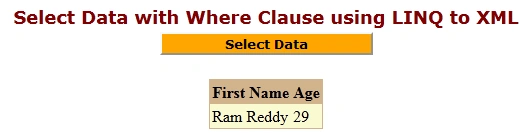
Step 6: The filtered data selected from XML looks like this
I hope this article is useful for you.
Craig WilsonPosted Oct 3, 2014, 1:01 PM
The orginal example does not work. It is missing a .Value qualification of the Element("Age"). So it should be var query = from r in document.Descendants("Employee") where (int)r.Element("Age").Value > 27 select new
Mitul BirlaPosted Sep 23, 2014, 2:49 AM
hey your code really helped but what if I want to search string values how does your query change