

Introduction
In this article I describe how to create Windows Store Apps for page transition using JavaScript. Use page animation to bring the first page of an application onto the screen or when transitioning to a new page. The contents of the new page animates in two sections. When we navigate to a second page then the first data is shown from the first section and than data is shown from the second section of the same page.
Put the app in a Snap view to see the Snap version of this animation. The snap view is always a fixed 320px in width, which allows developers to refine and create a targeted view for this size. A width of 320px is a common and familiar size that developers are already designing for on various phone platforms. I assume you can create a simple Windows Store App using JavaScript; for more help visit Simple Windows Store Apps using JavaScript.
To start the creation of the apps, add three JavaScript pages by right-clicking on the js folder in the Solution Explorer and select Add > new item > JavaScript Page and then give an appropriate name. In the same way, add two HTML pages to your project.
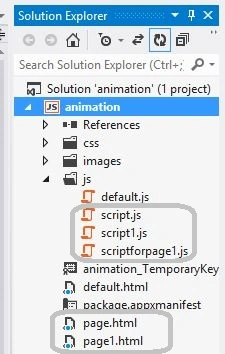
Write the following code in the default.html:
<!DOCTYPE html>
<html>
<head>
<meta charset="utf-8" />
<title>App</title>
<link rel="stylesheet" href="//Microsoft.WinJS.1.0/css/ui-light.css" />
<script src="//Microsoft.WinJS.1.0/js/base.js"></script>
<script src="//Microsoft.WinJS.1.0/js/ui.js"></script>
<link rel="stylesheet" href="/sample-utils/sample-utils.css" />
<link rel="stylesheet" href="/css/default.css" />
<script src="/js/script.js"></script>
<script src="/js/default.js"></script>
</head>
<body role="application" style="background-color: darksalmon">
<center><div id="rootGrid">
<div id="content">
<h1 id="featureLabel"></h1>
<div id="contentHost"></div>
</div>
</div></center>
</body>
</html>
Write the following code in the default.js:
(function () {
"use strict";
var sampleTitle = "";
var scenarios = [
{ url: "page.html" }
];
function activated(eventObject) {
if (eventObject.detail.kind === Windows.ApplicationModel.Activation.ActivationKind.launch) {
eventObject.setPromise(WinJS.UI.processAll().then(function () {
var url = WinJS.Application.sessionState.lastUrl || pages[0].url;
return WinJS.Navigation.navigate(url);
}));
}
}
WinJS.Navigation.addEventListener("navigated", function (eventObject) {
var url = eventObject.detail.location;
var host = document.getElementById("contentHost");
host.winControl && host.winControl.unload && host.winControl.unload();
WinJS.Utilities.empty(host);
eventObject.detail.setPromise(WinJS.UI.Pages.render(url, host, eventObject.detail.state).then(function () {
WinJS.Application.sessionState.lastUrl = url;
}));
});
WinJS.Namespace.define("App", {
sampleTitle: sampleTitle,
pages: pages
});
WinJS.Application.addEventListener("activated", activated, false);
WinJS.Application.start();
})();
Write the following code in the page.html:
<!DOCTYPE html>
<html>
<head>
<title></title>
<script src="/js/script.js"></script>
</head>
<body>
<div id="input" data-win-control="Apps.pageInput">
<button id="runAnimation">Animate the page</button><br /><br />
</div>
<div id="output" data-win-control="Apps.pageOutput">
<p id="outputText" />
</div>
</body>
</html>
(function () {
"use strict";
var page = WinJS.UI.Pages.define("page.html", {
ready: function (element, options) {
runAnimation.addEventListener("click", transitionBetweenPages, false);
if (WinJS.Navigation.state === "sample page") {
outputText.innerText = "Transitioned back from page.";
WinJS.UI.Animation.enterPage();
}
}
});
function transitionBetweenPages() {
WinJS.UI.Animation.exitPage().done(
function () {
WinJS.Navigation.navigate("page1.html");
});
}
})();
Write the following code in the page1.html:
<!DOCTYPE html>
<html>
<head>
<title></title>
<link rel="stylesheet" href="/css/samplePage.css" />
<script src="/js/scriptforpage1.js"></script>
</head>
<body>
<div id="samplePage">
<div id="samplePageHeader">
</div>
<div id="samplePageBody">
<div id="samplePageSection1">
<p>Hi this is Deepak Middha</p>
</div>
<div id="samplePageSection2">
<p>How Are you!</p>
<button id="returnButton">return</button>
</div>
</div>
</div>
</body>
</html>
(function () {
"use strict";
WinJS.UI.Pages.define("Page1.html", {
ready: function (element, options) {
returnButton.addEventListener("click", transitionBetweenPages, false);
rootGrid.style.overflow = "auto";
content.style.overflow = "visible";
WinJS.UI.Animation.enterPage([samplePageHeader, samplePageSection1, samplePageSection2], null);
},
unload: function () {
rootGrid.style.overflow = "visible";
content.style.overflow = "auto";
}
});
function transitionBetweenPages() {
WinJS.UI.Animation.exitPage([samplePageHeader, samplePageSection1, samplePageSection2], null).done(
function () {
WinJS.Navigation.navigate("Page.html", "sample page");
});
}
})();
Write the following code in the script1.js:
(function () {
var ScenarioOutput = WinJS.Class.define(
function (element, options) {
element.winControl = this;
this.element = element;
new WinJS.Utilities.QueryCollection(element)
.setAttribute("role", "region")
.setAttribute("aria-labelledby", "outputLabel")
.setAttribute("aria-live", "assertive");
element.id = "output";
this._addOutputLabel(element);
this._addStatusOutput(element);
}, {
_addOutputLabel: function (element) {
var label = document.createElement("h2");
label.id = "outputLabel";
label.textContent = "Output";
element.parentNode.insertBefore(label, element);
},
_addStatusOutput: function (element) {
var statusDiv = document.createElement("div");
statusDiv.id = "statusMessage";
element.insertBefore(statusDiv, element.childNodes[0]);
}
}
);
var currentpageUrl = null;
WinJS.Navigation.addEventListener("navigating", function (evt) {
currentpageUrl = evt.detail.location;
});
WinJS.log = function (message, tag, type) {
var statusDiv = document.getElementById("statusMessage");
};
function activated(e) {
WinJS.Utilities.query("#featureLabel")[0].textContent = SdkSample.sampleTitle;
}
WinJS.Application.addEventListener("activated", activated, false);
WinJS.Namespace.define("Apps", {
pageOutput: pageOutput
});
})();
Output


Summary
In this article I described how to create a Windows Store App for transition between pages and animating the data using JavaScript. I hope this article has helped you in understanding this topic. Please share it. If you know more about this, your feedback and constructive contributions are welcome.
Deepak MiddhaPosted Oct 1, 2012, 6:12 AM
Thanks Gaurav.
Gaurav GuptaPosted Oct 1, 2012, 3:23 AM
Great deepak! Your Articles are vary help full and provide the Deep knowledge of the subject.