
Introduction
I am creating a web application to search for records using DropDownList. You will select a name from the DropDownList and it will show all the records on the basis of that selected name. At first, we should have some records. So we create a database and insert some records into the database table.
Create Database
CREATE DATABASE EMP
USE EMP
CREATE TABLE EMP_DETAIL
(
        E_ID INT PRIMARY KEY,
        E_NAME VARCHAR(30),
        E_AGE INT,
        E_CITY VARCHAR(30),
        E_DEPARTMENT VARCHAR(20)
)
INSERT INTO EMP_DETAIL VALUES(11, 'ALOK KUMAR', 24, 'DELHI', 'IT')
INSERT INTO EMP_DETAIL VALUES(12, 'RAJESH TRIPATHI', 22, 'ALLAHABAD', 'SALES')
INSERT INTO EMP_DETAIL VALUES(13, 'SATISH KUMAR', 23, 'JHANSI', 'PRODUCT')
INSERT INTO EMP_DETAIL VALUES(14, 'MANOJ SINGH', 22, 'NOIDA', 'MARKETING')
INSERT INTO EMP_DETAIL VALUES(15, 'AMIT MAHESHWARI', 25, 'ALLIGARH', 'IT')
INSERT INTO EMP_DETAIL VALUES(16, 'DEEPAK DWIJ', 24, 'NOIDA', 'IT')
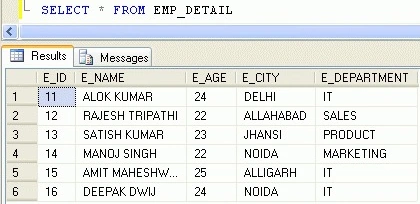
I am showing a screenshot of all records of an EMP_DETAIL table so that it can become easy to understand.
SELECT * FROM EMP_DETAIL
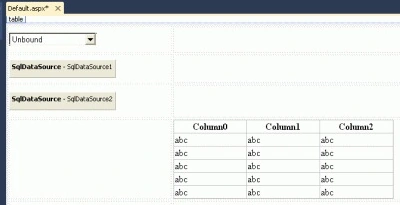
Now, create an ASP.NET web application -> create a DropDownList control, one GridView control, and two SqlDataSources. Your form will look like the following figure.
Now we specify a DataSouce for both SqlDataSources. Follow the given steps.
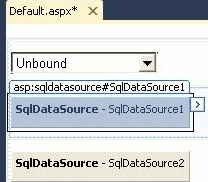
Step 1. Click on the smart tag of SqlDataSource1.
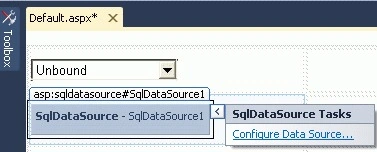
Step 2. Click on Configure Data Source.
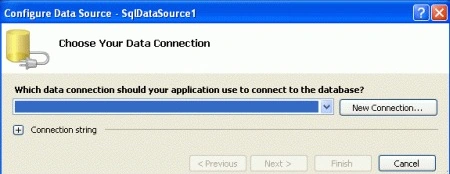
Step 3. A new window will be opened to choose a data connection.
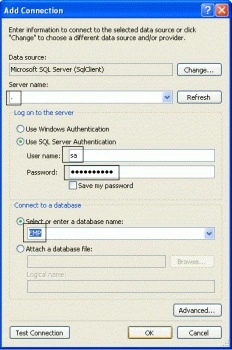
Step 4. Click the New Connection button. A new window will be opened. Write the server name, user name, password, and select your database. Look at the following figure.
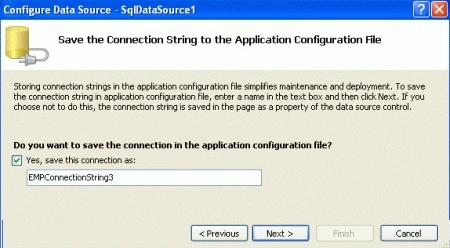
Step 5. Click the ok button. You will be presented with the Configure DataSource wizard. Click the "Next" button. A new window will be opened and it will ask to save the connection string.
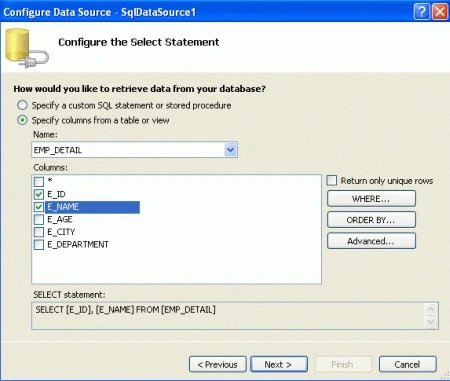
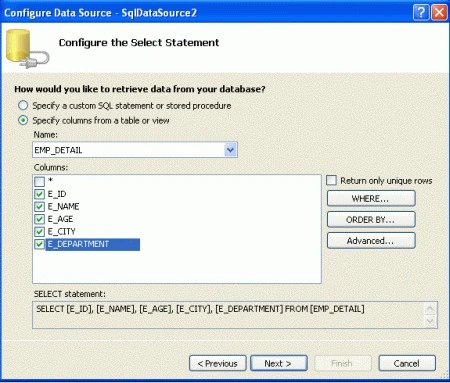
Step 6. Select the Database table and then choose column names by checking the checkboxes.
Step 7. Then click the Next button, then the Finish button.
Step 8. Now it's time for SqlDataSource2. Repeat step 1 to 6. At the 6th step choose all columns by checking all checkboxes.
Step 9. Click the Where button. Select Column ( At which basis you want to show record. I have selected "E_ID" ) -> Select operator ( I have selected "=" ) -> Select source ( I have selected "Control" ) -> Select DropDownList1 ( Or ID of DropDownList ) for Control ID.
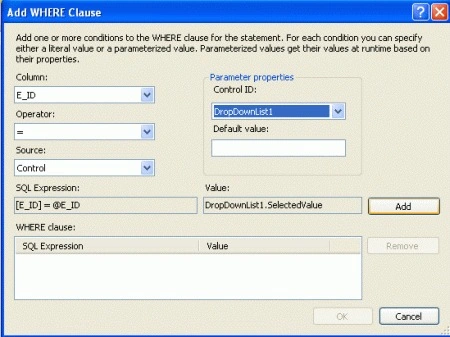
Step 10. Click the Add button. Then click the ok button. After this, you will reach the Configure Data Source wizard; click the Add button, then click the Finish button.
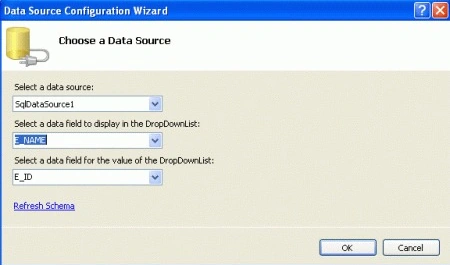
Step 11. Select DropDownList and click at smart tab -> Click at "Choose Data Source". A new window will be opened. Choose Data Source, Select column to display and another column which will be the value of the DropDownList then click the ok button.
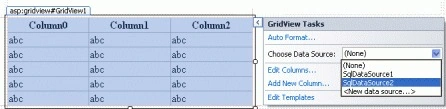
Step 12. Select GridView and click at smart tag -> Choose Data Source - SqlDataSource2.
Step 13. Select DropDownList and set its AutoPostBack property to "True".
Run the application.
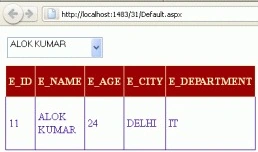
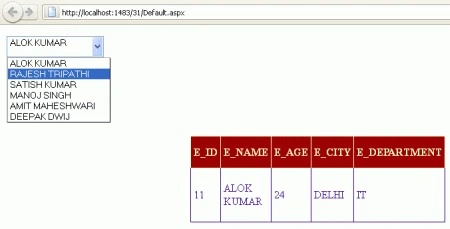
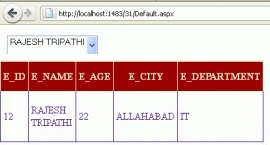
Select another name from DropDownList. Like I am selecting an employee name "Rajesh Tripathi".
It will show all records of that name.
Here are some related resources.
Aaron CronjePosted Feb 1, 2012, 3:18 AM
Good Work...