

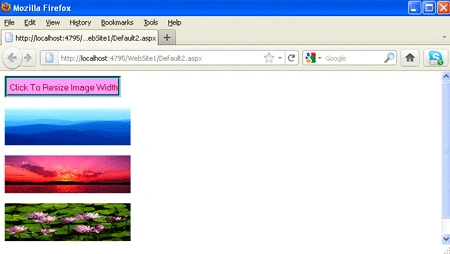
Introduction: In this article we are going to see that how we will Re-size or equal the width of images using jQuery in ASP.NET. So how it will created and run through jQuery will explore in this article. It will show the images having the different width will be re-size with same width on clicking to the button it will show you all the images having same size on page. For it we have to take three images and a button , As we know about the jQuery it's a library which will be used by us will to make it on click of button. Let's Further we will see how it will happen through jQuery, you would have to follow the steps given below.
Step 1: Firstly I would like to create a website application.
- Open Visual Studio 2010.
- Create a new Website.
- Give it a name and click OK

Step 2: Now we have to add
a new page to the website.
- Go to solution explorer.
- Add new item
- Select Web page and give it any name
- Click OK.
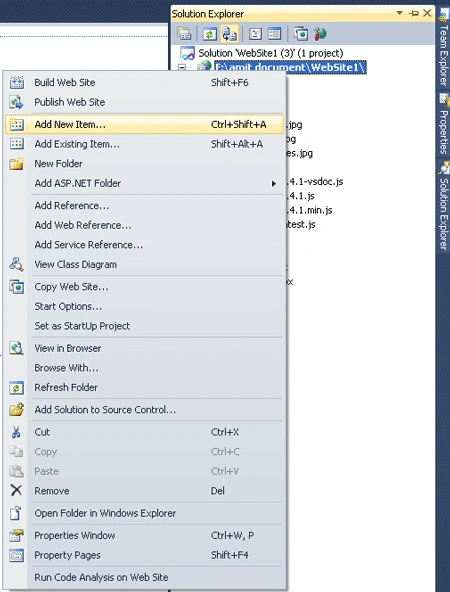

Step 3: Now you have
to add some images to the site let's see how will you added them
- First You will add a folder name as Images.
- Right click on folder name as Images
- Select add existing item.
- Add the images to that folder.
- Click OK.
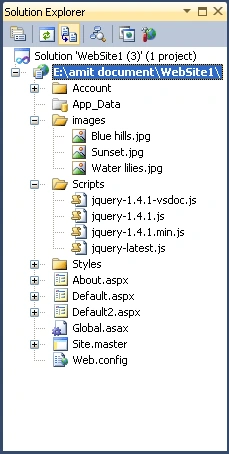
Step 4: In this step you
will have to add the reference of jQuery files which is always written in the head
section of the web page is given below.
Code:
<head
runat="server">
<title></title>
<style
type="text/css">
div
{ width: 40px;
float:left; }
input {
clear:left;
width:
185px;
height:
34px;
}
</style>
<script
type="text/javascript"
src="Scripts/jquery-1.4.1.min.js"></script>
<script
type="text/javascript"
src="Scripts/jquery-1.4.1.js"></script>
<script
type="text/javascript"
src="Scripts/jquery-1.4.1-vsdoc.js"></script>
</head>
Step 5: Further you have to write the jQuery code which can be placed into the Head section or body section to the source page of the default2.aspx page file.
jQuery Code:
<body>
<input
type="button"
value="Click To Resize
Image Width" style="border:
thick groove #008080; background-color:
#FF99FF; color:
#800000;" />
<script
type="text/javascript">
$.fn.Resizeimagewidth = function ()
{
var miw =
this.map(function (i, e) {
return $(e).width();
}).get();
return this.width(Math.max.apply(this,
miw));
};
$('input').click(function
() {
$('img').Resizeimagewidth();
});
</script>
<form
id="form1"
runat="server">
<div>
</div>
</form>
<p>
<img
src="images/Blue%20hills.jpg"
alt="Blue Hills"
style="height:
60px; width:
100px"/></p>
<p>
<img
src="images/Sunset.jpg"
alt="Sunset Image"
style="height:
60px; width:
150px" /></p>
<p>
<img
src="images/Water%20lilies.jpg"
style="height:
60px; width:
200px" alt="Water
Lilies" /></p>
<p>
</p>
</body>
Code Description: Here we are discussing about the code of jQuery in which we are making a method name as Resizeimagewidth() in which we will invoke this method on the click of button in which we are taking a variable name as miw and a map function is used to get or set the property values and it will apply the max value to the images which have the min width in the images means it will return the max value to apply the other images which have min width. Further we have to invoke the given method on the click event of button whose name as Resizeimagewidth(). In the click event we are passing variable input and $('img') will allow you to the control or image which width you want to increase we have to pass the name of control or image.
Step 6: In this step we will see the complete code for the Default2.aspx page. Further description we have already described in the above step:
Code:
<%@
Page Language="C#"
AutoEventWireup="true"
CodeFile="Default2.aspx.cs"
Inherits="Default2"
%>
<!DOCTYPE
html PUBLIC
"-//W3C//DTD XHTML 1.0 Transitional//EN"
"http://www.w3.org/TR/xhtml1/DTD/xhtml1-transitional.dtd">
<html
xmlns="http://www.w3.org/1999/xhtml">
<head
runat="server">
<title></title>
<style
type="text/css">
div
{ width: 40px;
float:left; }
input {
clear:left;
width:
185px;
height:
34px;
}
</style>
<script
type="text/javascript"
src="Scripts/jquery-1.4.1.min.js"></script>
<script
type="text/javascript"
src="Scripts/jquery-1.4.1.js"></script>
<script
type="text/javascript"
src="Scripts/jquery-1.4.1-vsdoc.js"></script>
</head>
<body>
<input
type="button"
value="Click To Resize
Image Width" style="border:
thick groove #008080; background-color:
#FF99FF; color:
#800000;" />
<script
type="text/javascript">
$.fn.Resizeimagewidth = function ()
{
var miw =
this.map(function (i, e) {
return $(e).width();
}).get();
return this.width(Math.max.apply(this,
miw));
};
$('input').click(function
() {
$('img').Resizeimagewidth();
});
</script>
<form
id="form1"
runat="server">
<div>
</div>
</form>
<p>
<img
src="images/Blue%20hills.jpg"
alt="Blue Hills"
style="height:
60px; width:
100px"/></p>
<p>
<img
src="images/Sunset.jpg"
alt="Sunset Image"
style="height:
60px; width:
150px" /></p>
<p>
<img
src="images/Water%20lilies.jpg"
style="height:
60px; width:
200px" alt="Water
Lilies" /></p>
<p>
</p>
</body>
</html>
Step 7: In this step we have to see the Design of the Default2.aspx page.
Before Run:
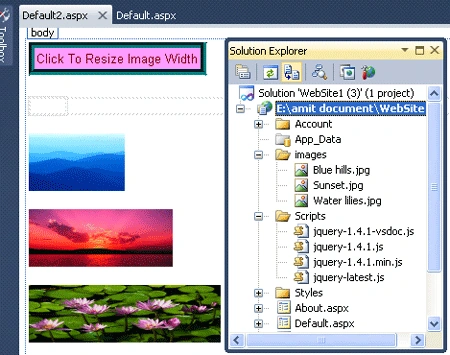
Step 8: Further we are going to run the application by pressing F5.
Output:
lokesh chPosted Nov 27, 2018, 10:58 AM
By using asp.net and jquery
lokesh chPosted Nov 27, 2018, 10:56 AM
Its urgent bro
lokesh chPosted Nov 27, 2018, 10:56 AM
Hi bro please send code for resize the image to fixed size(ex-302x302)and apply black and white color to it
lokesh chPosted Nov 27, 2018, 10:54 AM
Hi bro please send me to resize the image to fixed size and apply the color to image
Rahul PrajapatPosted Jun 13, 2015, 2:52 AM
very helpful article...
Rahul Kumar SaxenaPosted Feb 26, 2015, 11:24 AM
gud...
Vijay PrativadiPosted Nov 14, 2011, 3:58 PM
Good Work Amit....Keep Posting those great stuff