

Introduction
In this article, we are going to explain how to install Windows 8 to VHD (virtual hard disk) for easy dual-booting setup. It divides our hard drive into multiple partitions, typically required for dual-booting multiple operating systems. Windows 8 provides a very easy way to try your native hardware while retaining a Windows 7 safety-net that you can return to with just a reboot.
How to install Windows 8 to VHD?
Step 1
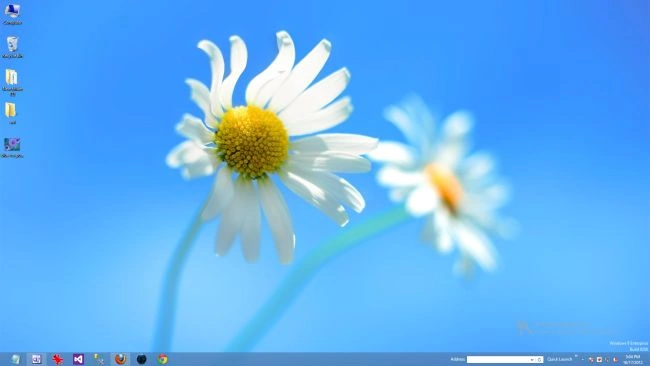
First, we have to move on Desktop of Windows 8.
Step 2
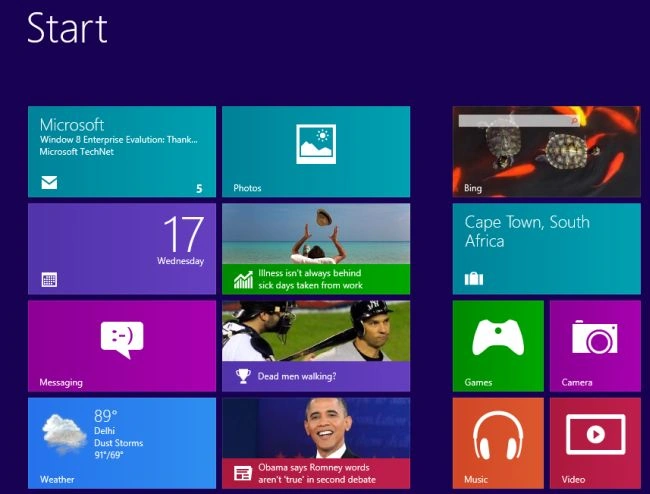
Then we have to move on to the Start screen window of Windows 8.
Step 3
Select the shortcut key Win+c.

Step 4
Search Run in the search engine.

Step 5
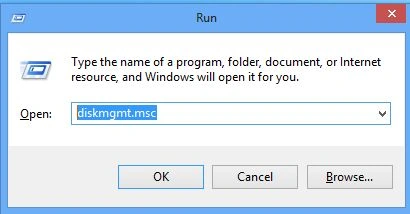
Open "diskmgmt.msc" in the Run window.
Step 6
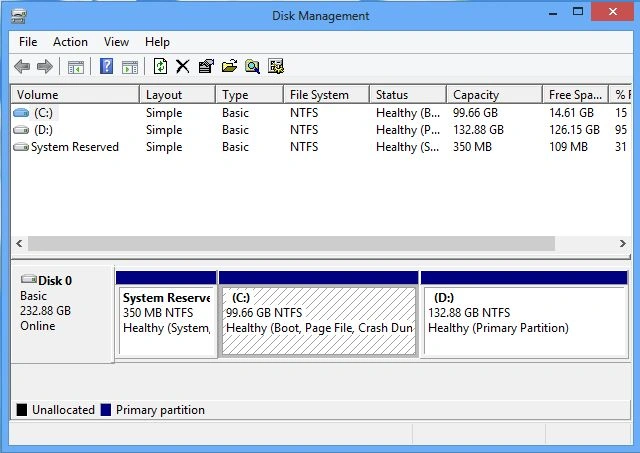
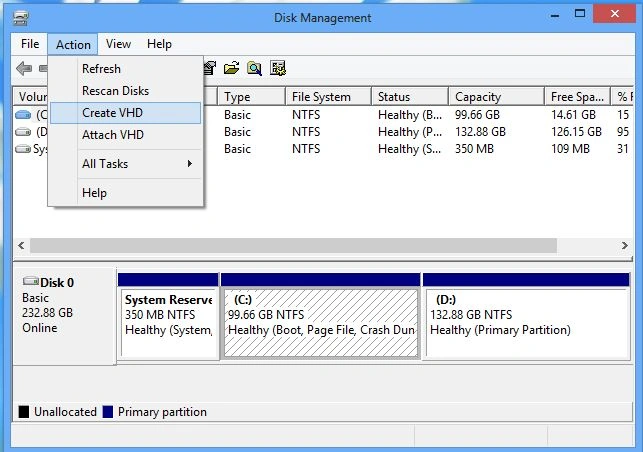
The Disk Management window in Windows 8 looks like.
Step 7
Then click on Action and select Create VHD.
Step 8
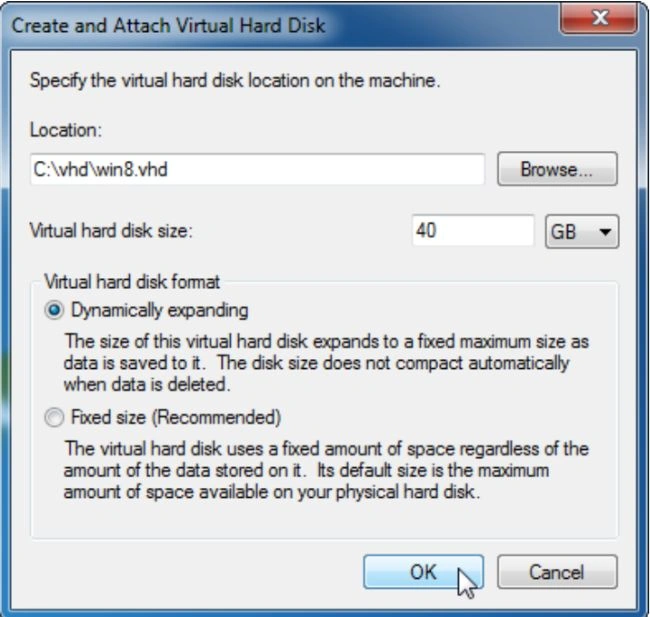
Enter a location and name for your vhd. I typically use c:\vhd\win8.vhd.
Microsoft recommends a minimum of 20 GB for Windows 8 64-bit. I suggest setting the VHD disk size to at least 40 GB so you have room for apps.
Step 9
When you have your settings selected, click OK. At that point hit Shift and F10 to bring up a command prompt.
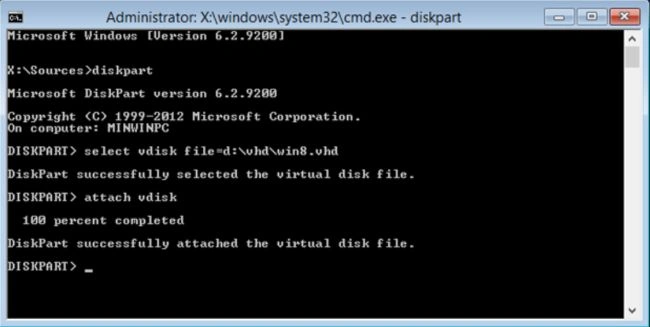
Once the command prompt is open, run the following:
diskpart
select vdisk file=d:\vhd\win8.vhd
attach vdisk
Summary
In this article, we learned about Install Windows 8 To VHD For Easy Dual Booting.
Join the conversation! Your thoughts help the community grow.