

Introduction
This article explains how to launch apps from the Windows 8 taskbar. Windows 8 continues to have the classic Taskbar address toolbar and Windows 8 can be used as a command-line to launch any app or even the control panel. If you need to quickly launch the Calculator in the Windows 8 desktop then we can type in calc and hit Enter. Also if we want a full command prompt then we can type in cmd and hit Enter.
The following are some of the easiest ways to Launch apps from the Windows 8 taskbar.
Step 1
First, we open the Windows 8 desktop.

Step 2
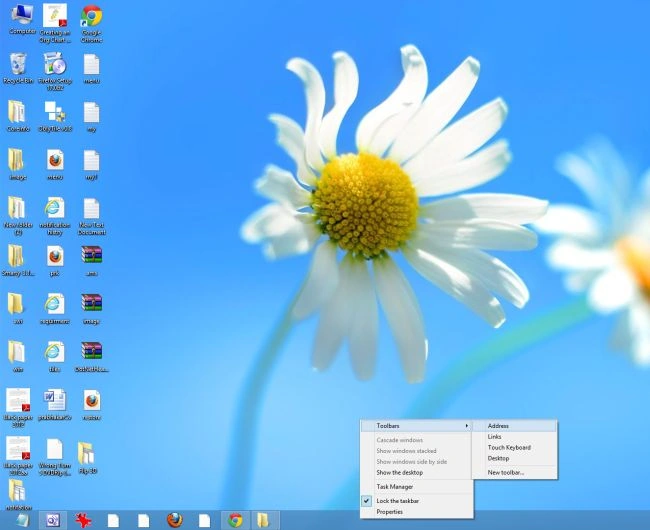
Right-click on the taskbar and select Toolbars and then Address.
Step 3
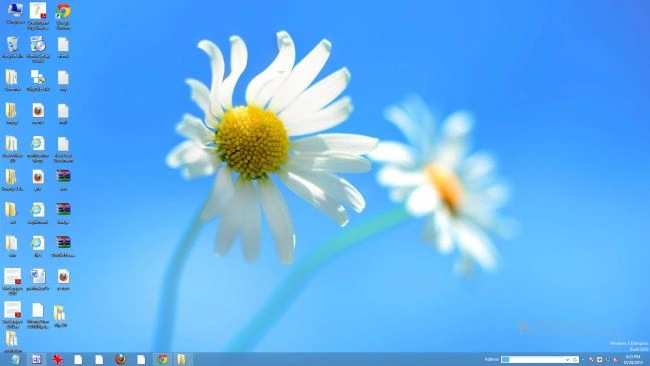
The Address toolbar is in the Windows 8 taskbar.
Step 4
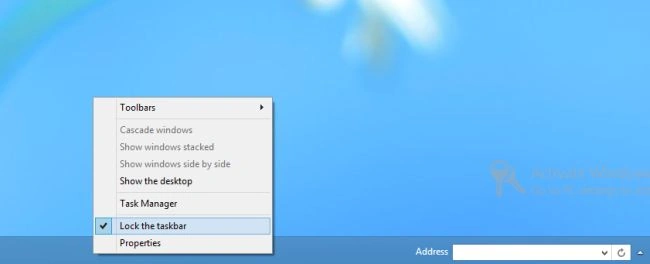
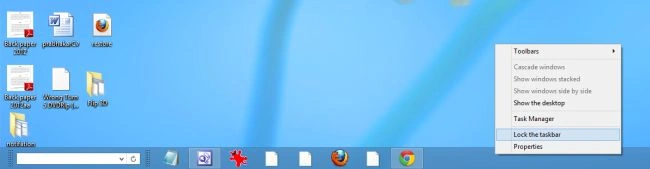
Then right-click on the taskbar and click "Lock the Taskbar".
Step 5
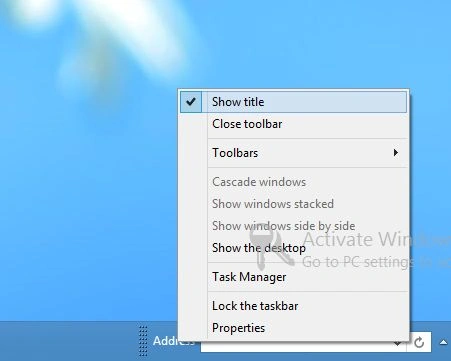
Right-click on the address title and click "Show title".
Step 6
While the taskbar is unlocked we can also move the address bar.

Step 7
I like to move it all the way to the left by dragging it over there and then resizing.

Step 8
Then right-click on the taskbar and click "Lock the Taskbar".
Step 9
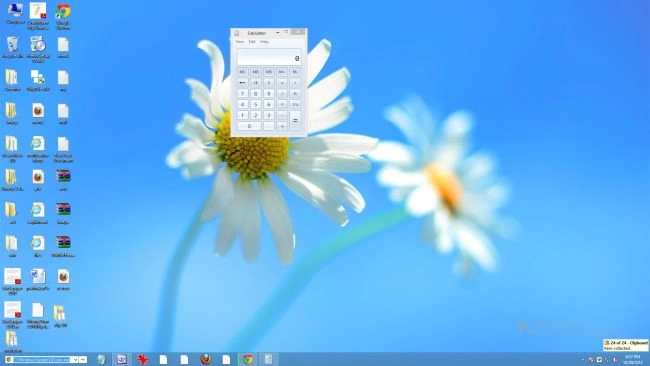
Type the calc in the address toolbar and press enter.
Then we will see the calculator in the Windows 8 desktop.
Step 10
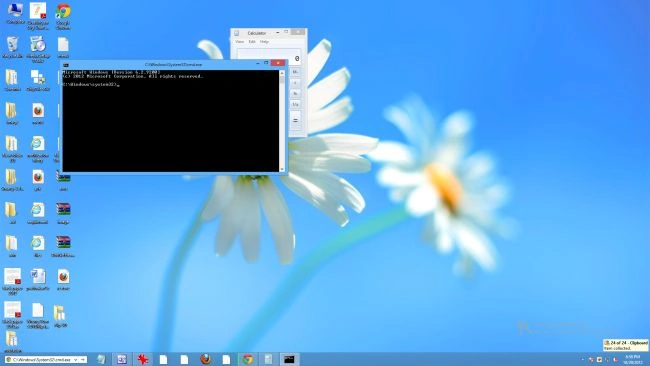
Type the cmd in the address toolbar and press enter.
Then we will see the command prompt in the Windows 8 desktop.
Step 11
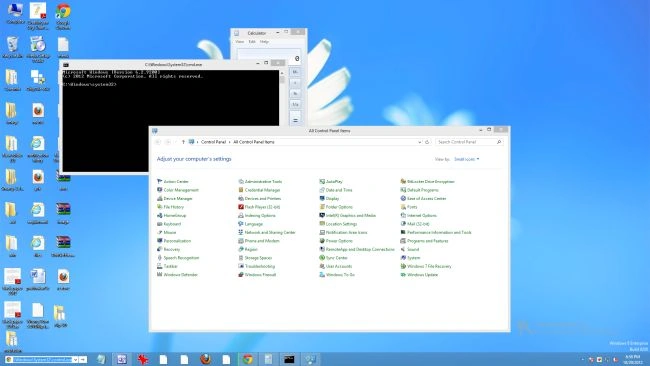
Type the control into the address toolbar and press enter.
Then we will see the control panel in the Windows 8 desktop.
Summary
In this article, we learned about Launch Apps From the Windows 8 Taskbar.
Join the conversation! Your thoughts help the community grow.