

Introduction
In this article, we are going to explain how to restore Desktop Solitaire, Minesweeper, and other classic games in Windows 8. Windows 8 no longer includes the Desktop versions of Solitaire, Minesweeper, and other classic games. Assuming we have a Windows 7 computer lying around, we can copy the old versions of these games to your Windows 8 system and make a few tweaks to get them working.
Step 1
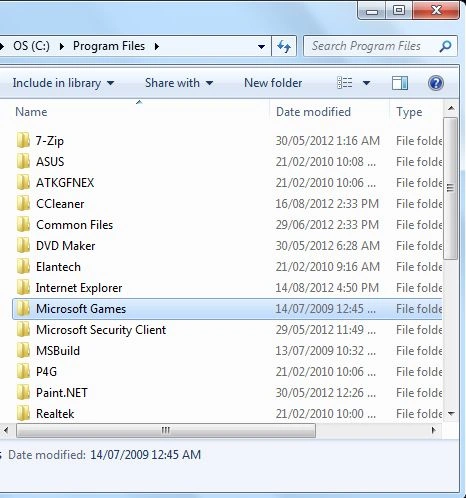
First, we navigate our Windows 7 computer to C:\Program Files\ and locate the Microsoft Games folder, then copy it to a USB drive (or other removable media).
Step 2
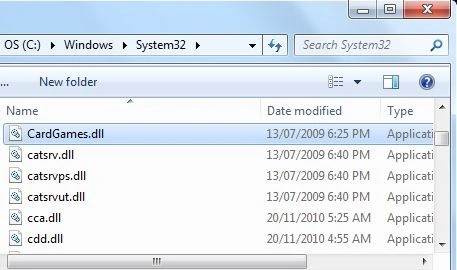
Then navigate to the C:\Windows\System32\ folder on your Windows 7 system and copy the CardGames.dll file to the USB drive, as well.
Step 3
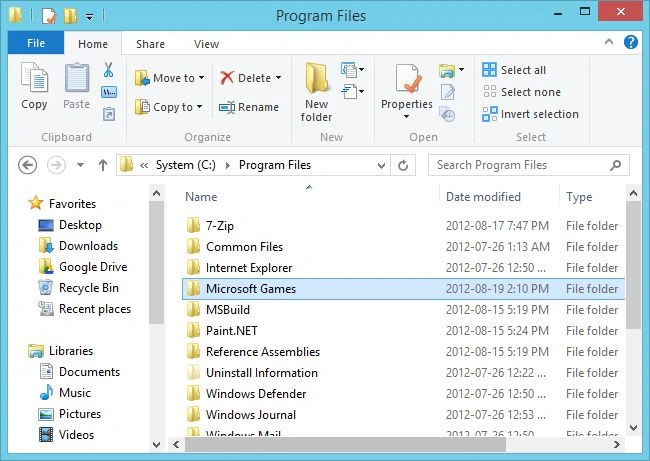
Connect the USB drive to our Windows 8 system and copy the Microsoft Games folder to its old location at C:\Program Files\ on Windows 8.
Step 4
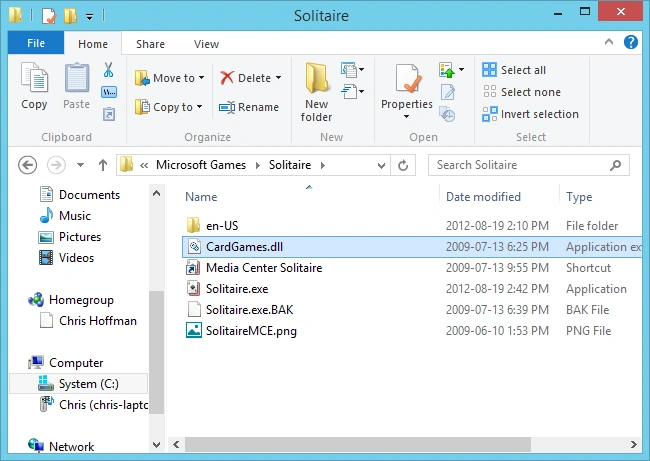
Then copy all folders if we want to play those games.
Step 5
Unfortunately, each of these games performs a Windows version check when it runs. We'll need to patch out the version check so they run properly.
If we use a hex editor to open each game's .exe file and search for the following bytes:
7D 04 83 65 FC 00 33 C0 83 7D FC 01 0F 94 C0
An easier way of patching is using Microsoft Games Patcher, which does this tedious work for you. Just download the patcher, double-click it, and click the Patch button.
Step 6
After patching or hex editing each game's .exe files, the Desktop versions of these classic games will run normally in Windows 8.
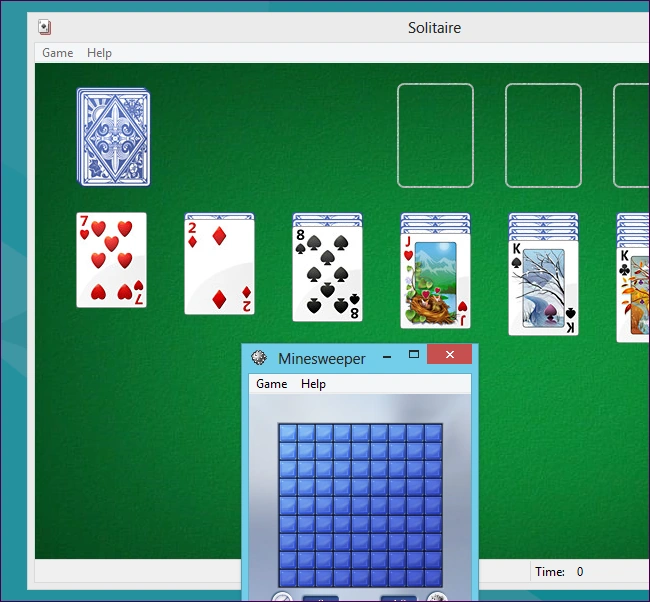
Step 7
We can right-click each game's .exe file to add it to our Start screen, pin it to our Taskbar, or create a shortcut.
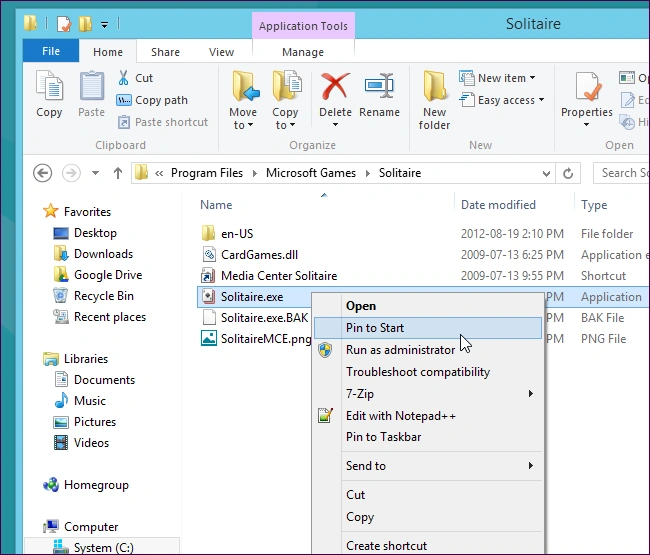
Step 8
We can now play these classic games from the full-screen environment formerly known as Metro or the classic Windows Desktop.
Summary
In this article, we learned about Restoring Desktop Solitaire, Minesweeper, and Other Classic Games in Windows 8.
Roland GoldbergPosted Mar 20, 2015, 8:30 PM
Incomplete instructions, see my reply to the above post for more info. Works great if you do it right, I've restored the games for countless elderly people who still want the originals, instead of "this newfangled nonsense".
Frank KayPosted Feb 15, 2014, 1:01 PM
I have a question - patch the hex string you find with what?