

Introduction
In this article, we will see how to create an SQLite database in an Android application. We will also see how to add records to the database and read and display in an application.
SQLiteDatabase
In Android, the SQLiteDatabase namespace defines the functionality to connect and manage a database. It provides functionality to create, delete, manage and display database content.
Create a Database
Simple steps to create a database and handle are as follows.
- Create "SQLiteDatabase" object.
- Open or Create a database and create a connection.
- Perform insert, update or delete operation.
- Create a Cursor to display data from the table of the database.
- Close the database connectivity.
Following tutorial helps you to create a database and insert records in it.
Step 1: Instantiate "SQLiteDatabase" object
- SQLiteDatabase db;
Before you can use the above object, you must import the android.database.sqlite.SQLiteDatabase namespace in your application.
- db=openOrCreateDatabase(String path, int mode, SQLiteDatabase.CursorFactory factory)
- db=openOrCreateDatabase("XYZ_Database",SQLiteDatabase.CREATE_IF_NECESSARY,null);
|
String path
|
Name of the database
|
|
Int mode
|
operating mode. Use 0 or "
MODE_PRIVATE" for the default operation, or "CREATE_IF_NECESSARY" if you like to give an option that "if a database is not there, create it" |
|
CursorFactory factory
|
An optional factory class that is called to instantiate a cursor when a query is called
|
Step 2: Execute DDL command
This command is used to execute a single SQL statement that doesn't return any data means other than SELECT or any other.In the above example, it takes "CREATE TABLE" statement of SQL. This will create a table of "Integer" & "Text" fields.
Try and Catch block is required while performing this operation. An exception that indicates there was an error with SQL parsing or execution.
Step 3: Create an object of "ContentValues" and Initiate it.
This class is used to store a set of values. We can also say, it will map ColumnName and relevant ColumnValue.
- db.execSQL(String sql) throws SQLException
- db.execSQL("Create Table Temp (id Integer, name Text)");
- ContentValues values=new ContentValues();
- values.put("id", eid.getText().toString());
- values.put("name", ename.getText().toString());
|
String Key
|
Name of the field as in table. Ex. "id", "name"
|
|
String Value
|
Value to be inserted.
|
Step 4: Perform Insert Statement.
- insert(String table, String nullColumnHack, ContentValues values)
|
String table
|
Name of table related to the database.
|
|
String nullColumnHack
|
If not set to null, the
nullColumnHack parameter provides the name of nullable column name to explicitly insert a NULL into in the case where your values is empty. |
|
ContentValues values
|
This map contains the initial column values for the row.
|
This method returns a long. The row ID of the newly inserted row, or -1 if an error occurred.
Example,
Step 5: Create Cursor
This interface provides random read-write access to the result set returned by a database query.
- db.insert("temp", null, values);
- Cursor c=db.rawQuery(String sql, String[] selectionArgs)
|
Strign sql
|
The SQL query
|
|
String []selectionArgs
|
You may include ?s in where clause in the query, which will be replaced by the values from selectionArgs. The values will be bound as Strings.
|
Example,
Methods
- Cursor c=db.rawQuery("SELECT * FROM temp",null);
|
moveToFirst
|
Moves cursor pointer at a first position of a result set
|
|
moveToNext
|
Moves cursor pointer next to the current position.
|
|
isAfterLast
|
Returns false, if the cursor pointer is not atlast position of a result set.
|
Example,
Step 6: Close Cursor and Close Database connectivity
It is very important to release our connections before closing our activity. It is advisable to release the Database connectivity in "onStop" method. And Cursor connectivity after use it.
DatabaseDemoActivity.java
- c.moveToFirst();
- while(!c.isAfterLast())
- {
- //statement…
- c.moveToNext();
- }
- package com.DataBaseDemo;
- import android.app.Activity;
- import android.content.ContentValues;
- import android.database.Cursor;
- import android.database.SQLException;
- import android.database.sqlite.SQLiteDatabase;
- import android.os.Bundle;
- import android.view.View;
- import android.widget.Button;
- import android.widget.EditText;
- import android.widget.Toast;
- public class DataBaseDemoActivity extends Activity {
- /** Called when the activity is first created. */
- SQLiteDatabase db;
- Button btnInsert;
- @Override
- public void onCreate(Bundle savedInstanceState) {
- super.onCreate(savedInstanceState);
- setContentView(R.layout.main);
- btnInsert=(Button)findViewById(R.id.button1);
- try{
- db=openOrCreateDatabase("StudentDB",SQLiteDatabase.CREATE_IF_NECESSARY,null);
- db.execSQL("Create Table Temp(id integer,name text)");
- }catch(SQLException e)
- {
- }
- btnInsert.setOnClickListener(new View.OnClickListener() {
- @Override
- public void onClick(View v) {
- // TODO Auto-generated method stub
- EditText eid=(EditText) findViewById(R.id.editText1);
- EditText ename=(EditText)findViewById(R.id.editText2);
- ContentValues values=new ContentValues();
- values.put("id", eid.getText().toString());
- values.put("name", ename.getText().toString());
- if((db.insert("temp", null, values))!=-1)
- {
- Toast.makeText(DataBaseDemoActivity.this, "Record Successfully Inserted", 2000).show();
- }
- else
- {
- Toast.makeText(DataBaseDemoActivity.this, "Insert Error", 2000).show();
- }
- eid.setText("");
- ename.setText("");
- Cursor c=db.rawQuery("SELECT * FROM temp",null);
- c.moveToFirst();
- while(!c.isAfterLast())
- {
- Toast.makeText(DataBaseDemoActivity.this,c.getString(0)+ " "+c.getString(1),1000).show();
- c.moveToNext();
- }
- c.close();
- }
- });
- }
- @Override
- protected void onStop() {
- // TODO Auto-generated method stub
- db.close();
- super.onStop();
- }
- }
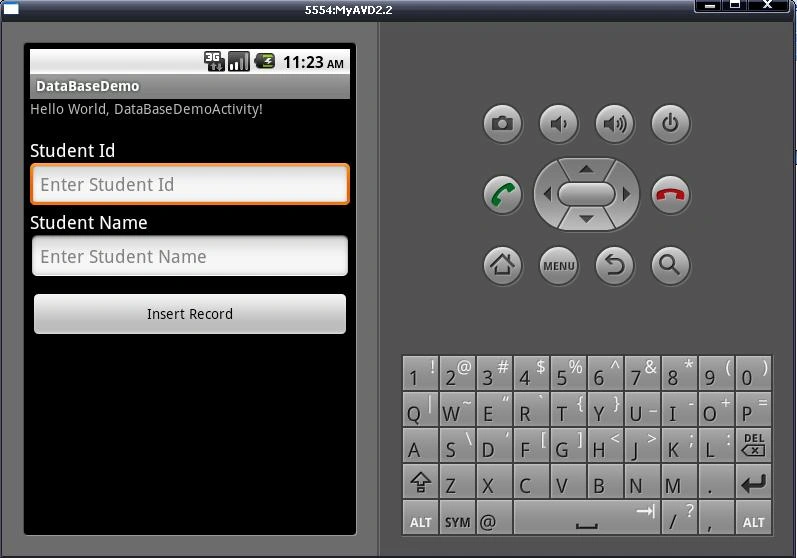
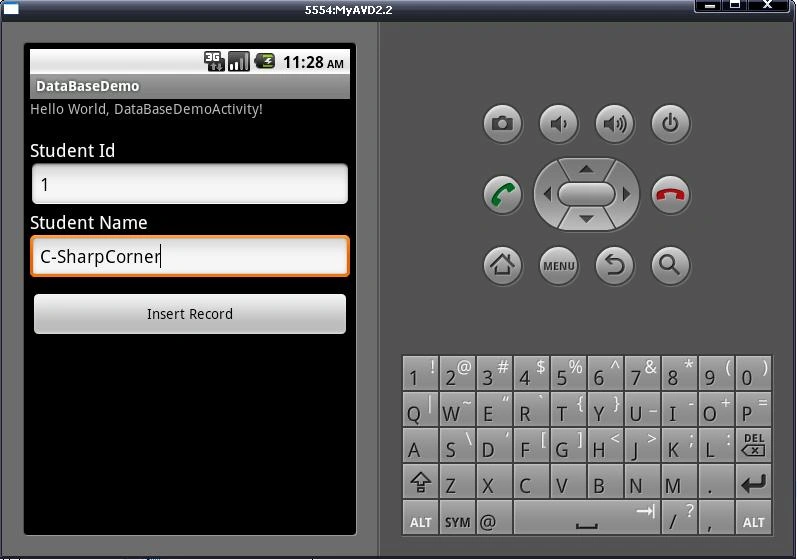
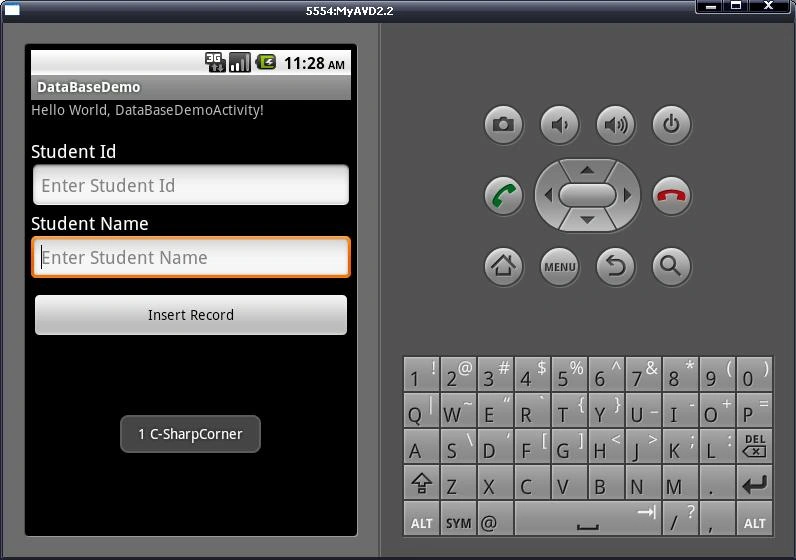
-
Start Your Emulator ( It is necessary to start Emulator to see File Explorer content)
-
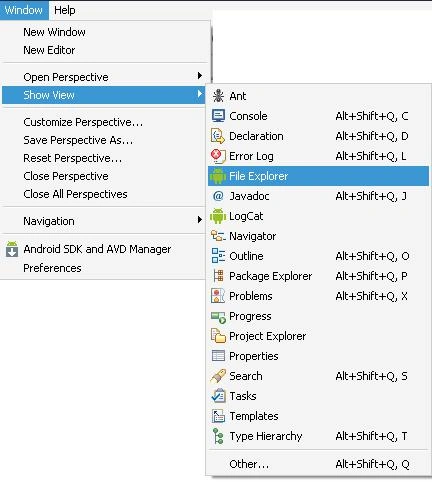
Open "File Explorer"
-
Data -> Data -> find your "package" -> databases -> "database"
Summary
Resources
Here are some useful related resources:
dinesh kumarPosted Jan 8, 2016, 6:35 AM
with listview
dinesh kumarPosted Jan 8, 2016, 6:34 AM
hi i am dinesh plz help to build sqlite database create,update,delete,save,retrieve.plz send me source code @ my mail id
Chintan RathodPosted Oct 15, 2012, 1:53 AM
can you send me personnel mail which defines your requirements??? because Android provides built-in keyboard support and its very good. Reply me if I understood not correctly. Thanks.
arosak arasheditedPosted Oct 13, 2012, 5:08 PMEdited Oct 13, 2012, 5:09 PM
hi i am amator pleaze help To build the keyboard for system android
Chiran JaineditedPosted Aug 28, 2012, 2:34 PMEdited Aug 28, 2012, 2:37 PM
wow this was a great explanation! But i needed to get an understanding of Displaying the data on our screen... can u please send me the code for that...or if there some code with explanation about "display of data" such the above explanation. Thanks a lot.. Actually i wanted to read an existing SQLite database and display it on my screen!! Is there anyway i can do that?
Chintan RathodPosted Aug 24, 2012, 8:31 AM
hm.. for that you need to download "SQLite Database Browser", which is open source to get structure of database and records. You can download it from "http://sqlitebrowser.sourceforge.net" site.
chainchelliah chelliahPosted Aug 24, 2012, 6:14 AM
Hi, It was very helpful to all newbie. I think this project's .db file has encrypted. I need to open that .db file. I've forgotten the password. Now i required it. Please help me.....
AryaPosted Aug 22, 2012, 3:49 AM
hey please send the code today itself please its required urgent...
AryaPosted Aug 22, 2012, 2:58 AM
hey... thanks for this tutorial its really helpful.... and code is also running successfully... can you send me whole code for updating data form sqlite and also to display data in listview... please send me code as soon as possible.... thank you
Chintan RathodPosted Jun 21, 2012, 10:11 AM
hey saqi, i saw your code..it seems okay.. but can you please send me full code if your application is for testing purpose. So that I can see where actual mistake you did..
SaqiPosted Jun 21, 2012, 9:18 AM
very helpful . i want update table how to use this func. db.update("tablename", , , ); and other thing i am using Bolean function });} // public boolean DomicilioExist(String seg ,String uni ,String area ,String micro ,String imovel) { pass=0; boolean status =false; String query = ( " SELECT * FROM DOMICIL WHERE " + " SEG ="+ mm + " And UNIDADE ="+ mmm + " And AREA ="+ mmmm + " And MICROAREA ="+ mmmmm + " And IMOVEL ="+ mmmmmm ); Cursor c =my.rawQuery(query,null); c.moveToFirst(); if(c.getCount() > 0){pass=100; status=true;} return status; } my is my databse; problem is near[ my.rawQuery(query,null); ] its showing my is null thats why not working . how can i recognize database here
Chintan RathodPosted May 31, 2012, 4:38 AM
Pleasure is mine....
gracePosted May 31, 2012, 3:54 AM
you really are a blessing Mr.Chinthan. Thank you.
Nitin SinghPosted Dec 23, 2011, 11:48 PM
Thanks Mr. Chintan
Vikas MishraPosted Dec 23, 2011, 11:46 PM
Hi Chintan you explained it in a very nice way