
Introduction
In this article I explain how to bind multiple column values into a ComboBox. It is very simple but I have often bound a single column in a ComboBox so it was a bit of a curiosity for me.
Use the following procedure to bind to a combo box.
Step 1
Open a Windows Forms application and insert a ComboBox and a button control on the form from the toolbox.
Step 2
Now write the simple C# code to bind the ComboBox with multiple columns.
using System;
using System.Collections.Generic;
using System.ComponentModel;
using System.Data;
using System.Drawing;
using System.Linq;
using System.Text;
using System.Windows.Forms;
using System.Data.SqlClient;
namespace insert_image_in_database
{
public partial class Form5 : Form
{
public Form5()
{
InitializeComponent();
}
SqlCommand cmd;
SqlConnection con;
SqlDataAdapter da;
DataSet ds;
private void button1_Click(object sender, EventArgs e)
{
con = new SqlConnection("Data Source=MCNDESKTOP03;Initial Catalog=pulkit;User ID=sa;Password=wintellect@123");
cmd =new SqlCommand ("select * from emp", con);
da = new SqlDataAdapter(cmd);
DataSet ds = new DataSet();
da.Fill(ds);
for (int i = 0; i < ds.Tables[0].Rows.Count; i++)
{
comboBox1.Items.Add(ds.Tables[0].Rows[i][0] + " " + ds.Tables[0].Rows[i][1] + " " + ds.Tables[0].Rows[i][2]);
}
}
}
}
Step 3
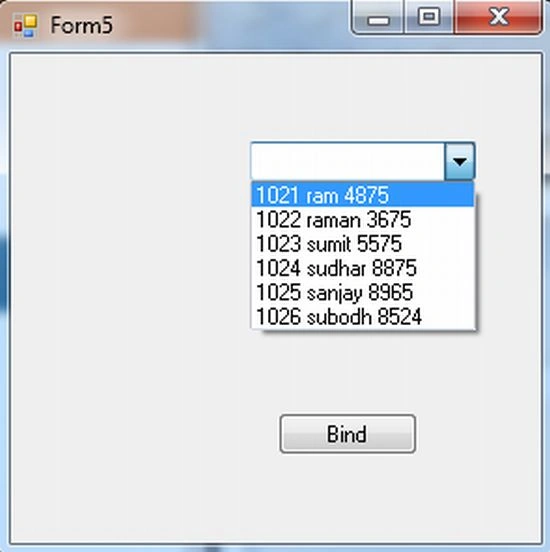
Now run your application and click on the button then see the ComboBox filled with multiple column values.
Thanh PhanPosted May 20, 2021, 3:35 AM
You can using SQL concat to join the text
Kumaresh ALAGAPPAPILLAIPosted Aug 4, 2019, 4:23 AM
Happy Friendship Day. I am using Windows Application C#, in the form i added 3 combobox controls. In the 1st combobox, i am getting data from db table column, i need get 2nd combobox with the corresponding data matching with 1st combobox. and 3rd the same using C#. can you help me out in this.
Sai YangPosted Jan 30, 2018, 11:08 PM
Then, selected index case need to display only value from one cell tocombobox text. How to do it next????
Michael ReyesPosted Jul 20, 2017, 9:03 PM
Sir can I do this without a button. just data automatically show when I click the combobox??
SubashPosted Aug 31, 2016, 6:48 AM
Useful to me
SubashPosted Aug 31, 2016, 6:47 AM
Thanks
Neeraj KumarPosted Jan 29, 2016, 2:10 AM
Thank you very much sir...
Aisha Kaim KhaniPosted Jan 31, 2014, 4:17 AM
how can i store the age limit from a single combobox into two different fields of database...like age is from 25-30 years....plz plz help me...