
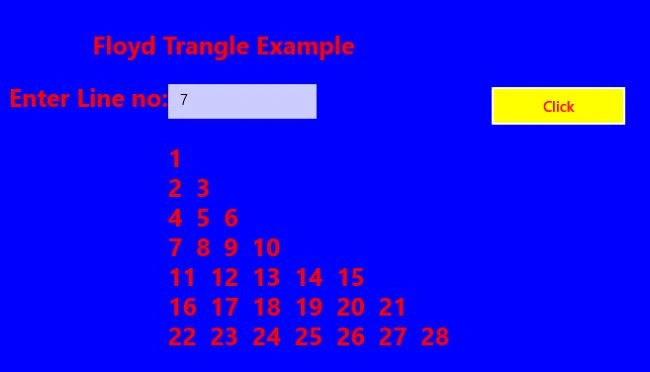
In this article I explain Floyd's Triangle in programming languages. But let us first of all understand what Floyd's Triangle is.
Floyd's Triangle
It is a right angle triangle of a natural number.
Use the following step to create the Floyd's Triangle in a Windows Store app.
Step 1
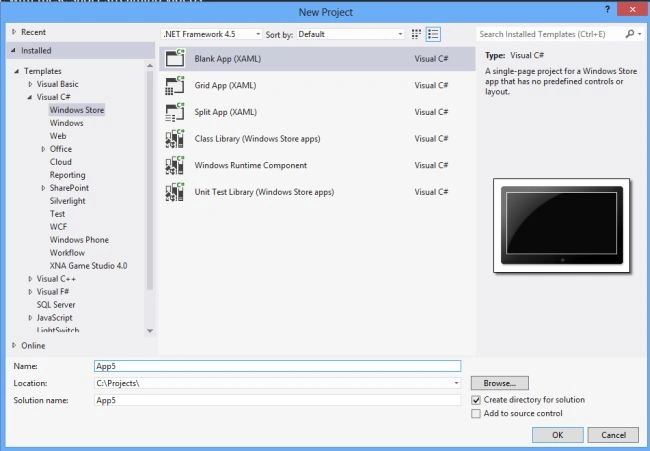
First of all you have to create a New Window Store Application.
- Open Visual Studio 2012
- "File" -> "New" -> "Project..."
- Choose "Template" -> "Visual C#" -> "Window Store app"
- Choose "Blank App (XAML)" then rename the application
Step 2
Write the following XAML code in "Mainpage.Xaml" (that is available in Solution Explorer):
<Page
x:Class="Floyd_triangle_app.MainPage"
xmlns="http://schemas.microsoft.com/winfx/2006/xaml/presentation"
xmlns:x="http://schemas.microsoft.com/winfx/2006/xaml"
xmlns:local="using:Floyd_triangle_app"
xmlns:d="http://schemas.microsoft.com/expression/blend/2008"
xmlns:mc="http://schemas.openxmlformats.org/markup-compatibility/2006"
mc:Ignorable="d">
<Grid Background="Blue">
<Grid.ColumnDefinitions>
<ColumnDefinition Width="643*"/>
<ColumnDefinition Width="723*"/>
</Grid.ColumnDefinitions>
<Grid.RowDefinitions>
<RowDefinition Height="143*"/>
<RowDefinition Height="38*"/>
<RowDefinition Height="43*"/>
<RowDefinition Height="300*"/>
<RowDefinition Height="0*"/>
<RowDefinition Height="39*"/>
<RowDefinition Height="205*"/>
</Grid.RowDefinitions>
<TextBlock Text="Floyd Trangle Example" FontSize="25" FontWeight="ExtraBold" Grid.ColumnSpan="2" Grid.Row="1" TextAlignment="Center" Foreground="Red" ></TextBlock>
<TextBlock Text="Enter Line no:" FontSize="25" FontWeight="ExtraBold" Grid.Column="0" Grid.Row="2" Foreground="Red" TextAlignment="Right" ></TextBlock>
<TextBox x:Name="textbox1" Grid.Column="1" Grid.Row="2" Width="150" Height="35" VerticalAlignment="Top" HorizontalAlignment="Left" />
<TextBlock x:Name="text1" FontSize="25" FontWeight="ExtraBold" Grid.Column="1" Grid.Row="3" Foreground="Red" TextWrapping="Wrap" Width="466" HorizontalAlignment="Left" />
<Button x:Name="Button1" Content="Click" Click="Button1_Click" Foreground="Red" Background="Yellow" Grid.Column="1" Grid.Row="2" Height="44" Width="141" VerticalAlignment="Top" Grid.RowSpan="2" HorizontalAlignment="Center" Margin="177,0,405,0" />
</Grid>
</Page>
Step 3
Now write the following C# code in "Mainpage.Xaml.cs" for the button:
using System;
using System.Collections.Generic;
using System.IO;
using System.Linq;
using Windows.Foundation;
using Windows.Foundation.Collections;
using Windows.UI.Xaml;
using Windows.UI.Xaml.Controls;
using Windows.UI.Xaml.Controls.Primitives;
using Windows.UI.Xaml.Data;
using Windows.UI.Xaml.Input;
using Windows.UI.Xaml.Media;
using Windows.UI.Xaml.Navigation;
using Windows.UI;
namespace Floyd_triangle_app
{
public sealed partial class MainPage : Page
{
public MainPage()
{
this.InitializeComponent();
}
protected override void OnNavigatedTo(NavigationEventArgs e)
{
}
private void Button1_Click(object sender, RoutedEventArgs e)
{
text1.Text = "";
int range = Convert.ToInt32(textbox1.Text);
int k = 1;
for (int i = 1; i <= range ; i++)
{
for (int j = 1; j <= i; j++,k++)
{
text1.Text += k.ToString();
text1.Text += " ";
}
text1.Text += Environment.NewLine;
}
}
}
}
Step 4
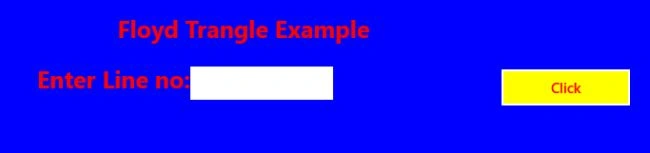
Run your App.
Join the conversation! Your thoughts help the community grow.