

Microsoft recently announced a new feature for Azure Services, Azure Data Lake Services for analytics in the Microsoft Azure cloud services. It is having a large scale repository and also a default service YARN that provide a benefit for analysing the large scale data to a developer or DBA and also for the data scientists. YARN is Apache Hadoop NextGen MapReduce known as MapReduce 2.0 (MRv2) or called YARN.
Azure Data Lake have a managed way to manage all Hadoop, Spark and HBase Services. Azure Data Lake use U-SQL. It is a language that explores the benefits of SQL and is scalable and provides a distributed query capabilities for a developer and DBA those are currently working with Big Data. Also, it provides you to efficiently analyse your data in the store and across relational stores such as Microsoft SQL Azure Database.
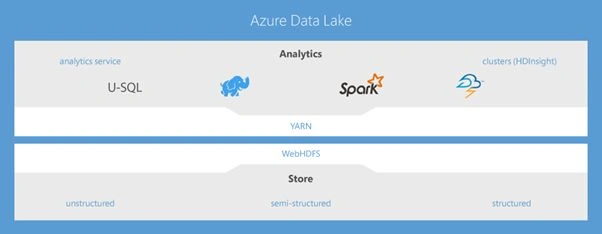
Benefits of Data Lake
Batch, Real-time, and interactive analytics made it easy to:
- Store and analyze data of any kind and size.
- Develop faster, debug and optimize smarter.
- Interactively explore patterns in your data.
- No learning curves—use U-SQL, Spark, Hive, HBase, and Storm.
- Managed and supported with an enterprise-grade SLA.
- Dynamically scales to match your business priorities.
- Enterprise-grade security with Azure Active Directory.
- Built on YARN, designed for the cloud.
Why use U-SQL?
U-SQL is a large scalable Language and if we see the behaviour of Big Data analytics we can have several requirements. Here are the major requirements as per the MSDN blog.
- Process any type of data From analysing BotNet attack patterns from security logs to extracting features from images and videos for machine learning, the language needs to enable you to work on any data.
- Use custom code easily to express your complex, often proprietary business algorithms. The example scenarios above may all require custom processing that is often not easily expressed in standard query languages, ranging from user defined functions, to custom input and output formats.
- Scale efficiently to any size of data without you focusing on scale-out topologies, plumbing code, or limitations of a specific distributed infrastructure.
How to use U-SQL?
If you want to see how we can use U-SQL. Go through the MSDN blog example. Let’s assume I have downloaded my Twitter history of all my tweets, retweets, and mentions as a CSV file and placed it into my Azure Data Lake Store. Here top 50 rows in the .csv file can be seen:
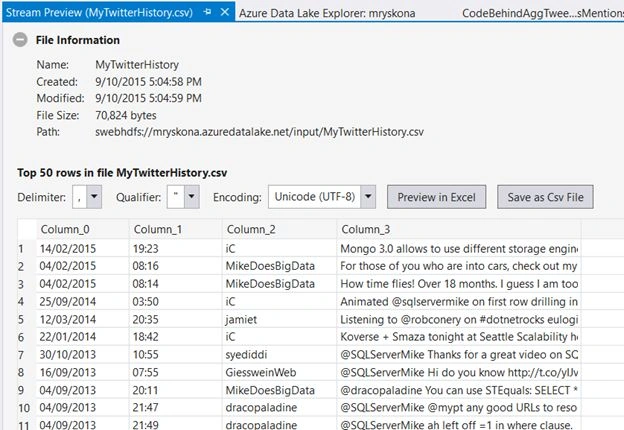
Image Source: blogs.msdn.com
In this just count the number of tweets for each of the authors in the tweet “network”:
- @t = EXTRACT date string
- , time string
- , author string
- , tweet string
- FROM "/input/MyTwitterHistory.csv"
- USING Extractors.Csv();
- @res = SELECT author
- , COUNT(*) AS tweetcount
- FROM @t
- GROUP BY author;
- OUTPUT @res TO "/output/MyTwitterAnalysis.csv"
- ORDER BY tweetcount DESC
- USING Outputters.Csv();
- Extract data from your source. Datatypes are based on C# datatypes and the built-in extractors library to read and schematize the CSV file is used.
- Transform using SQL and/or custom user defined operators. A familiar SQL expression that does a GROUP BY aggregation is used in the preceding example.
- Output the result into a file. You can also store it into U-SQL table for further processing.
This was just an introduction to U-SQL, for further understanding refer the msdn blog examples to:
- Add additional information about the people mentioned in the tweets.
- Extend my aggregation to return how often people in my tweet network are authoring tweets and how often they are being mentioned.
Abhishek KumarPosted Oct 28, 2015, 6:36 AM
one dollar
Rupali ShindePosted Oct 15, 2015, 12:19 AM
excellent article, same q how much we need to pay for azure monthly ???
Ibrahim ErsoyPosted Oct 2, 2015, 2:07 AM
Good one.How much do you pay for Azure monthly? :) I wonder
Santhakumar MunuswamyPosted Sep 30, 2015, 3:51 PM
Good one
Manojkumar TagadgharPosted Sep 30, 2015, 2:49 AM
Nice article and nice to know abt U-SQL, thanks for sharing.
Sibeesh VenuPosted Sep 30, 2015, 2:26 AM
Nice Share
Vaikesh K PPosted Sep 30, 2015, 1:28 AM
Nice :)
Mohammed IbrahimPosted Sep 29, 2015, 3:30 PM
nice
Pankaj Kumar ChoudharyPosted Sep 29, 2015, 12:52 PM
Nice to Know About U-Sql.........
Nitin PanditPosted Sep 29, 2015, 8:54 AM
thanks all for reading this article :)
Shakti SaxenaPosted Sep 29, 2015, 8:29 AM
wonderful
Ankit BansalPosted Sep 29, 2015, 7:25 AM
nice..
RakeshPosted Sep 29, 2015, 7:17 AM
Good Article Share Sir
Nitin PanditPosted Sep 29, 2015, 6:15 AM
thanks to all :)
Abhishek KumarPosted Sep 29, 2015, 6:07 AM
Nice article sr...
Yashwant VishwakarmaPosted Sep 29, 2015, 5:37 AM
Nice and fast information !!!
Raja TPosted Sep 29, 2015, 5:31 AM
Nice One, thanks for sharing
Rajeesh MenothPosted Sep 29, 2015, 5:23 AM
Good One..
Harshad PansuriyaPosted Sep 29, 2015, 5:06 AM
Nice Article
Sujeet SumanPosted Sep 29, 2015, 5:03 AM
Nice Article................