

If you have already created the test suite in a test plan and want to use the test suite as a similar test suite, then you can copy the test suite from another test plan using Microsoft Test Manager 2010.
When you copy a test suite, this does not create duplicate copies of the test cases in your team project. The existing test cases in the test suite that you are copying are just added to the new test suite that you create.
For Example
If you have created the test suite for login into Trading 1.1 Test Plan, then you can copy this login test suite into the Trading 1.2 Test Plan.
You can also add or remove test cases from this copied test suite as required, without affecting the original test suite.
Steps to follow
- Go to Start and click on "All Programs"
- Select the Microsoft Visual Studio 2010 and Click on " Microsoft Test Manager 2010"
- Open the Microsoft Test Manager 2010
- Connect the Test plan and go to the Testing Center, then click the "Plan" Button. The contents are displayed.
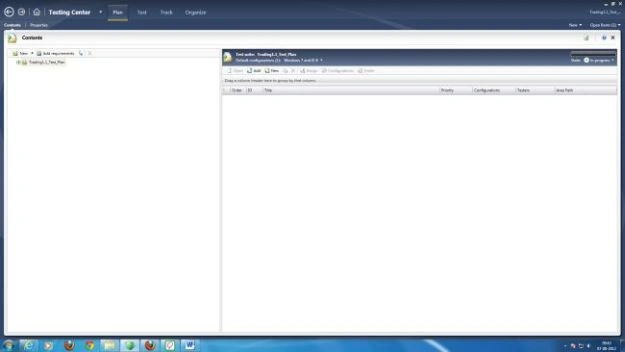
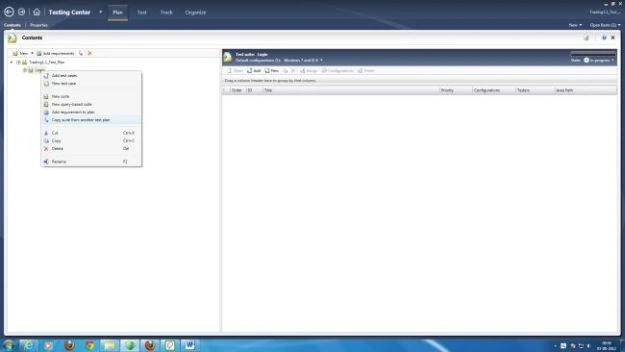
- Select the location into Test Suite where you want to add the test suite that you are copying/importing from another plan. Then click the copy icon in the pane that shows the test suite hierarchy.
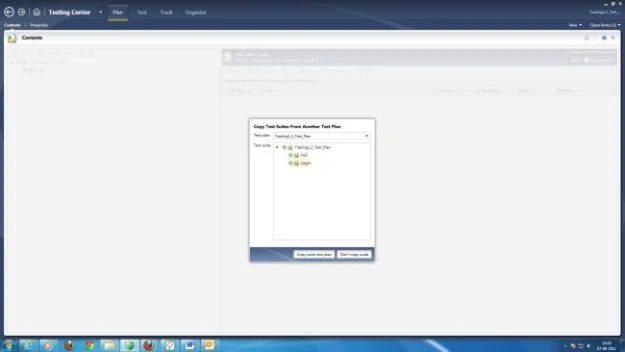
- Select the test suite to copy into your test plan from the test suite hierarchy shown in the dialog box.
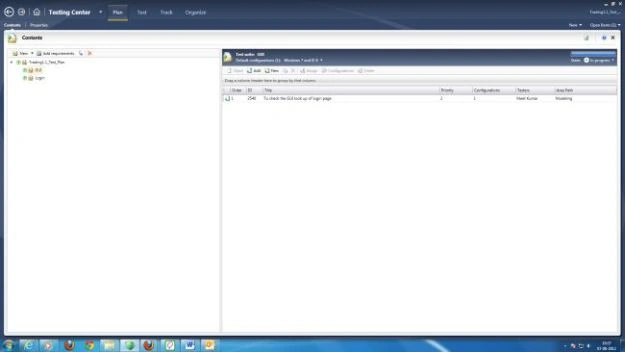
- Click on "Copy suite into Plan". The test suite now displays in the test suite hierarchy for your current test plan. Child test suites and test cases are also being copied.
- To rename this test suite, right-click the test suite and point to rename.
- To update properties for this test suite, select the test suite from the test suite hierarchy
Join the conversation! Your thoughts help the community grow.