

Introduction
In this article we are going to understand Canvas Acceleration Animation using HTML5. In this section we will see the animated acceleration from upward to downward in the canvas while displaying in the browser. Here we will use some JavaScript and some styles along with HTML code. Just go through the steps to see how to create this application. In this article we use a rectangle to accrelerate top to down when the page is opened in the browser.
Let's see how the AccelerationAnimation application can be created. To do so use the following steps:
Step 1 : Open a HTML editor or Visual Studio 2010.
Open File menu ->select new ->Choose Empty Website then: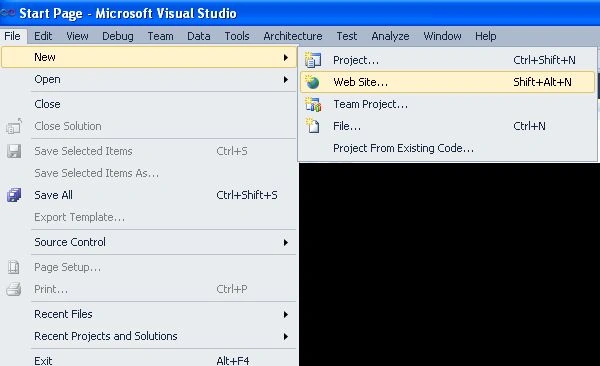
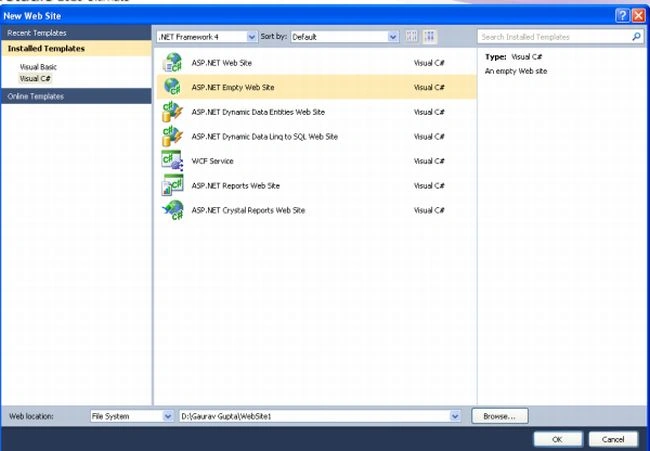
Step 2: This is where we will create the HTML5 application.
- Go to the Solution Explorer
- Right-click on the Application name
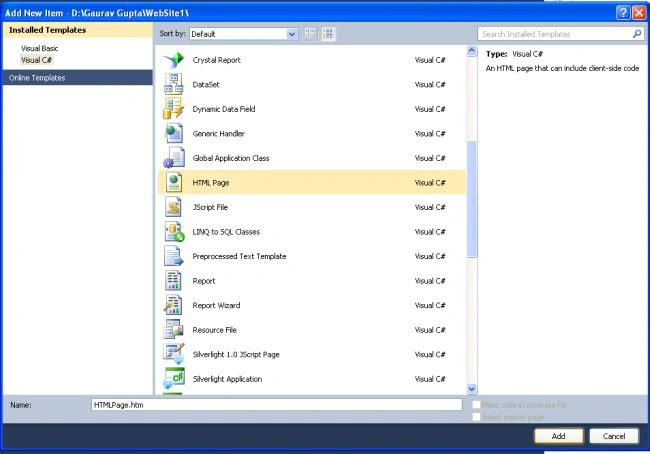
- Select Add-->add new item
- Now in the window that opens, select an HTML page or new Web form
- Rename it.
Step 3: Write the code below in the .htm Page:
<html>
<head>
<style>
body
{
margin: 0px;
padding: 0px;
}
Canvas
{
border: 2px solid #9C9ff8;
margin-top: 50px;
margin-left: 60px;
background-color: #ffB2EE;
box-shadow: 5px 5px 8px #222;
}
.title
{
text-align: center;
font-family: Segoe UI Light, Arial, Helvetica;
font-size: 2.2em;
margin: 1em;
}
.info
{
text-align: center;
font-family: Segoe UI Light, Arial, Helvetica;
font-size: 1.2em;
margin: 0.25em;
}
</style>
</head>
<script type="text/javascript">
window.requestAnimFrame = (function (callback) {
return window.requestAnimationFrame ||
window.webkitRequestAnimationFrame ||
window.mozRequestAnimationFrame ||
window.oRequestAnimationFrame ||
window.msRequestAnimationFrame ||
function (callback) {
window.setTimeout(callback, 1000 / 60);
};
})();
function drawRectangle(myRectangle) {
var canvas = document.getElementById("myCanvas");
var context = canvas.getContext("2d");
context.beginPath();
context.rect(myRectangle.x, myRectangle.y, myRectangle.width, myRectangle.height);
context.fillStyle = "#8ff6FF";
context.fill();
context.lineWidth = myRectangle.borderWidth;
context.strokeStyle = "red";
context.stroke();
}
function animate(lastTime, myRectangle) {
var canvas = document.getElementById("myCanvas");
var context = canvas.getContext("2d");
// update
var date = new Date();
var time = date.getTime();
var timeDiff = time - lastTime;
var gravity = 2; // pixels / second^2
var speedIncrementEachFrame = gravity * timeDiff / 1000; // pixels / second
myRectangle.vy += speedIncrementEachFrame;
myRectangle.y += (myRectangle.vy * timeDiff);
if (myRectangle.y > canvas.height - myRectangle.height - myRectangle.borderWidth / 2) {
myRectangle.y = canvas.height - myRectangle.height - myRectangle.borderWidth / 2;
}
lastTime = time;
// clear
context.clearRect(0, 0, canvas.width, canvas.height);
// draw
drawRectangle(myRectangle);
// request new frame
requestAnimFrame(function () {
animate(lastTime, myRectangle);
});
}
window.onload = function () {
var myRectangle = {
x: 239,
y: 0,
vx: 0,
vy: 0,
width: 100,
height: 50,
borderWidth: 5
};
drawRectangle(myRectangle);
// wait one second before dropping rectangle
setTimeout(function () {
var date = new Date();
var time = date.getTime();
animate(time, myRectangle);
}, 1000);
};
</script>
<body style="background-color: #CCF87F">
<center>
<h1>
Canvas Oscillation Animation
</h1>
</center>
<hr />
<canvas id="myCanvas" width="400" height="300">Your browser does not support HTML5</canvas>
</body>
</html>
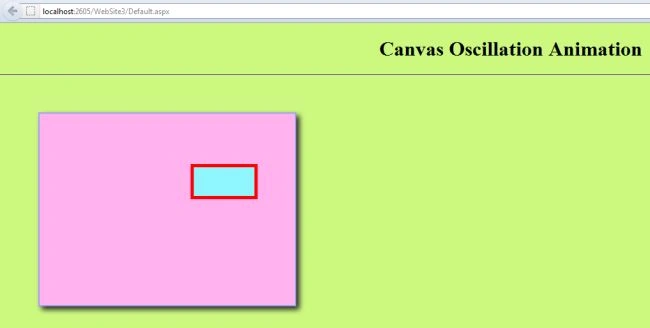
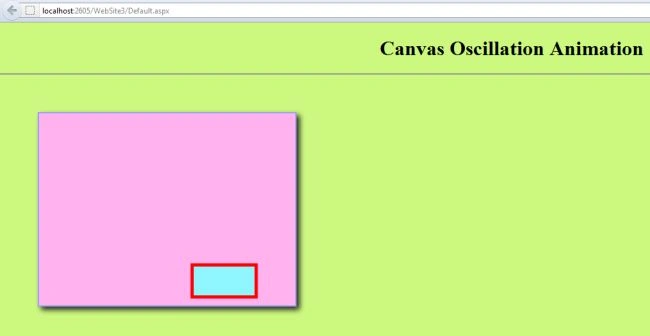
Step 4: Press F5 and you will get the output on the screen.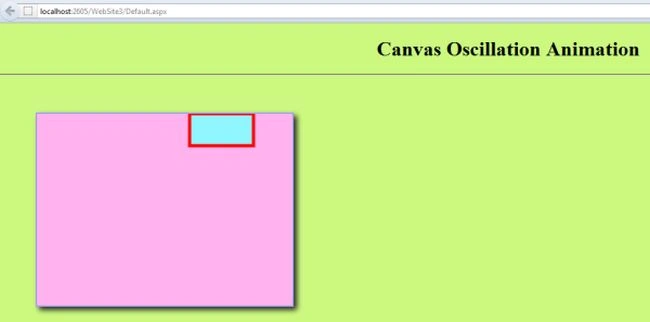
Join the conversation! Your thoughts help the community grow.