

Windows 8 introduces a new type of application called Windows 8 Apps. The Windows 8 Metro Style includes support for WCF. A subset of WCF functionality is available from within a Windows 8 Windows 8 Apps. The Web service is .ASMX.
In C# Programming you can use web serivces by the asynchronours and await keywords. To learn how to conusme web services in a Windows 8 Appswe will create a simple Windows 8 Apps using XAML and the C# language and try to use a web service. Here we use a weather service I found on the internet. We will try to consume this web service in ourWindows 8 Apps to learn how to use web services in Windows 8 Apps.
In this article we are trying to consume or use a weather web service that I found on the internet. The weather web service is hosted in following URL:
http://wsf.cdyne.com/WeatherWS/Weather.asmx
The weather web service shows us the weather information for a specified city and state. They give us information like tempreature, wind, humidity, visibility etc. This web service uses a USA zip code and displays the information for to that zip code.
Following are steps to be followed:
Step 1 First, we will create a new blank Windows 8 Application.
- Open Visual Studio 2012.
- File -> New -> Project
- Choose Template -> Visual C# -> Windows Store.
- Select Blank Application
- Rename the application.
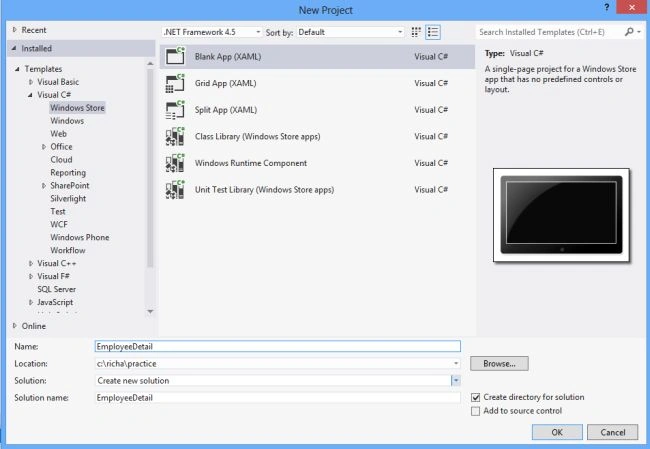
Step 3 Enter the URL of web service in the addresss field and click go button. It will find this web service.
http://wsf.cdyne.com/WeatherWS/Weather.asmx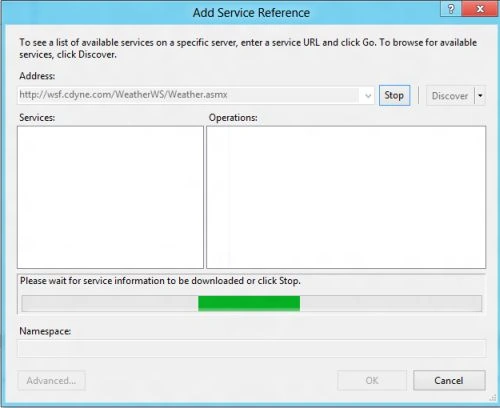
If it is found succsessfuly then provide the namespace and click Ok: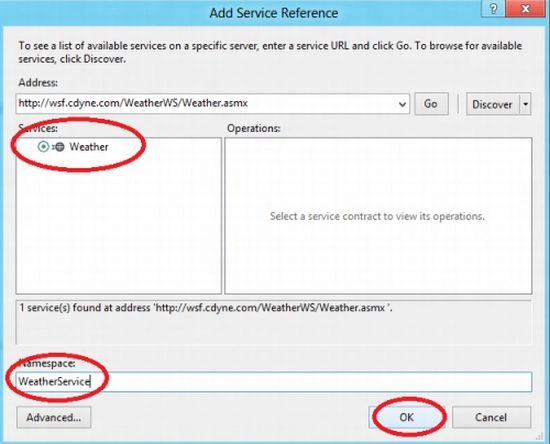
Step 4 This will generate a service reference to this weather service.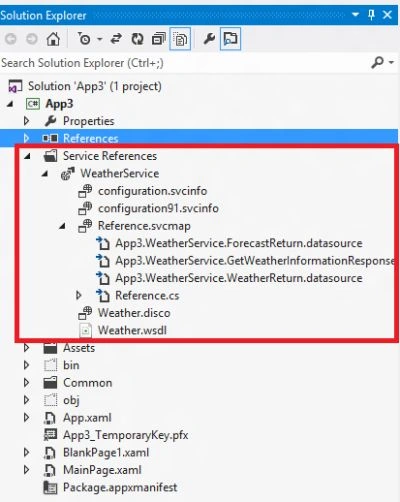
Step 5 Add the namespace to the XAML.cs file:
using App3.WeatherService;
Step 6 Now, we will design our XAML page to show the details of the weather.Here is the XAML code:
<Page
x:Class="App3.MainPage"
IsTabStop="false"
xmlns="http://schemas.microsoft.com/winfx/2006/xaml/presentation"
xmlns:x="http://schemas.microsoft.com/winfx/2006/xaml"
xmlns:local="using:App3"
xmlns:d="http://schemas.microsoft.com/expression/blend/2008"
xmlns:mc="http://schemas.openxmlformats.org/markup-compatibility/2006"
mc:Ignorable="d">
<Grid>
<Grid.Background>
<LinearGradientBrush EndPoint="0.5,1" StartPoint="0.5,0">
<GradientStop Color="Black"/>
<GradientStop Color="#FFD81337" Offset="1"/>
</LinearGradientBrush>
</Grid.Background>
<StackPanel Orientation="Horizontal">
<TextBlock HorizontalAlignment="Left" Height="68" TextWrapping="Wrap" Text="Use of Whether Web Service" VerticalAlignment="Top" Width="1306" FontFamily="Verdana" FontSize="48" Margin="38,20,0,0"/>
</StackPanel>
<StackPanel Orientation="Horizontal">
<TextBox Name="inputZipCode" HorizontalAlignment="Left" Height="58" Margin="10,127,0,0" VerticalAlignment="Top" Width="477" FontFamily="Verdana" FontSize="36"/>
<Button Name="GoButton" Content="Go" HorizontalAlignment="Left" Height="58" Margin="40,127,0,0" VerticalAlignment="Top" Width="136" FontFamily="Verdana" FontSize="36" Click="GoButton_Click"/>
</StackPanel>
<StackPanel Orientation="Horizontal">
<TextBlock HorizontalAlignment="Left" Height="27" Margin="38,90,0,0" TextWrapping="Wrap" Text="Enter the zip code below (U.S. only, e.g. 48653)" VerticalAlignment="Top" Width="494" FontFamily="Verdana" FontSize="20"/>
</StackPanel>
<StackPanel Orientation="Horizontal">
<Image Name="myimage" HorizontalAlignment="Left" Height="200" Margin="10,190,0,0" VerticalAlignment="Top" Width="737" Source="{Binding imageurl}"/>
</StackPanel>
<StackPanel>
<TextBlock x:Name="resultCityState" Height="100" HorizontalAlignment="Left" TextWrapping="Wrap" FontFamily="Verdana" Width="300" FontSize="36" Margin="15,400,0,0" />
</StackPanel>
<StackPanel Orientation="Vertical">
<TextBlock x:Name="resultDetails" HorizontalAlignment="Left" Height="365" Margin="30,400,0,-39" TextWrapping="Wrap" VerticalAlignment="Top" Width="704" FontFamily="Verdana" FontSize="25"/>
</StackPanel>
</Grid>
</Page>
Step 7 Then, you can call the service using the following task-based async model:
Here is the code of the XAML.cs file:
using System;
using System.Collections.Generic;
using System.IO;
using System.Linq;
using Windows.Foundation;
using Windows.Foundation.Collections;
using Windows.UI.Xaml;
using Windows.UI.Xaml.Controls;
using Windows.UI.Xaml.Controls.Primitives;
using Windows.UI.Xaml.Data;
using Windows.UI.Xaml.Input;
using Windows.UI.Xaml.Media;
using Windows.UI.Xaml.Navigation;
using App3.WeatherService;
// The Blank Page item template is documented at http://go.microsoft.com/fwlink/?LinkId=234238
namespace App3
{
/// <summary>
/// An empty page that can be used on its own or navigated to within a Frame.
/// </summary>
public sealed partial class MainPage : Page
{
public MainPage()
{
this.InitializeComponent();
}
/// <summary>
/// Invoked when this page is about to be displayed in a Frame.
/// </summary>
/// <param name="e">Event data that describes how this page was reached. The Parameter
/// property is typically used to configure the page.</param>
protected override void OnNavigatedTo(NavigationEventArgs e)
{
}
private async void GoButton_Click(object sender, RoutedEventArgs e)
{
WeatherSoapClient proxy = new WeatherSoapClient();
WeatherReturn result = await proxy.GetCityWeatherByZIPAsync(inputZipCode.Text);
ForecastReturn fr = await proxy.GetCityForecastByZIPAsync(inputZipCode.Text);
Forecast[] f = fr.ForecastResult;
if (result.Success)
{
resultCityState.Text = String.Format("{0}, {1}", result.City, result.State);
resultDetails.Text = String.Format
("\n\nConditions - {0} \n\nTemperature - {1} \n\nRelative Humidity - {2} \n\nWind - {3} \n\nPressure - {4} -
\n\nPressure - {5} - \n\nWind Chill - {6} - \n\nVisibility - {7}",
result.Description, result.Temperature, result.RelativeHumidity, result.Wind, result.Pressure, fr.WeatherStationCity, result.WindChill, result.Visibility);
}
GetWeatherInformationResponse result1 = await proxy.GetWeatherInformationAsync();
WeatherDescription[] r = result1.GetWeatherInformationResult;
foreach (WeatherDescription d in r)
if (d.WeatherID == result.WeatherID)
{
image i = new image();
i.imageurl = d.PictureURL;
myimage.DataContext = i;
break;
}
}
}
public class image
{
public string imageurl;
{
get;
set;
}
}
}
In the above code we are calling the weather web service and make the object the class and calling their methods asynchronously.
Step 8 Press F5 and see the output.
Enter the zip code in the textbox and click the go button.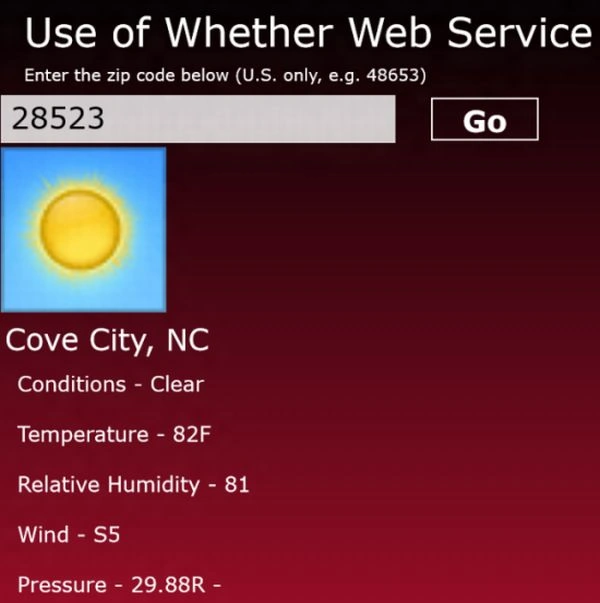
yogesh HRPosted Nov 21, 2012, 7:16 AM
Hi, i Tried same apps in vs 2012 express edition, i getting the following error An unhandled exception of type 'System.ServiceModel.ProtocolException' occurred in mscorlib.dll Additional information: The remote server returned an unexpected response: (417) Expectation failed.
Gaurav GuptaPosted Sep 4, 2012, 5:43 AM
Ok
Sam HobbsPosted Jul 4, 2012, 4:07 PM
This is interesting, thank you. Note that it gets the data from the United States National Oceanic and Atmospheric Administration (NOAA); probably NOAA's National Digital Forecast Database (NDFD). I assume the CDyne service is easier to use but for those that want to go to the source, the NOAA web service can be used.