

Introduction
In this article, we are going to learn how to connect to another PC on the network having a Windows 8 system to share your files and folders to the other computers in the network in Windows 8.
Usually, when using a computer in a network we often need to share files or need to access other computers for sharing purposes. Then it must be necessary for the other people to manage the connections to the PC on the network.
Recently when I wanted to connect with a PC with Windows 8 I encountered a problem connecting with a Windows 7 PC. If your Windows 7 PC does not connect to the system having Windows 8, then this article will help solve the problem.
Use the following instructions
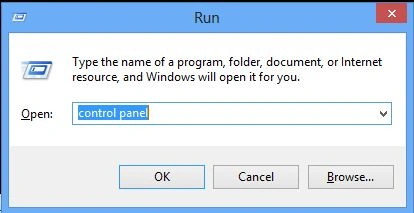
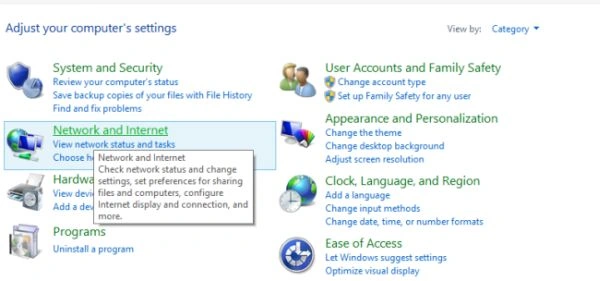
Step 3
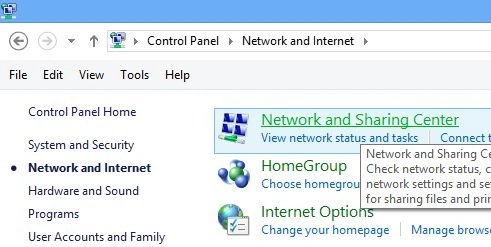
Click on the Advanced Sharing Settings on the left side.
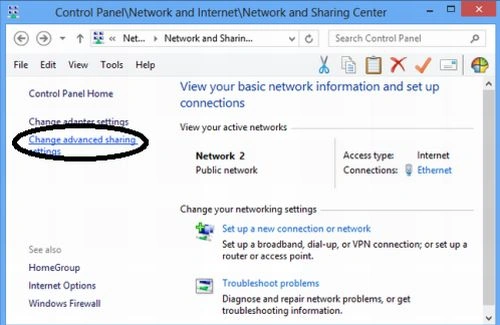 Step 5
Now you need to set some options.
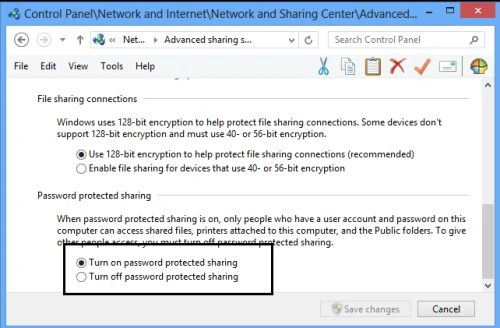
Check the Radio button "Turn Off the Password protected sharing".
Step 5
Now you need to set some options.
Check the Radio button "Turn Off the Password protected sharing".
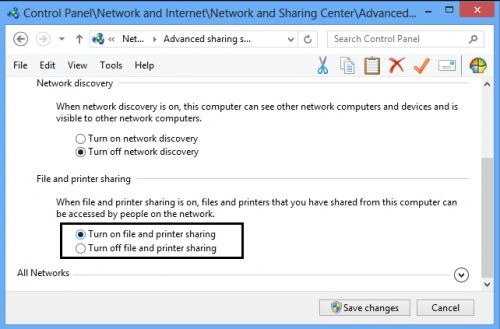
 Check the "Turn on file and printer sharing".
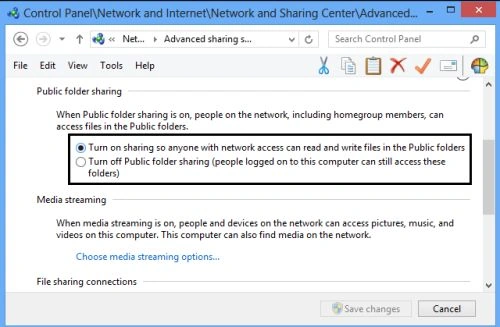
 You can also check the "Turn on Sharing" option.
 Step 6
After doing all the changes click on the Save changes to save it.
Now, you can easily connect to the other PC having Windows 8 and share anything you want.
Step 6
After doing all the changes click on the Save changes to save it.
Now, you can easily connect to the other PC having Windows 8 and share anything you want.
Summary
In this article, we learned about How to Share Windows 8 System on the Network.
Join the conversation! Your thoughts help the community grow.