

Introduction
In Part 3 of this article series we discussed how to use Template Fields but now in this article we will discuss how to select Data with a DataList Control.
Selecting Data with DataList Control
We use a DataList control as a menu by taking advantage of the control's SelectedValue property. For example, the page given below enables us to pick a book category and display a list of matching books.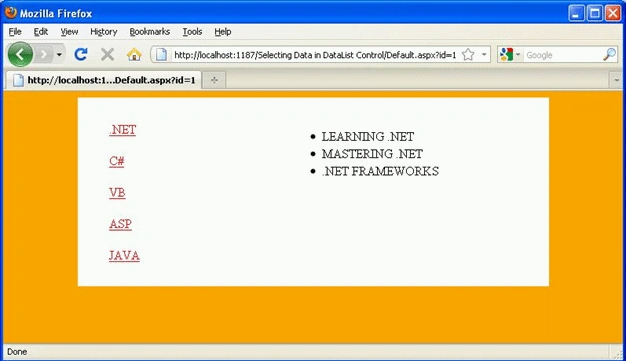
<%@ Page Language="VB" %>
<!DOCTYPE html PUBLIC "-//W3C//DTD XHTML 1.0 Transitional//EN" "http://www.w3.org/TR/xhtml1/DTD/xhtml1-transitional.dtd">
<script runat="server">
</script>
<html xmlns="http://www.w3.org/1999/xhtml">
<head id="Head1" runat="server">
<style type="text/css">
html
{
background-color:orange;
}
.content
{
margin:auto;
width:600px;
background-color:white;
}
.column
{
float:left;
width:250px;
padding:20px;
}
.books td
{
padding:10px;
}
a
{
padding:10px;
color:red;
}
a:hover
{
background-color:Yellow;
}
</style>
<title></title>
</head>
<body>
<form id="form1" runat="server">
<div class="content">
<div class="column">
<asp:DataList
id="rptBookCategories"
DataSourceID="SqlDataSource1"
Runat="server"
CssClass="books">
<ItemTemplate>
<asp:HyperLink
id="lnkMenu"
Text='<%#Eval("NAME")%>'
NavigateUrl='<%#Eval("CATEGORYID","Default.aspx?id={0}")%>'
Runat="server" />
</ItemTemplate>
</asp:DataList>
</div>
<div class="column">
<asp:DataList
id="rptBooks"
DataSourceID="SqlDataSource2"
Runat="server">
<HeaderTemplate>
<ul>
</HeaderTemplate>
<ItemTemplate>
<li><%#Eval("NAME")%></li>
</ItemTemplate>
<FooterTemplate>
</ul>
</FooterTemplate>
</asp:DataList>
</div>
<br style="clear:both" />
</div>
<br />
<asp:SqlDataSource ID="SqlDataSource1" runat="server"
ConnectionString="<%$ ConnectionStrings:DatabaseConnectionString1 %>"
ProviderName="<%$ ConnectionStrings:DatabaseConnectionString1.ProviderName %>"
SelectCommand="SELECT [CATEGORYID], [NAME] FROM [CATEGORIES]">
</asp:SqlDataSource>
<br />
<asp:SqlDataSource ID="SqlDataSource2" runat="server"
ConnectionString="<%$ ConnectionStrings:DatabaseConnectionString1 %>"
ProviderName="<%$ ConnectionStrings:DatabaseConnectionString1.ProviderName %>"
SelectCommand="SELECT [ID], [NAME], [AUTHOR] FROM [BOOKS] WHERE ID=@ID">
<SelectParameters>
<asp:QueryStringParameter
Name="ID"
QueryStringField="ID" />
</SelectParameters>
</asp:SqlDataSource>
</form>
</body>
</html>
The preceding page contains two DataList controls. The first control displays a menu of book categories and the second DataList control displays a list of matching books in the database.
The first DataList contains a HyperLink inside its ItemTemplate, which looks like this:
<asp:HyperLink
id="lnkMenu"
Text='<%#Eval("NAME")%>'
NavigateUrl='<%#Eval("CATEGORYID","Default.aspx?id={0}")%>'
Runat="server" />
Note: Continued in the Next Part.
HAVE A GREAT CODING!
Muni rajPosted Nov 21, 2012, 1:36 PM
very very thanks brother
anwar hossainPosted Sep 18, 2012, 9:16 AM
valo