

Introduction
An XML file
can be transformed statically or dynamically. For statically linking an XML file
to a stylesheet, the following Processing Instruction can be used:
- <?xml-stylesheet type="text/xsl" href="filename.xsl"?>
- stylesheet: An XSL file has <stylesheet>as
the root element. It is written as follows:
<xsl:stylesheet xmlns:xsl="http://www.w3.org/1999/XSL/Transform" version="1.0">
- template: The <template> element is
used to specify the formatting rules to be applied when a particular node is matched. It is written as follows:
<xsl:template match="/">
- for-each: The <for-each> element is
used to loop through a particular XML element. It is written as follows:
<xsl:for-each select="employees/emp">
- value-of: The <value-of> element is
used to display the value of a selected node. If the node is an attribute,
it is prefixed with @.
<xsl:value-of select="@id"/>
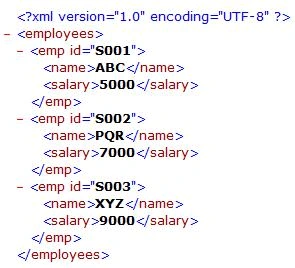
Following is the sample XML file (emp.xml)
that I have used
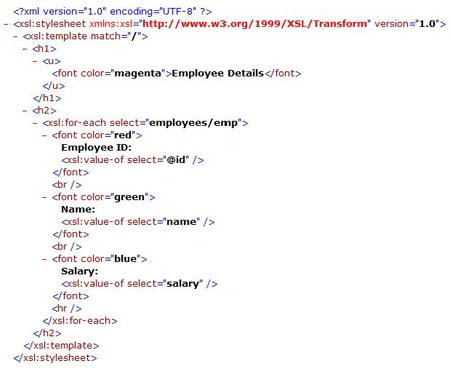
 Following is the sample XSL file (emp.xsl) that I have used
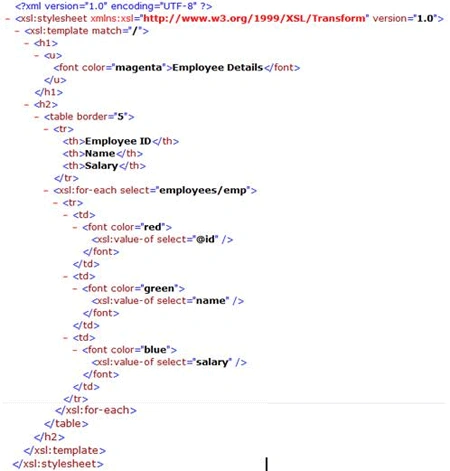
 Following is the sample XSL file (emptable.xsl) that I have used
 An object of the XslCompiledTransformclass can be used to transform the XML file
according to the instructions in the XSL file. The XslCompiledTransformclass has
a method called Load(), which loads the stylesheet specified as a parameter. The
Transformmethod of the XslCompiledTransformclass takes two parameters. The first
parameter is the XML file to be transformed and the second parameter is the
output HTML file in which the transformed output will be stored.
An object of the XslCompiledTransformclass can be used to transform the XML file
according to the instructions in the XSL file. The XslCompiledTransformclass has
a method called Load(), which loads the stylesheet specified as a parameter. The
Transformmethod of the XslCompiledTransformclass takes two parameters. The first
parameter is the XML file to be transformed and the second parameter is the
output HTML file in which the transformed output will be stored.
The transformed
output can be displayed by navigating to the output file using the Navigate
method of the web browser control. A temporary output file is created by
generating a temporary file name using the GetTempFileName() method of the Path
class. The Path class belongs to the System.IO namespace. The extension of the
temporary file is changed from .tmp to .html using the Replace() method of the String class.
Following is the code for the transformation
The following code is used to browse for the XML file and display it in a
textbox
The following code is used to browse for the XSL file and display it in a
textbox:
The following code is used to clear the textboxes and webbrowser control:
Note: The following namespaces are required to work with XML related
classes:
- private void btnView_Click(object sender, EventArgs e)
- {
- try
- {
- // Generating a temporary HTML file
- string outfile = Path.GetTempFileName().Replace(".tmp", ".html");
- // Creating the XslCompiledTransform object
- XslCompiledTransform transform = new XslCompiledTransform();
- // Loading the stylesheet file from the textbox
- transform.Load(txtXSLFileName.Text);
- // Transforming the XML file and storing output in HTML file
- transform.Transform(txtXMLFileName.Text, outfile);
- // Displaying transformed output on a webbrowser control
- webBrowser1.Navigate(outfile);
- }
- catch (Exception ex)
- {
- MessageBox.Show(ex.Message, "Error", MessageBoxButtons.OK, MessageBoxIcon.Error);
- }
- }
- private void btnBrowseXML_Click(object sender, EventArgs e)
- {
- try
- {
- FileDialog dialog = new OpenFileDialog();
- dialog.Filter = "XML files (*.xml)|*.xml|All files (*.*)|*.*";
- dialog.FilterIndex = 1;
- if (dialog.ShowDialog() == DialogResult.OK)
- {
- txtXMLFileName.Text = dialog.FileName;
- }
- }
- catch (Exception ex)
- {
- MessageBox.Show(ex.Message, "Error", MessageBoxButtons.OK, MessageBoxIcon.Error);
- }
- }
- private void btnBrowseXSL_Click(object sender, EventArgs e)
- {
- try
- {
- FileDialog dialog = new OpenFileDialog();
- dialog.Filter = "Stylesheet files (*.xsl)|*.xsl|All files (*.*)|*.*";
- dialog.FilterIndex = 1;
- if (dialog.ShowDialog() == DialogResult.OK)
- {
- txtXSLFileName.Text = dialog.FileName;
- }
- }
- catch (Exception ex)
- {
- MessageBox.Show(ex.Message, "Error", MessageBoxButtons.OK, MessageBoxIcon.Error);
- }
- }
- private void btnReset_Click(object sender, EventArgs e)
- {
- txtXMLFileName.Clear();
- txtXSLFileName.Clear();
- webBrowser1.Navigate("");
- }
- System.Xml
- System.Xml.Xsl
The project is created using Visual C# 2005
Express Edition.
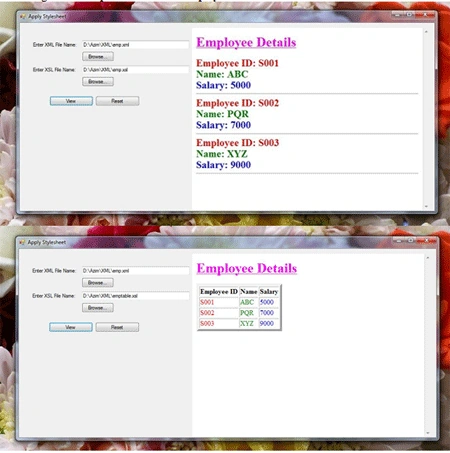
Following are the output screens which display the transformed XML file:
Yadlapalli SrikanthPosted Jan 2, 2012, 11:41 PM
Nice work dude
Azim ZahirPosted Dec 5, 2011, 11:12 PM
Thank you to all
Alok PandeyPosted Dec 5, 2011, 11:05 PM
Nice Article, Azim.
Akash AhlawatPosted Dec 5, 2011, 10:54 PM
Please keep posting articles like this.
Arjun PanwarPosted Dec 5, 2011, 10:50 PM
very good presentation by Azim. Thanks
Dinesh BeniwalPosted Dec 5, 2011, 10:38 PM
Very useful article