

In this article, you will see how to consume the custom WCF service in a Console
Application.
SQL database details
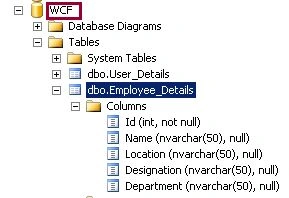
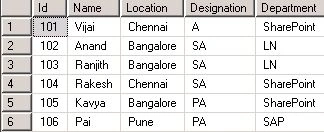
Employee_Details table has the following data:
I have created a custom WCF service and hosted it in IIS http://localhost:9002/EmployeesService/EmployeesService.svc
which is used to fetch the data from the above SQL database table for the
specified id.
Syntax
public Employee_Detail getEmployeebyId(int empId)
Return Value
Type: EmployeesWCFService.Employee_Detail
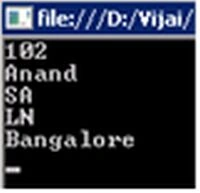
You will get the following result for the specified id 102:

Create a Console application
Steps Involved
- Open Visual Studio 2010 by going to Start | All Programs | Microsoft Visual Studio 2010 | Right click on Microsoft Visual Studio 2010 and click on Run as Administrator.
- Go to File tab, click on New and then click on Project.
- In the New Project dialog box, expand the Visual C# node, and then select the Windows node.
- In the Templates pane, select Console Application.
- Enter the Name and then click OK.
- In the Solution Explorer, right click on the solution and then click on Properties.
- Select the Application tab, check whether ".Net Framework 3.5" is selected for Target Framework.
- Select the Build tab; check whether "Any CPU" is selected for Platform Target.
- In the Solution Explorer, right click on the References folder and click on Add Service Reference.
- The Add Service Reference wizard will pop up.
- In the Address section, enter the WCF
service URL and then click on Go button.
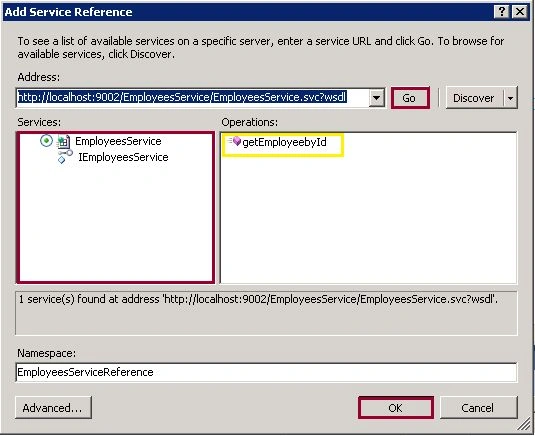
- Enter the proper name for the Namespace.
- Click on Ok.
- Service Reference will be added successfully.
- Replace Program.cs with the following
code.
- using System;
- using System.Collections.Generic;
- using System.Linq;
- using System.Text;
- using ConsumeCustomWCF.EmployeesServiceReference;
- using System.Net;
- namespace ConsumeCustomWCF
- {
- class Program
- {
- static void Main(string[] args)
- {
- EmployeesServiceClient serviceClient = new EmployeesServiceClient();
- EmployeesServiceReference.Employee_Detail emp = serviceClient.getEmployeebyId(102);
- Console.WriteLine(emp.EmpId);
- Console.WriteLine(emp.EmployeeName);
- Console.WriteLine(emp.EmployeeDesignation);
- Console.WriteLine(emp.Dept);
- Console.WriteLine(emp.WorkLocation);
- Console.ReadLine();
- }
- }
- }
-
Build the solution.
-
Hit F5.
-
Output:
Summary
Thus in this article, you have seen how to consume a custom WCF service in a Console
application.
MohammadPosted Jul 14, 2017, 9:18 PM
Can you please explian more about this Line of code ... EmployeesServiceReference.Employee_Detail emp = serviceClient.getEmployeebyId(102);
Rajneesh RaiPosted Apr 17, 2014, 5:08 AM
Nice Article !! Thanks for sharing..
veenaPosted Jun 14, 2012, 12:49 AM
Hi, How to consume IIS hosted WCF service in DOS cmd prompt?
Akshay TeotiaPosted Jan 11, 2012, 11:09 AM
great work.
Amit MaheshwariPosted Jan 11, 2012, 11:04 AM
Hi Vijay it's a great effort to accomplish such task keep it up thanks for sharing.....
Abhi KumarPosted Jan 10, 2012, 11:46 PM
Nice article.
Sonakshi SinghPosted Jan 10, 2012, 11:20 PM
keep posting
Monika AroraPosted Jan 10, 2012, 11:11 PM
Its a very good and useful article for those who want to learn the method through which custom WCF service can be consumed in a console application.
Vineet Kumar SainiPosted Jan 10, 2012, 11:06 PM
Good Post.....
Vikas MishraPosted Jan 10, 2012, 6:24 PM
Thanks for sharing its such a very useful article.