

Introduction
In this article you will be seeing how to localize site columns in SharePoint 2010 using Visual Studio 2010.
Steps Involved
The following steps must be performed to localize the site columns in SharePoint 2010 using Visual Studio 2010:
- Create Empty SharePoint Project
- Create Resource files
- Add Empty Element
- Deploy the solution
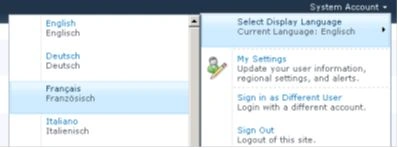
- Test the Localized columns
Create Empty SharePoint Project
- Open Visual Studio as administrator.
- Go to File, select New and then click on Project.

- Select Empty SharePoint Project from the installed templates.
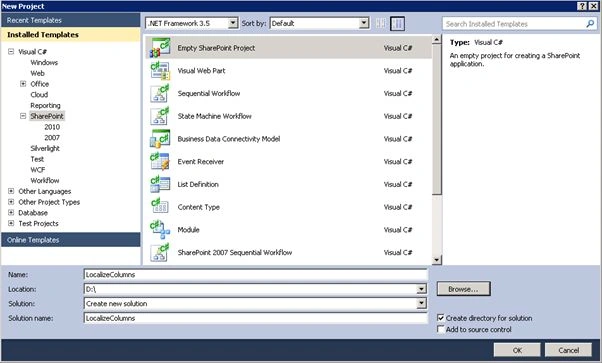
- Enter the Name as LocalizeColumns and then click on Ok.
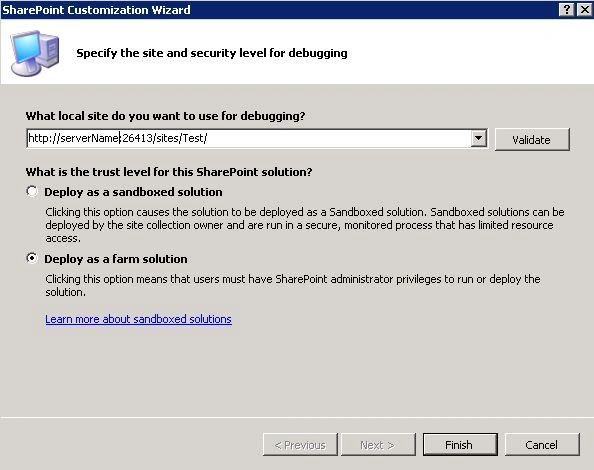
- Enter the site URL and select "Deploy as farm solution".
- Click on Finish.
Create Resource files
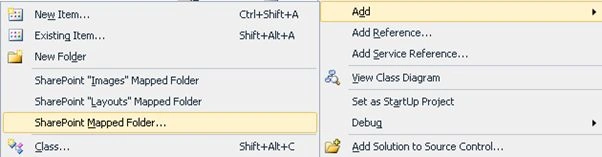
- Right-click on the solution; select Add and then click on SharePoint Mapped Folder.
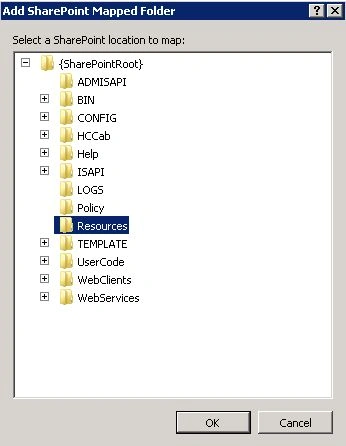
- Select the Resources folder and then click on Ok.
- Right-click on the Resources folder; select Add and click on New Item.

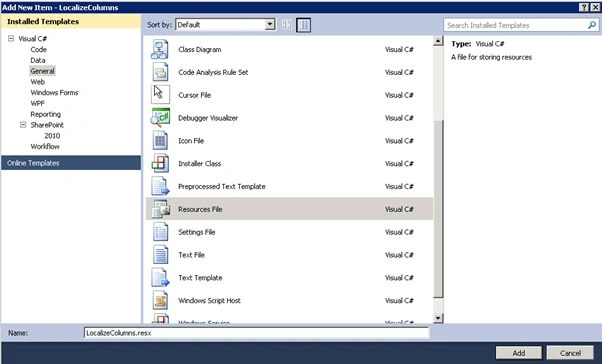
- Select the Resources File template from the installed templates, name it LocalizeColumns and then click on Ok.
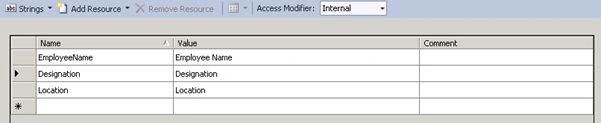
- Double-click on LocalizeColumns.resx and add the following name and values:
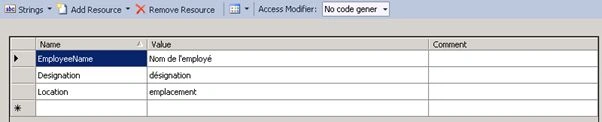
- Similarly add one more resource file for the French language; name it as LocalizeColumns.fr-FR.resx and add the following name & values:
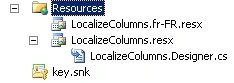
- The Resources folder looks like the following:
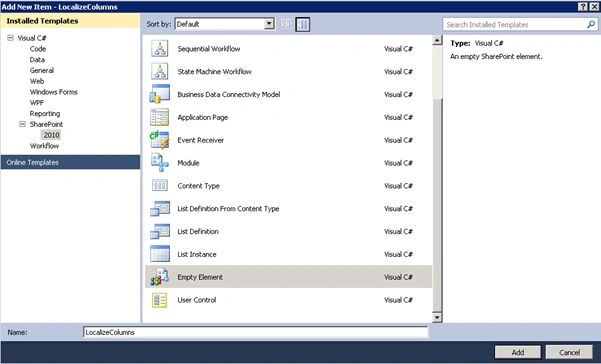
Add Empty Element


Join the conversation! Your thoughts help the community grow.