

Introduction : This is a simple application using ASP.NET MVC tools. This is for beginners how to create a database in a MVC application. The ASP.NET MVC framework supports using any data access technology, and developers can choose from a variety of rich .NET data options to implement their models including: LINQ to Entities, LINQ to SQL, NHibernate, LLBLGen Pro, SubSonic, WilsonORM, or just raw ADO.NET DataReaders or Datasets. If you developed any information based project first need is manage information in database. ASP.NET MVC provide some tools that used add the data base in your application easily. This is a very simple program I hope it's very helpful for beginners and solve the problem how to create database in a MVC application.
Step 1 :
- Open Visual Studio 2010.
- Click file ->New->Projects.
- Add MVC ASP. NET 2 Empty Web application.

Step 2 : Next step add one folder in Solution Explorer.
- Right Click of Solution Explorer add a Folder.
- Right Click of Solution Explorer->Add->Folder.
- Name of folder "App_Data".
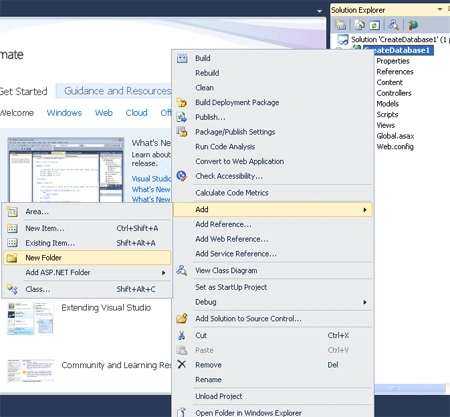
Step 3: In a App_Data folder add LINQ to SQL CLASS. LINQ to SQL will then takes care of generating the appropriate SQL execution logic to use at runtime when we interact and use them.
- Right Click of App_Data Folder->Add New Item-> add "LINQ to SQL" class.
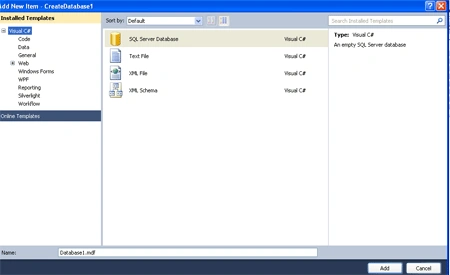
Step 4 : After add the LINQ to SQL class two file create in folder.
- First is "Database1.mdf".
- Second is "Database_log.ldf".
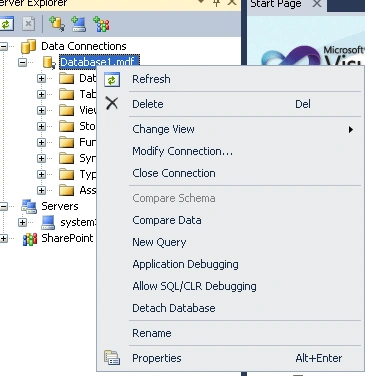
Step 5 : Open the Server Explorer.
- Right Click of "Database1.mdf"->Add Table Schema.
- Set the fields "ID,FName,LName,Address,Salary".

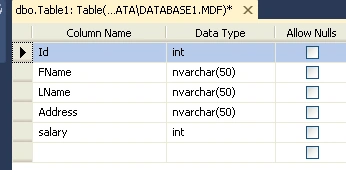
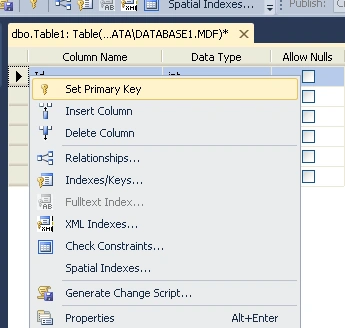
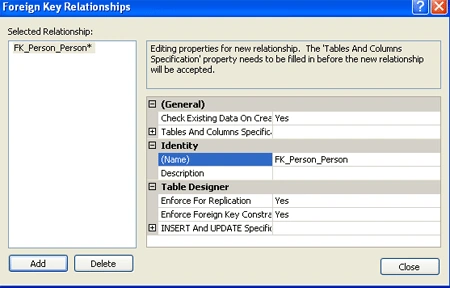
Step 6: If you want to set the Primary key and Relationship.
- Right click of "ID" Fields and set Primary key.
- In same way set Relationship.
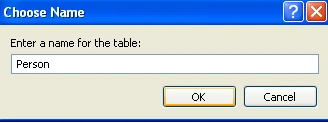
- Close and Save the name of the table Just like a "Person".
Step 7 : Click the table.
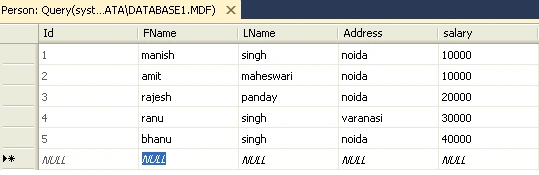
- Right click of Person and open "Show table data".
- Insert data from a table.
Join the conversation! Your thoughts help the community grow.