-
Create a File System Website / You can create directly IIS application also.
-
Create a folder by the name of Mobile
-
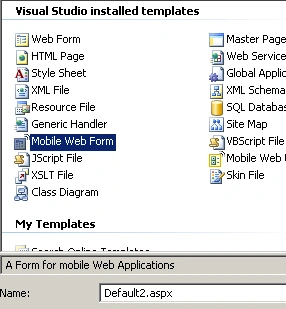
Add a new mobile web user form.
-
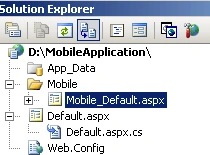
Rename Default.aspx with a new name otherwise it will clash with the normal website default.aspx webform. I'm renaming this with Mobile_Default.aspx
-
Design view of Mobile Web Form.

-
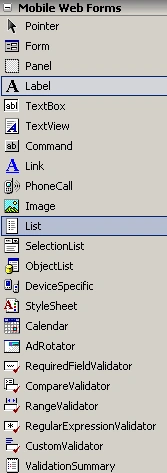
You have to use only the Mobile Web Forms tools from toolbox.
-
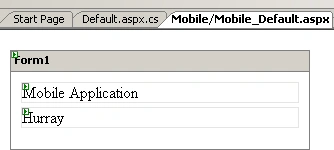
Design view of my mobile web form.
-
To run the mobile application on mobile devices you have to configure the IIS in your machine.
-
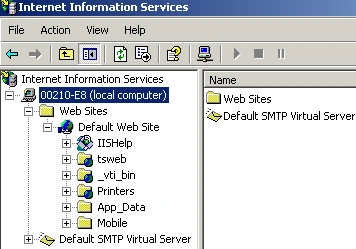
Start -> Control Panel -> Administrative Tools -> Double click on internet information service.
-
Cross check that IIS is working in your computer or not. (You can type the url: http://localhost/iishelp/iis/misc/default.asp)
-
Also check the default web site shouldn't be stopped. If it's stopped then right click on default website and choose an option start.
-
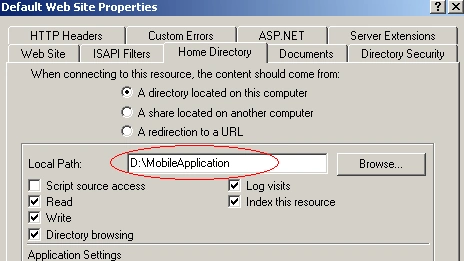
Now right click on Default Web Site and go to properties.
-
Choose "Home Directory" tab:
-
Replace the Local Path from C:\InetPub\wwwroot to your application path.
-
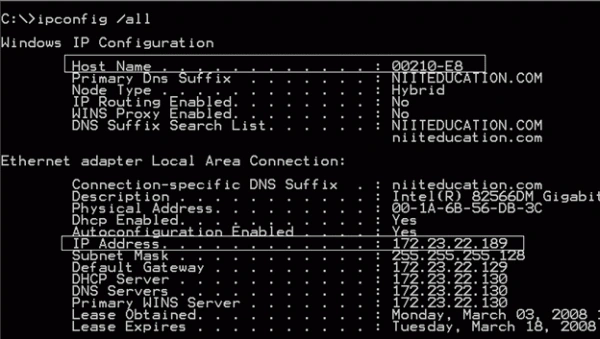
Go to dos prompt and check your IP Address and machine name.
-
Go to internet explorer and type the following url:
http://localhost/Your Application Name
http://172.23.22.189/YourApplicationName
http://00210-E8/YourApplicationName -
If it's working fine then first step is over.
-
Go to your mobile application now.
-
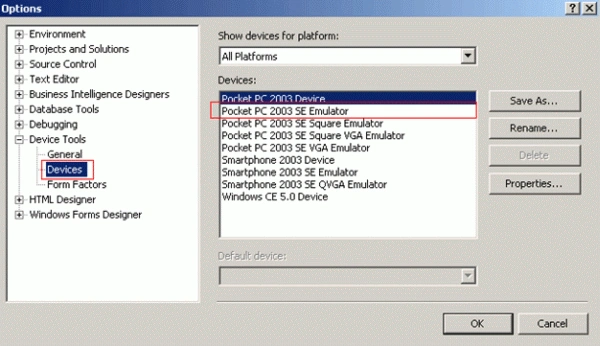
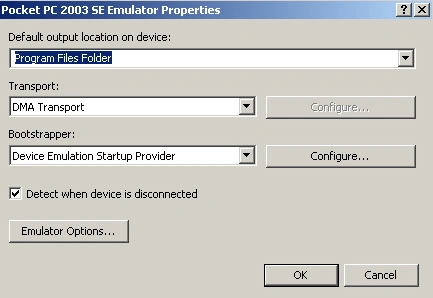
Go to Tools Menu -> Options -> Devices -> Pocket PC 2003 SE Emulator -> Go to properties
-
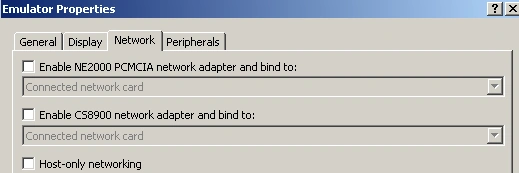
Click on Emulator Options.
-
Cross check that all three above options should be unchecked.
-
Cross Check Microsoft ActiveSync is installed or not. If not then install it.
-
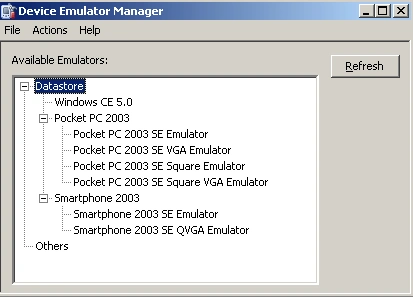
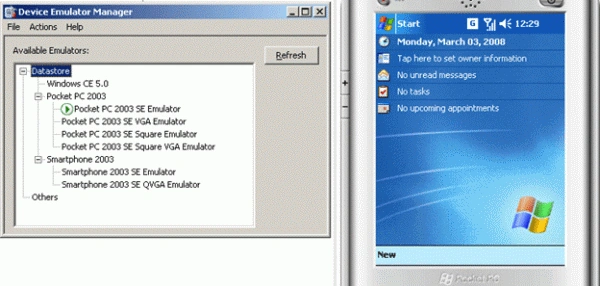
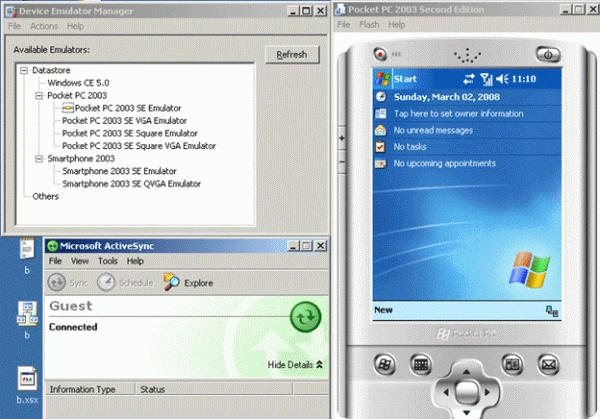
Now go to Tools Menu -> Click on Device Emulator Manager.
-
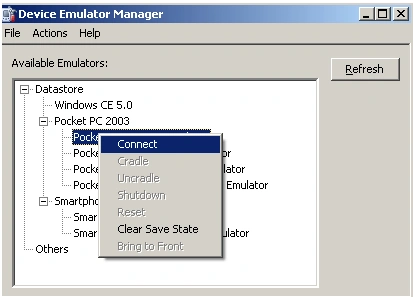
Right Click on Pocket PC 2003 SE Emulator then connect.
-
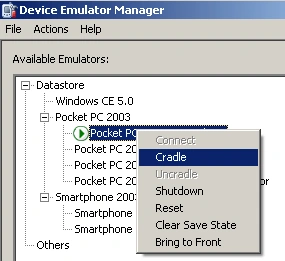
Right Click on Pocket PC 2003 Emulator and click on Cradle
-
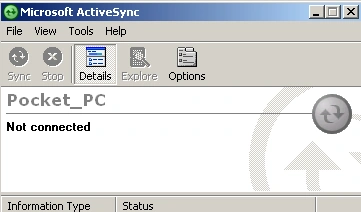
This will automatically state "The Synchronization with Microsoft Async"
-
Cross check the settings of Microsoft Async
-
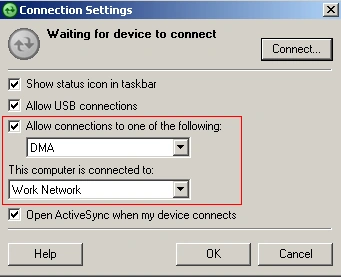
Go to File -> Click on Connection Settings.
-
Do the appropriate changes
-
Click on Ok.
-
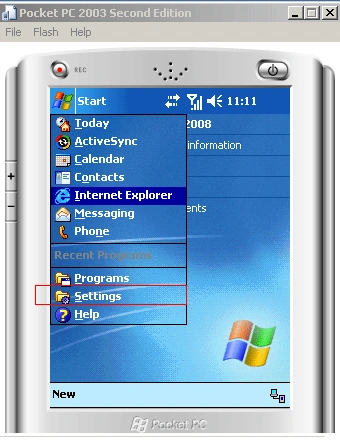
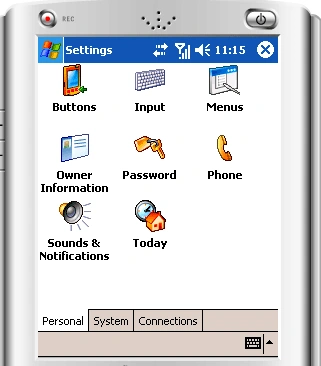
Click on Start and click on settings
-
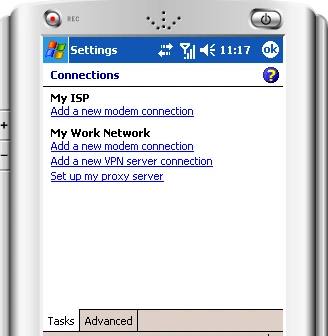
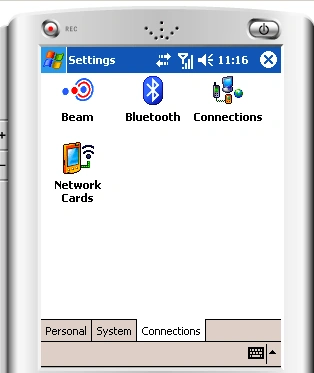
Click on Connections
-
Double click on Connections
-
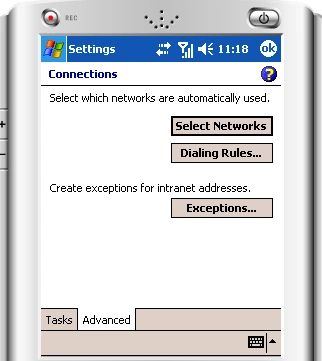
Click on Advanced
-
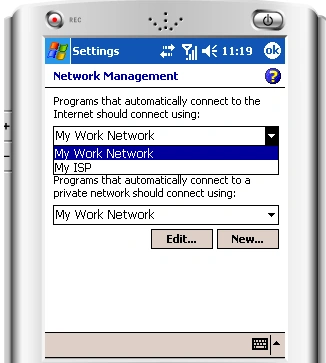
Click on Select Networks.
-
Choose My Work Network and Click on Ok.. Ok... and Ok.
-
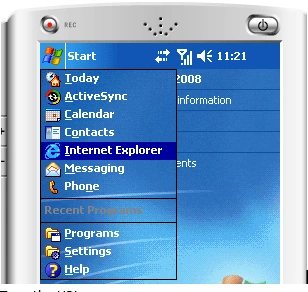
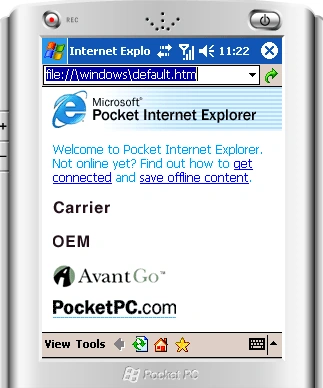
Click on Start and then go to Internet Explorer
-
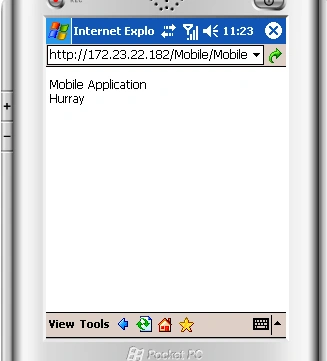
Type the URL
-
Type the specified URL and run application.
-
Note: When connecting to Microsoft Async it will propmt to configure Microsoft Outlook just ignore that part.
-
Note: Properly shutdown the Device Emulator. First do uncradle then shutdown and finally close the device emulator.

Steps to Create Mobile Application in ASP.NET 2.0
Join the conversation! Your thoughts help the community grow.
Sign in to leave a comment
It is the same account you read, post and publish with — and you will come straight back to this page.
aruleditedPosted Oct 10, 2012, 2:22 AMEdited Oct 10, 2012, 2:22 AM
good
sac zadPosted Mar 24, 2011, 6:35 AM
thank for your reply one question---is this above application work in all mobiles
sac zadPosted Mar 24, 2011, 6:34 AM
thanks for your easy post. i have one question that is this application work in all the mobiles like windows... or any kind of platform
ridhika mPosted Jan 27, 2011, 5:44 AM
Hi...can u pls guide me as to how to develop asp.net mobile application in vs 2010 and how to test it?
tejas shahPosted Sep 10, 2010, 6:41 AM
how do i get mobile web form in my visual studio 2008... what i need to install to get that...