
Introduction
Similar to Word mail merge, Excel Mark Designer is used to export data from a database to a specific template file. Using it, reports can be printed in bulk at one time and people can save substantial time exporting and formatting data using Mark Designer.
This article focuses on how to use the Mark Designer to generate a report which includes two sheets. The first one shows data from a database and the second one presents a column chart about data information in the first sheet.
Data Preparation
In my example, I get data from the Northwind database, which is provided by Microsoft. You can download it from here: http://www.microsoft.com/download/en/details.aspx?id=23654.
First, I select the Products table in the Northwind database. It presents product information according to Product ID. Then, choose which columns to export, including Product ID, Product Name, QuantityPerUnit, UnitPrice, UnitsInStock, UnitsOnOrder, and RecordLevel.
The chart data sources are Product ID, UnitsInStock, and UnitsOnOrder. By presentation of information about products amounts in stock and on order, this chart can show sales information by Product ID.
Since there is such a large amount of data in this table, I will just export one part of it.
Template
Before generating the report, we need to create a template, as in:
- Data Sheet Title. In the first sheet, add the title Product Information on the top of the first sheet. Merge cells from A1 to G4. Set the font style and color. Then add the background for the title.
- Column Title. In the Data Preparation part, I have shown the columns I will export to Excel. Add these column titles at the seventh row in order. Then format cell styles for column title.
- Placeholder. Add a placeholder under the column title row and set the format for this row. The placeholders offer a location for data to be exported. The placeholder name in every column matches the column's title. The placeholder in the first column has additional characters (add:styles), which is used to define the style for all data.
- Value Type. If there are date, currency, or percentage information contained in the data, set corresponding value types for them.
- Chart. Inset a blank column chart in the second sheet. Set chart border and chart area background color.
- Worksheet Name. To distinguish which contents worksheets contain, add a worksheet name. Name first as Product Info and second as Units Chart.
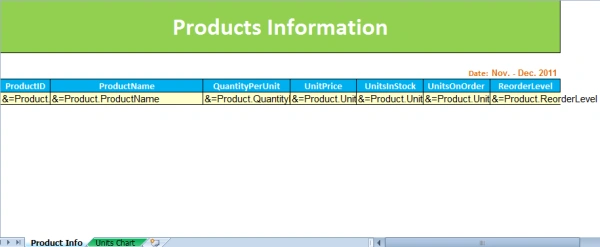
Template
Now, the template is done, we can connect with the database to export the data and generate a chart.
Procedure


- Data in the Products table will be inserted into columns occupied by corresponding placeholders.
- Placeholder column is the beginning row to insert data.

4. Select the chart data sources (range in the exported table). Generate the chart and add the chart title, value axis title, and category axis title for the chart. 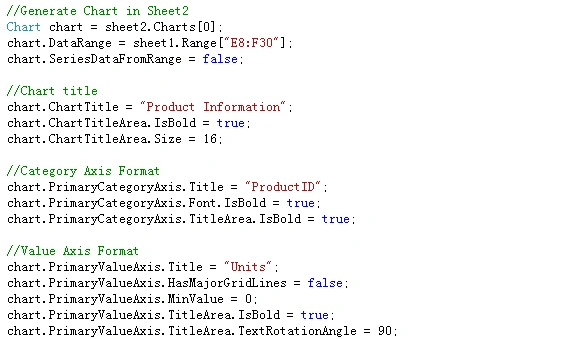
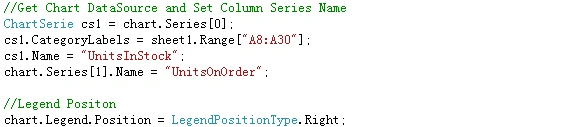
5. Save and launch the file:

- using System.Data;
- using System.Data.SqlClient;
- using Spire.Xls;
- using Spire.Xls.Charts;
- namespace ExcelMarkDesigner
- {
- class Program
- {
- static void Main(string[] args)
- {
- //Load File
- Workbook workbook = new Workbook();
- workbook.LoadFromFile(@"..\..\ProductInfo.xlsx", ExcelVersion.Version2010);
- Worksheet sheet1 = workbook.Worksheets[0];
- Worksheet sheet2 = workbook.Worksheets[1];
- //Connect DataBase and Get Data in Product
- string connString = @"Data Source=.\SQLEXPRESS;AttachDbFilename=|DataDirectory|\NORTHWND.MDF;Integrated Security=True;Connect Timeout=30;User Instance=True";
- string orderSql = "SELECT ProductID,ProductName,QuantityPerUnit,UnitPrice,UnitsInStock,UnitsOnOrder,ReorderLevel FROM products";
- DataTable product = new DataTable();
- using (SqlConnection conn = new SqlConnection(connString))
- {
- conn.Open();
- SqlDataAdapter sda = new SqlDataAdapter(orderSql, conn);
- sda.Fill(product);
- }
- //Export Data with MarkDesigner
- workbook.MarkerDesigner.AddDataTable("Product", product);
- workbook.MarkerDesigner.Apply();
- //Generate Chart in Sheet2
- Chart chart = sheet2.Charts[0];
- chart.DataRange = sheet1.Range["E8:F30"];
- chart.SeriesDataFromRange = false;
- //Chart title
- chart.ChartTitle = "Product Information";
- chart.ChartTitleArea.IsBold = true;
- chart.ChartTitleArea.Size = 16;
- //Category Axis Format
- chart.PrimaryCategoryAxis.Title = "ProductID";
- chart.PrimaryCategoryAxis.Font.IsBold = true;
- chart.PrimaryCategoryAxis.TitleArea.IsBold = true;
- //Value Axis Format
- chart.PrimaryValueAxis.Title = "Units";
- chart.PrimaryValueAxis.HasMajorGridLines = false;
- chart.PrimaryValueAxis.MinValue = 0;
- chart.PrimaryValueAxis.TitleArea.IsBold = true;
- chart.PrimaryValueAxis.TitleArea.TextRotationAngle = 90;
- //Get Chart DataSource and Set Column Series Name
- ChartSerie cs1 = chart.Series[0];
- cs1.CategoryLabels = sheet1.Range["A8:A30"];
- cs1.Name = "UnitsInStock";
- chart.Series[1].Name = "UnitsOnOrder";
- //Legend Positon
- chart.Legend.Position = LegendPositionType.Right;
- //Save and Launch File
- workbook.SaveToFile(@"..\..\sample.xlsx", ExcelVersion.Version2010);
- System.Diagnostics.Process.Start(@"..\..\sample.xlsx");
- }
- }
- }
After running, we can get a report as follows.
Data Sheet

Chart Sheet
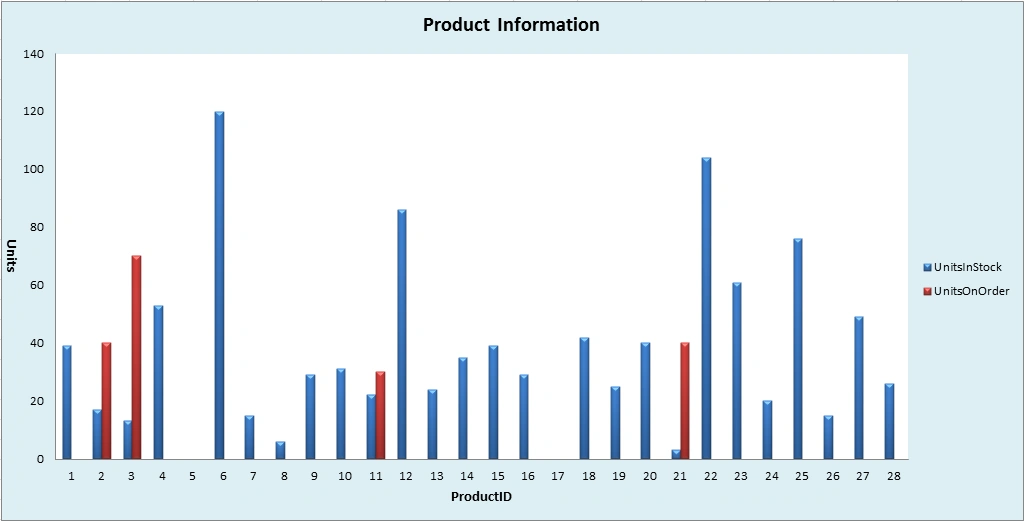
Conclusion
This article shows how to use Mark Designer to export data to Excel and generate charts from portions of data in multiple worksheets to form a complete report.
sharath krishnaPosted Dec 22, 2014, 10:09 AM
Please some one help me out
sharath krishnaPosted Dec 22, 2014, 10:09 AM
hi I am getting data into excel but not able generate the chart as explained by you.
Sudhir SharmaPosted Apr 8, 2014, 3:13 AM
Hi All, I want template based reporting in excel nothing is fix excluding column name are . column name may horizontal or vertical , there may be design in excel template . any one can help for the same
Former memberPosted Nov 12, 2013, 4:16 AM
Check out this page to view the demo of how to create excel report using c#: http://www.aspose.com/demos/.net-components/aspose.cells/csharp/business-reports/default.aspx
ShaunePosted Apr 12, 2013, 12:42 PM
Sorry to bring up an old thread, but is there a way to do this with a web-based app that would "export" the excel sheet to a client computer?
Sambhaji RodePosted Dec 26, 2012, 3:57 AM
it is very very useful. Thanks a lot.
George ericPosted Apr 13, 2012, 2:01 AM
It is pretty helpful to create excel report for c# developers.
Manish SinghPosted Jan 4, 2012, 11:04 AM
it's really helpful
Akash AhlawatPosted Jan 4, 2012, 11:04 AM
Great work Lizzy
Vineet Kumar SainiPosted Dec 21, 2011, 12:19 PM
Very good...
Anuja PawarPosted Dec 20, 2011, 7:47 AM
Its really interesting and helpful Lizzy
Emmy DickensPosted Dec 20, 2011, 6:54 AM
Nice..
Arjun PanwarPosted Dec 20, 2011, 5:58 AM
Really great work Lizzy
Alok PandeyPosted Dec 20, 2011, 5:58 AM
Nice article.
Akash AhlawatPosted Dec 20, 2011, 5:57 AM
Thanks Lizzy for providing this useful information..
Sonakshi SinghPosted Dec 20, 2011, 5:54 AM
This is such a big article... you have explained in a very comprehensive manner
Manish SinghPosted Dec 17, 2011, 6:28 AM
Hi..... Good work........
Vikas MishraPosted Dec 16, 2011, 11:45 PM
Hi Lizzy u have done a very nice work......
Michell JohnsonPosted Dec 16, 2011, 11:17 PM
Dear Lizzy it's a great work it is very helpful a lot thanks.
Rajesh KumarPosted Dec 16, 2011, 11:16 PM
Good Work.................
Manoj Singh PanwarPosted Dec 16, 2011, 11:15 PM
remarking efforts dear.
TomPosted Dec 16, 2011, 3:04 AM
That component is nice...I have used it for a long time. Anyway, thanks for sharing this idea.