

Introduction
In this article we create an Empty view application. In this we create a view using the uiviewcontroller class. To create the uiviewcontroller class we do the following.
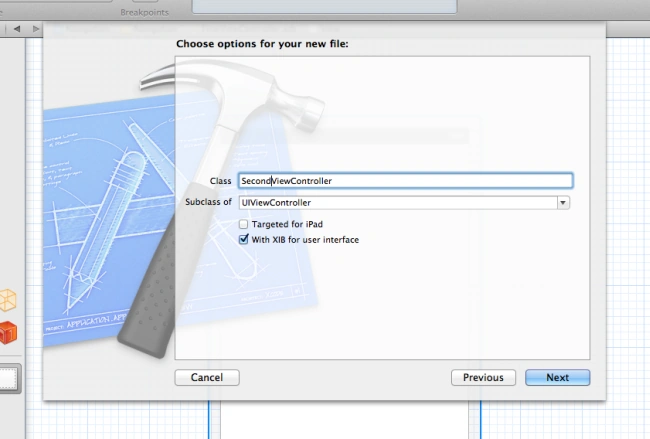
Select the appdelegate.m class and right-click on it ->choose new file ->select objective C class ->click on next ->by default the class name is ViewController. When you choose subclass UIViewController, change the name to whatever you want; if you want to use xib then you mark on it -> click on next -> select the location where you import the view controller class in the project.
To navigate one view to another here I use two the UIViewController class. First class name first view controller and Second class name second view controller. In this article I use one button and one label in the First view and a single label is used in the second view using xib. When we click on the first button "click!" it navigates from one view to another.
Step 1
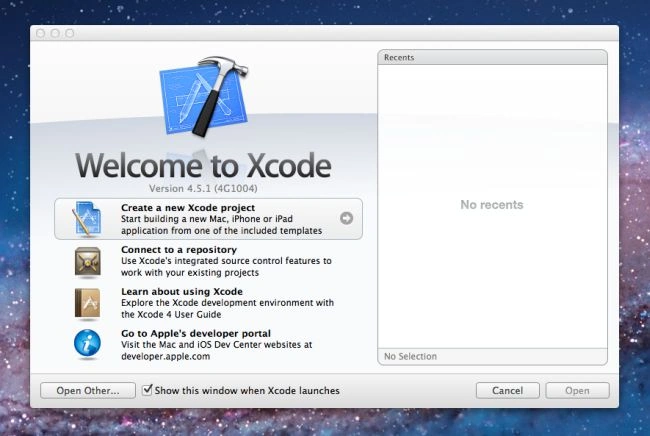
Open XCode by double-clickiing on it.

Step 2
Create a New XCode Project by clicking on it.
Step 3
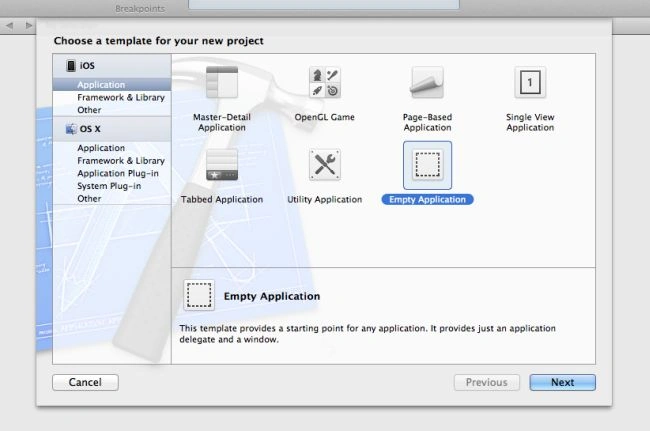
Now select an Empty View Application and click on Next.
Step 4
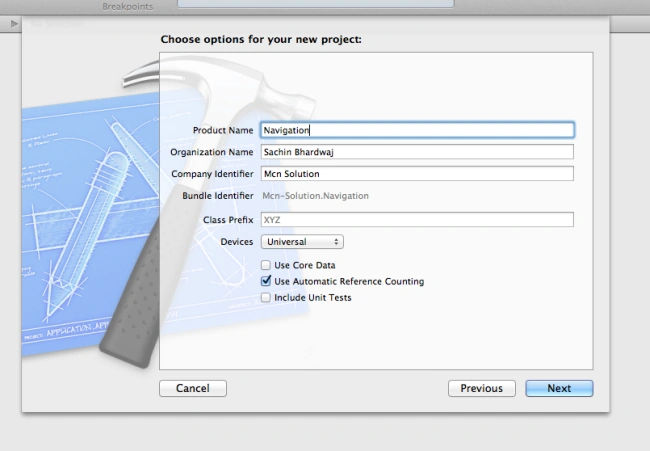
Now Give your Product a Name. Here I use Nevigation and Company Identifier Mcn Solutions and Click on Next.
Step 5
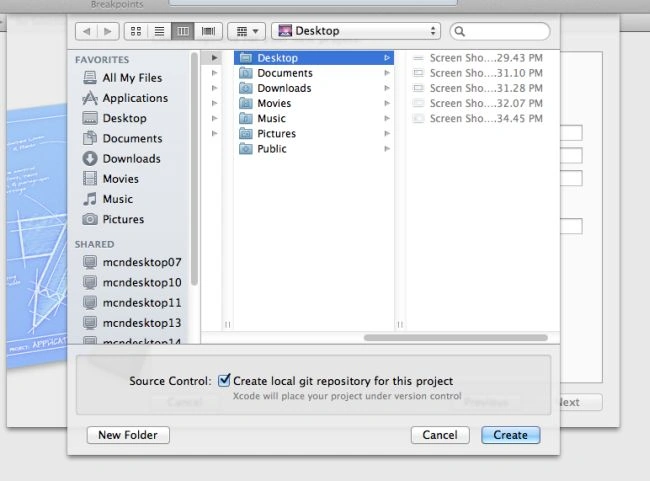
Select the location where you want to save your project then click on Create.
Step 6
Now you can see in the XCode Window two Objective C classes that were generated by XCode; they are:
1.Appdelegate.h
2.AppDelegate.m
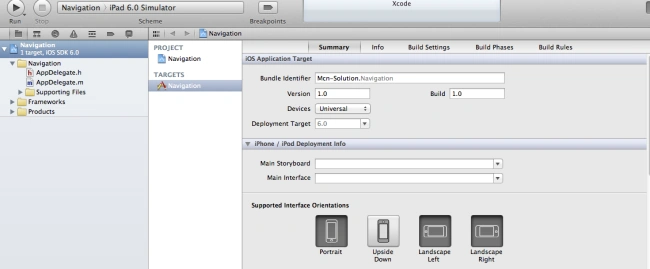
Now we add two UIViewControllers, as in the following.
Step 7
Select the appdelegate.m class and right-click on it; see:
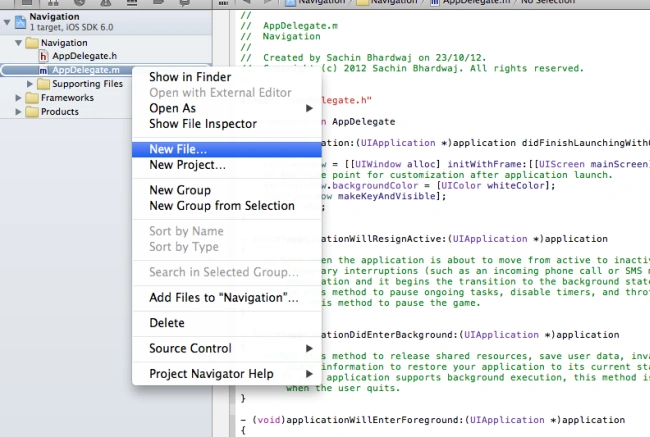
Choose New File..
Step 8
Select Subclass of UIViewController from drop down list and give the class name. Here I use the class name First view controller and click on the checkbox with xib user interface. For using a label and button from xib.
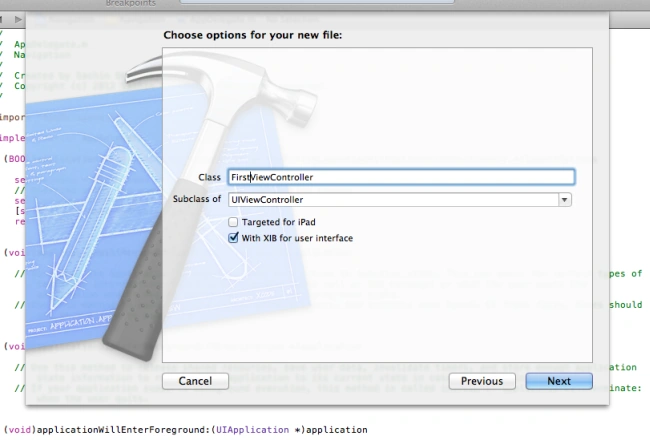
Click on next.
Step 9
Now click on create, to import a class to the project; see:
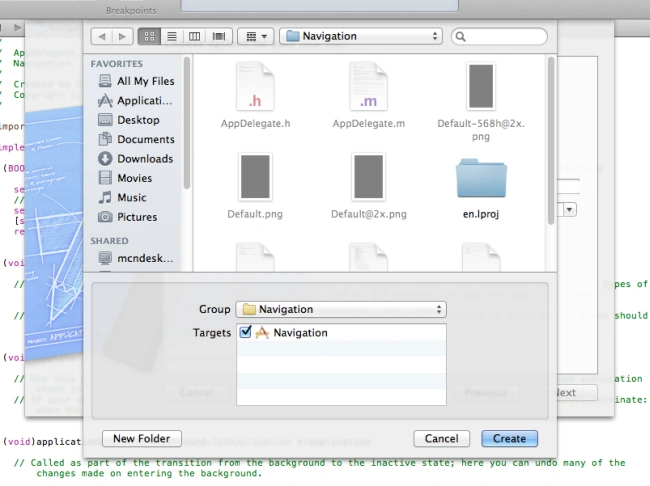
Repeat the same steps to add a second view controller class.
Step 10
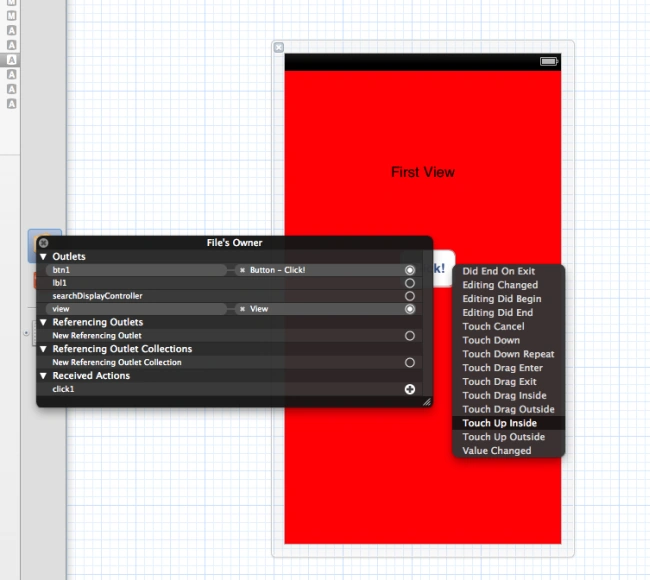
After that we add code for navigation and linking.
Step 11
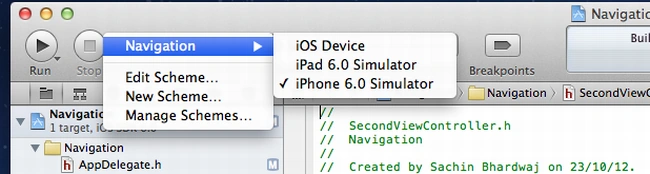
Now select which Platform you want to see the output for.
Output
Output 1 for iPhone:
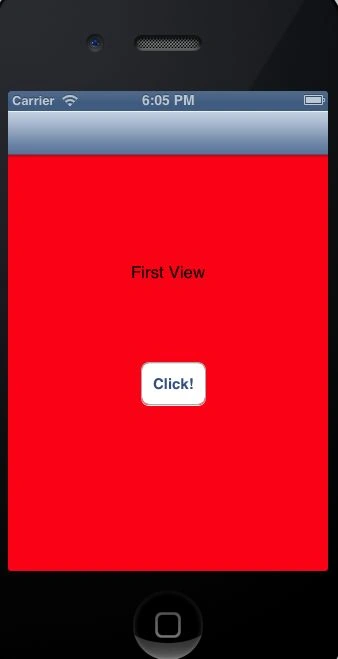
Output 2 for iPhone:
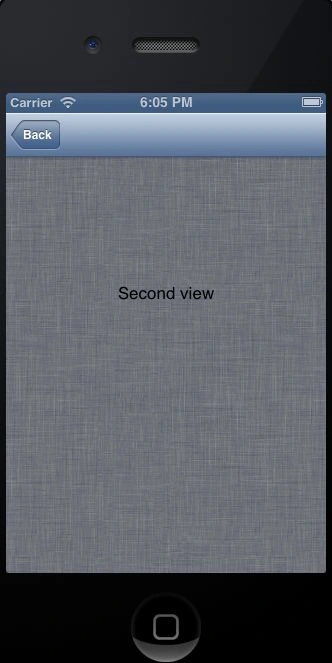
Output 1 for iPad:
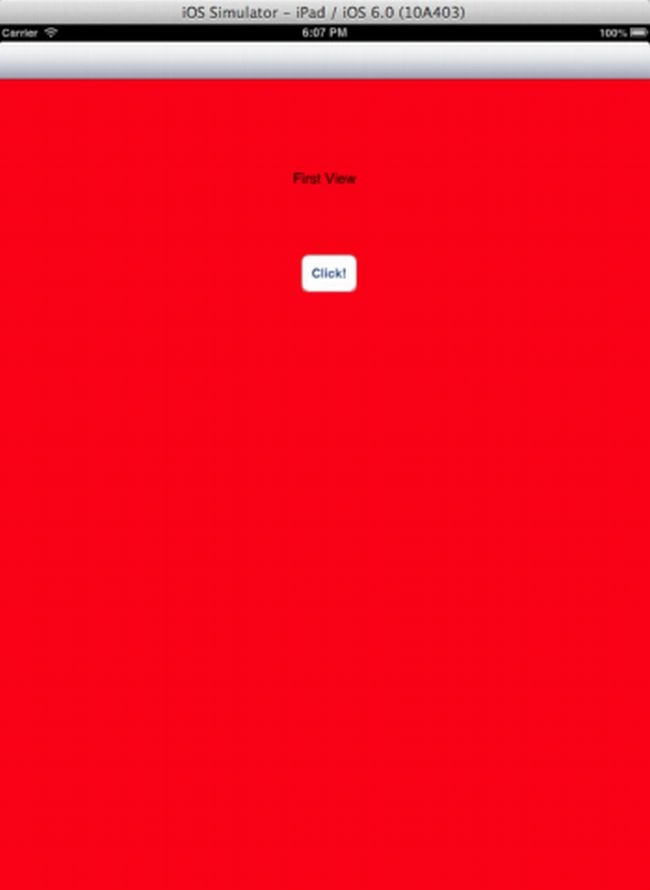
Output 2 for iPad:

Join the conversation! Your thoughts help the community grow.