

Introduction
In this article we create a single view application. Here we use a web view, Tab bar and Bar button from outlet and make it's connection to the web view.
To better understand follow these steps.
Step 1
Open Xcode by double-clicking on it.
Step 2
Create a New XCode Project by clicking on it.
Step 3
Now select Single View Application and click on Next.
Step 4
Now provide Product Name.
Step 5
Select the location where you want to save your project then click on Create.
Step 6
After that, we write code and perform linking between outlet and webview.
ViewController.h
#import <UIKit/UIKit.h>
@interface webViewController : UIViewController{
IBOutlet UIWebView *webview;
}
@end
ViewController.m
#import "webViewController.h"
@interface webViewController ()
@end
@implementation webViewController
- (void)viewDidLoad
{
[super viewDidLoad];
{
[webview loadRequest:[NSURLRequest requestWithURL:[NSURL URLWithString:@"https://twitter.com/sachin19jan"]]];
}
}
- (void)didReceiveMemoryWarning
{
[super didReceiveMemoryWarning];
// Dispose of any resources that can be recreated.
}
@end
ViewController.Xib

Step 11
Now select which Platform you want to see the output for.
Output
Output 1 in iPhone:
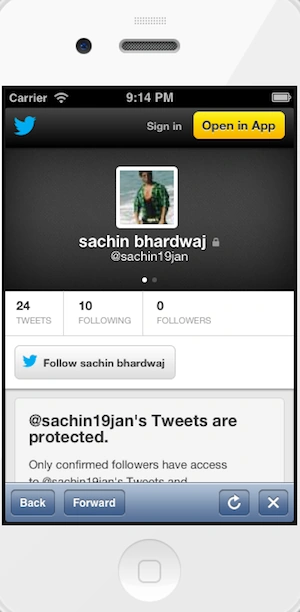
Now we click on the sign in icon.
Output 2 in iPhone:
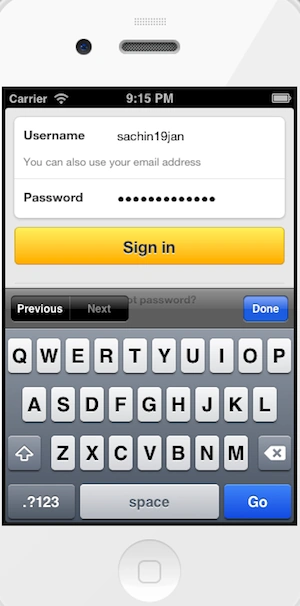
Output 3 in iPhone:
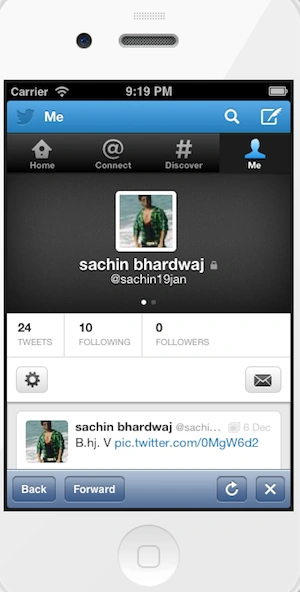
Output 4 in iPhone:
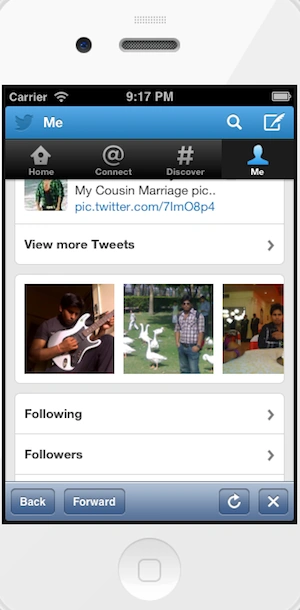
Here I click on an image.
Output 5 in iPhone:
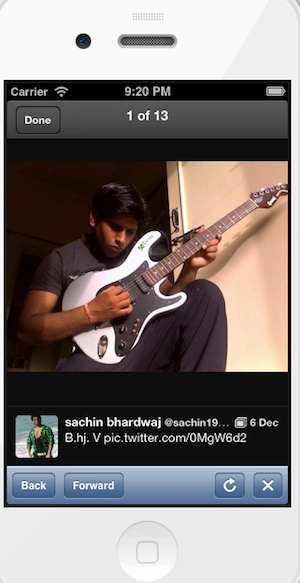
After clicking on an image we click on the back button.
Output 6 in iPhone:
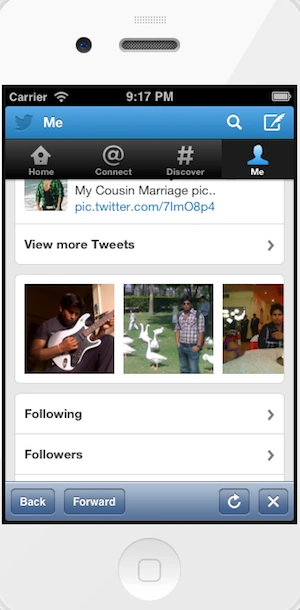
Now we click on the forward button.
Output 7 in iPhone:
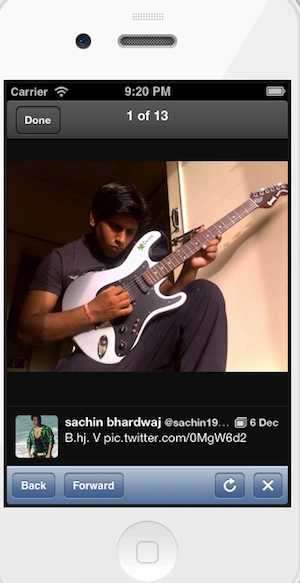
Now we refresh the page; for this we click on the refresh icon button.
Output 8 in iPhone:
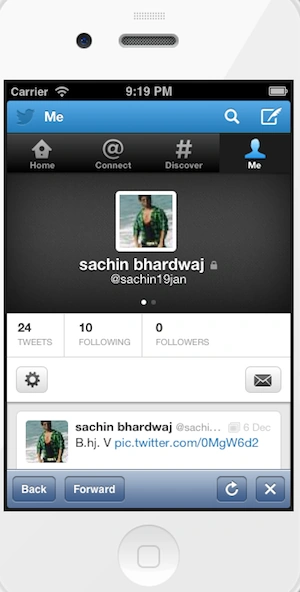
After refreshing, the view will appear.
Output 9 in iPhone:
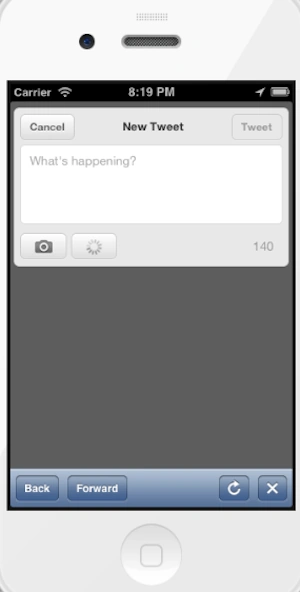
To stop processing we click on the stop icon button.
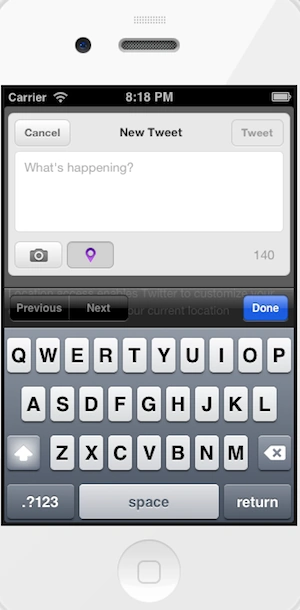
Output 10 in iPhone:
Join the conversation! Your thoughts help the community grow.