-
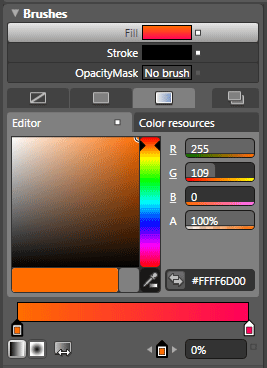
Add a Rectangle Control Name it rectAnimate. Change the Background so that the animation is visible.
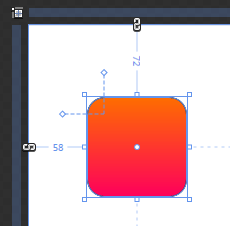
Now create a StoryBoard name it StoryBoard1 and add a TranslateTransform.
Remember we are going to do this in code behind. So delete all the storyboards you just created.
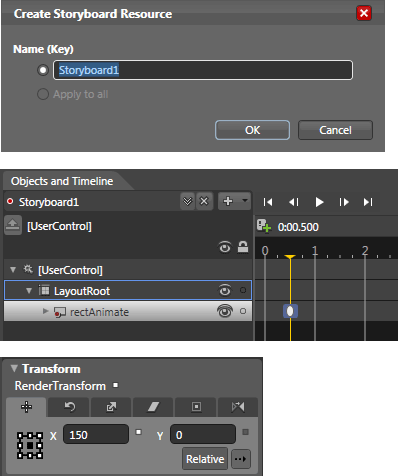 <Storyboard x:Name="Storyboard1">
<DoubleAnimationUsingKeyFrames BeginTime="00:00:00" Storyboard.TargetName="rectAnimate" Storyboard.TargetProperty="(UIElement.RenderTransform).(TransformGroup.Children)[3].(TranslateTransform.X)">
<EasingDoubleKeyFrame KeyTime="00:00:00.5000000" Value="150"/>
</DoubleAnimationUsingKeyFrames>
</Storyboard>Adding keyframes to an animation makes the coding of storyboards a little more complex, but they still follow the same general pattern. Create a storyboard, create an animation, create some keyframes, and add the keyframes to the animation, the animation to the storyboard, and the storyboard to the resources.
-
Begin work in this project by declaring the Opknu^k]n` object as we did in the previous example. This code goes above the MainControl() constructor in the MainControl.xaml.cs file.
private Storyboard MoveRight = new Storyboard();
-
Inside the MainControl() constructor, beneath the Initialize() method, create a new
DoubleAnimationUsingKeyframes object called XAnim, and set the TargetName and TargetProperty values. This code will once again be targeting the X transform property of the object being animated.
DoubleAnimationUsingKeyFrames XAnim = new DoubleAnimationUsingKeyFrames();
Storyboard.SetTargetName(XAnim,"rectAnimate");
XAnim.SetValue(Storyboard.TargetPropertyProperty, new PropertyPath("(UIElement.RenderTransform).(TransformGroup.Children)[3].(TranslateTransform.X)"));
-
Declaration of the preceding DoubleAnimationUsingKeyFrames object is similar to previous examples. The next step differs a bit, though. Here, you declare the BeginTime for the animation, which is expressed as TimeSpan object. As per the example storyboard, this keyframe begins at an offset time of 0. This code goes into MainControl() constructor after the code added in last step.
XAnim.BeginTime = new TimeSpan(0, 0, 0);
-
Now you need to declare any keyframes that will live inside the animation. Begin by declaring a new SplineDoubleKeyFrame object called SKeyFrame. The KeyTime is set to 0.5 seconds, and the value of the keyframe is 150. This tells Silverlight to move the rectangle 150 pixels along the x axis in 0.5 seconds.
SplineDoubleKeyFrame SKeyFrame = new SplineDoubleKeyFrame();
SKeyFrame.KeyTime = KeyTime.FromTimeSpan(TimeSpan.FromSeconds(0.5));
SKeyFrame.Value = 150;
-
After that is done, the keyframe object can be added to the animation. Keep in mind that if you have many keyframes in an animation, each one needs to have a unique name.
XAnim.KeyFrames.Add(SKeyFrame);
-
Add the animation to the storyboard to the LayoutRoot object:
MoveRight.Children.Add(XAnim);
LayoutRoot.Resources.Add("MoveRight", MoveRight);
-
All that's left is to add an event listener and an associated event handler. Add the event listener at the bottom of the MainControl() constructor.
-
If you are using the method described earlier, Visual Studio will create the event handler function for you. All you need to do is add the code that calls the storyboard:
private void rectAnimate_MouseMove(object sender, MouseEventArgs e)
{
MoveRight.Begin();
}
-
Compile and run the project and place the pointer over the rectangle. The MoveRight storyboard will play, moving the rectangle 150 pixels to the right. If you wanted to make the rectangle move at an angle, it would be as simple as adding a second animation that changes the Y transform of the object.
-
Add the following code to the project, just after MoveRight.Children.Add(XAnim);. Notice that the new animation's name is YAnim and the TargetProperty has been adjusted to affect the Y transform of the Rectangle object.
DoubleAnimationUsingKeyFrames YAnim = new DoubleAnimationUsingKeyFrames();
Storyboard.SetTargetName(YAnim, "rectAnimate");
YAnim.SetValue(Storyboard.TargetPropertyProperty, new PropertyPath("(UIElement.RenderTransform).(TransformGroup.Children)[3].(TranslateTransform.Y)"));
YAnim.BeginTime = new TimeSpan(0, 0, 0);
SplineDoubleKeyFrame SKeyFrame1 = new SplineDoubleKeyFrame();
SKeyFrame1.KeyTime = KeyTime.FromTimeSpan(TimeSpan.FromSeconds(0.5));
SKeyFrame1.Value = 150;
YAnim.KeyFrames.Add(SKeyFrame1);
MoveRight.Children.Add(YAnim);
Use F5 to compile and run the program again. With the second animation in place, the rectangle now moves down and to the right, holding the position at the end of the storyboard.
Remember that the FillBehavior on storyboards is set to HoldEnd, meaning that the storyboard will stay at its frame when it has finished playing through. If you would like to change the FillBehavior for a storyboard, you can do this through code as well. The following line of code will change the FillBehavior for the storyboard you just created so that when it reaches the end, the rectangle will return to the starting position of the animation:
MoveRight.FillBehavior = FillBehavior.Stop;
That's it, you have successfully created a storyboard in code behind and did animation by writing the code behind for the DoubleAnimationUsingKeyFrames.
Enjoy Animating.