
You need the following to start with Java:
1. Text Editor
-
Note Pad++ is a good Text Editor and supports other languages also.
Download NotePad++
-
GEdit is another Text Editor for Linux.
Download GEdit
Note: you can use any other Text Editor, e.g. Notepad, you are comfortable with.
2. JDK (Java Development Kit) Get JDK 1.8
Download the complete solution i.e. Java 8 Update 111 with NetBeans 8.2
Now, Let's start with Core Java: A Simple Program, shows "This is my first java program".
Open your text editor and write the given lines of Code:
- class MyClass {
- public static void main(String args[]) {
- System.out.println("This is my first java program");
- }
- }
One more thing, Java is case sensitive, the class name "MyClass" is not similar to "myclass", "MYCLASS", Myclass, etc.
Open Command Prompt
Start Menu >> Run. Type "cmd" and press enter.
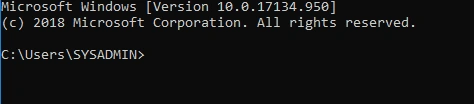
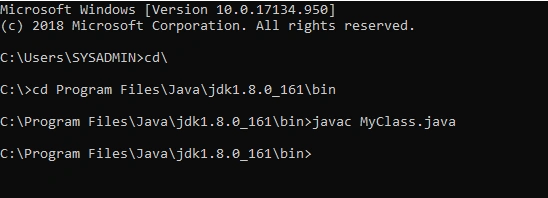
Go to "bin" directory and compile the program by compile the Java compiler "javac" as shown in the following image:
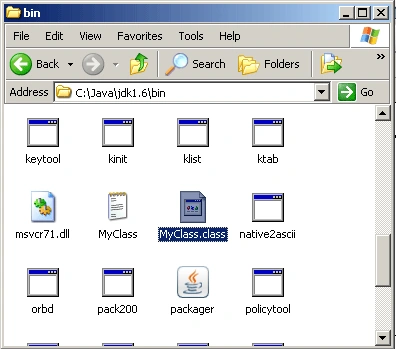
Compiler creates a "MyClass.class" which contains the bytecode version of the program. You can find "MyClass.class" in the "bin" folder
Now, to run the program, use Java application launcher "java" and pass the name of class "MyClass" as command line argument, as shown in the following image
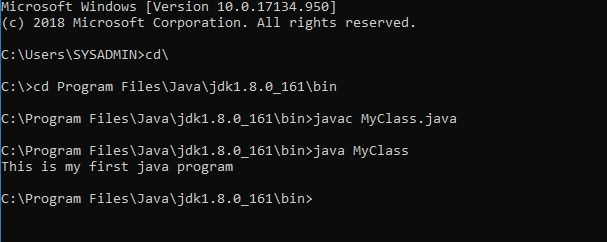
You can see the output of the program in the image above.
Why save the file in "bin" directory?
Now, you know that you must use Java compiler (javac) and Java application launcher (java) to run a program. These both files are resided in the bin folder, so that, we need to save the .java file to the bin directory.
What to do, if don't save the file in "bin" directory?
Yes, you can save your file anywhere in the storage area, but you need to set path to the bin directory as shown in the following image
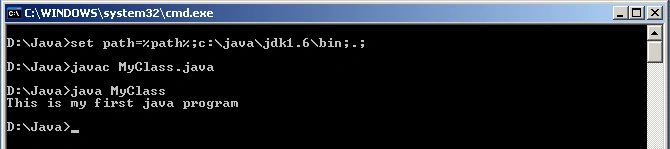
Consider the image above, I save "MyClass.java" file to "d:\java", so I need to set the path to the "bin" directory which is resided in "c:\java\jdk1.8", so I used the following command to set the path
>>set path=%path%;c:\java\jdk1.8\bin;.;
OR, you can set path permanently to run the program whether it is saved in any directory. To set path permanently in windows, follow the steps given below:
- Right-click on My Computer
- Select Properties
- Click on Advanced Tab
- Press Environment Variables
- Select "Path" from the list, under "System variables"
- Press Edit
- Go to the end of "Variable value", insert a semicolon (;) to separate the path and write the path to "bin", for e.g. "c:\program files\jdk1.8.111\bin"
- Press OK.
Running the same program in NetBeans 7
Open NetBeans -> File Menu -> New Project
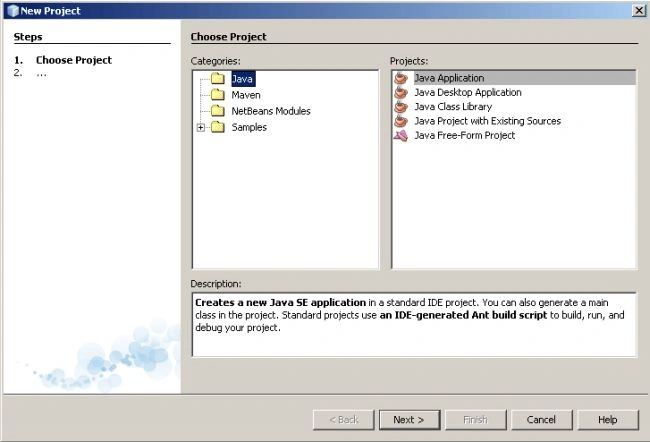
Choose Java and Java Application under Categories and Projects respectively and press Next button
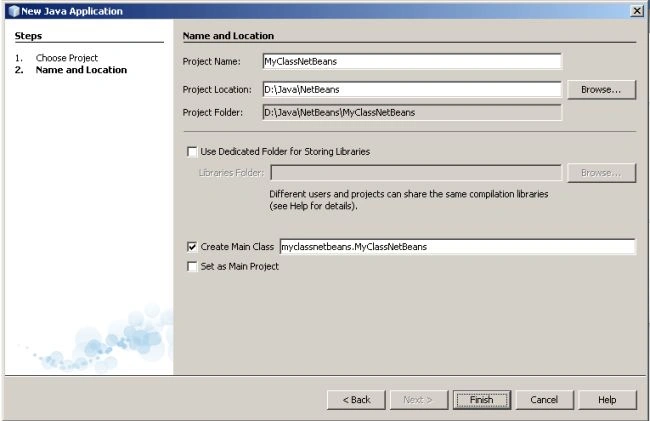
Now, give the project name and location and press Finish button, you'll see that a class "MyClassNetBeans" containing the main() is created. You just insert a line of code i.e. "System.out.println("This is my first java program");" in the main(), as shown in the following image:
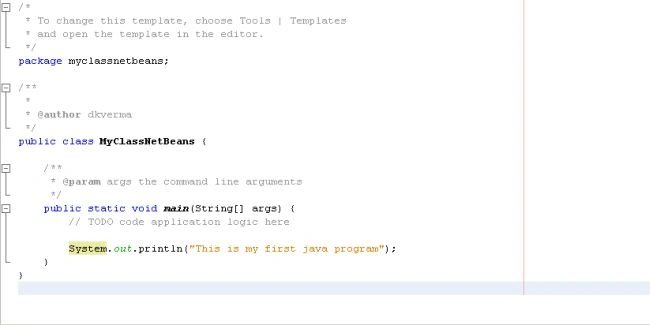
Press "F6" to run the program.
Output
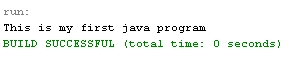
I hope that you have chosen a solution (either Text Editor & JDK or NetBeans with JDK) to start with Core Java.
If you encounter any difficulty, ask it in the comment section ...
Pradip PandeyPosted Jul 1, 2011, 12:33 AM
Good for java beginners.
Sam HobbsPosted Jun 30, 2011, 3:25 PM
I thought that most IDEs such as Netbeans does most of that automatically. I know that Netbeans is quite large; does it not manage builds in a manner similar to Visual Studio?
Shalini JunejaPosted Jun 30, 2011, 8:11 AM
Good Start