

Step 1
Open Expression Blend 4 -> select Silverlight -> select Silverlight Applicatio+Website, change Name and Location accordingly, hit OK, a Blank Window appears.
Step 2
Select ToolBox -> Rectangle -> Draw Rectangle -> Select Rectangle-Shape -> Manage the width & height, Margin, Fill Color, Stroke Color, Stroke Thickness and Shadow Effect from the Property Panel as shown below:

Step 3
Select Assets -> Shapes -> Triangle, Draw Triangle -> Select Triangle-Shape -> Select Object Menu -> Path -> Convert To Path -> Select Direct Select Tool(A) from the ToolBox -> Manage the width & height, Margin, Fill Color, Stroke Color, Stroke Thickness and Shadow Effect from the Property Panel as shown below:
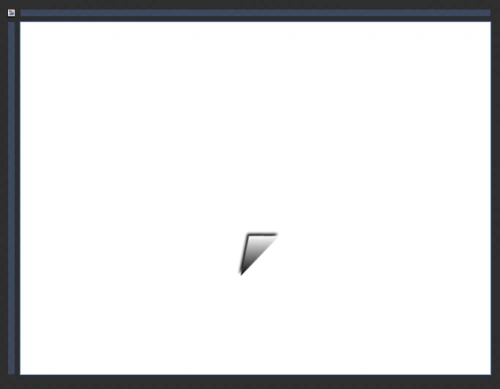
Step 4
Have a look at the final result as "Comment-Icon" as shown below:
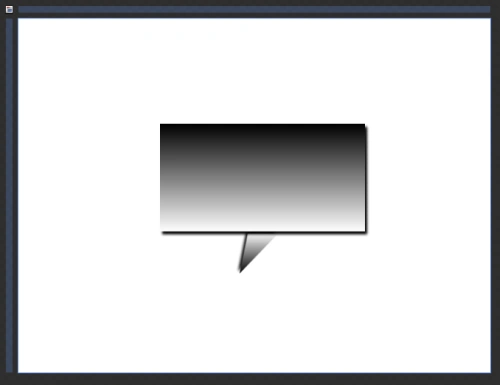
Note: Have a look at XAML-Coding as shown below:
<UserControl xmlns="http://schemas.microsoft.com/winfx/2006/xaml/presentation" xmlns:x="http://schemas.microsoft.com/winfx/2006/xaml" xmlns:d="http://schemas.microsoft.com/expression/blend/2008" xmlns:mc="http://schemas.openxmlformats.org/markup-compatibility/2006" mc:Ignorable="d"
x:Class="SilverlightApplication1.MainPage"
Width="640" Height="480">
<Grid x:Name="LayoutRoot" Background="White">
<Path Data="M73.872551,-6.4960461 L66.703796,27.115192 L41.290764,26.888084 z" Margin="231.936,224.996,0,200.425" RenderTransformOrigin="0.5,0.5" Stretch="Fill" UseLayoutRounding="False" HorizontalAlignment="Left" Width="52.982">
<Path.Fill>
<LinearGradientBrush EndPoint="0.5,1" StartPoint="0.5,0">
<GradientStop Color="Black" Offset="0"/>
<GradientStop Color="White" Offset="1"/>
</LinearGradientBrush>
</Path.Fill>
<Path.Effect>
<DropShadowEffect ShadowDepth="4"/>
</Path.Effect>
<Path.RenderTransform>
<CompositeTransform Rotation="179.489" TranslateX="67.671724122270092" TranslateY="66.091230526341292"/>
</Path.RenderTransform>
</Path>
<Path Data="M0.5,0.5 L277.5,0.5 L277.5,145.5 L0.5,145.5 z" Margin="192,142.667,170,191.333" Stretch="Fill" UseLayoutRounding="False">
<Path.Fill>
<LinearGradientBrush EndPoint="0.5,1" StartPoint="0.5,0">
<GradientStop Color="Black" Offset="0"/>
<GradientStop Color="White" Offset="1"/>
</LinearGradientBrush>
</Path.Fill>
<Path.Effect>
<DropShadowEffect/>
</Path.Effect>
</Path>
</Grid>
</UserControl>
Step 5
Along with the XAML code, the HTML code also exists because along with the Silverlight Application the Website Application is also added when we choose Silverlight Application + Website Option. The HTML code exists automatically according to the design. So, have a look at the design of the HTML code as shown below:
<! DOCTYPE html PUBLIC "-//W3C//DTD XHTML 1.0 Transitional//EN" "http://www.w3.org/TR/xhtml1/DTD/xhtml1-transitional.dtd">
<html xmlns="http://www.w3.org/1999/xhtml" >
<!-- saved from url=(0014)about:internet -->
<head>
<title>SilverlightApplication1</title>
<style type="text/css">
html {
height: 100%;
overflow: auto;
}
body {
height: 100%;
padding: 0;
margin: 0;
}
#silverlightControlHost {
height: 100%;
}
</style>
<script type="text/javascript" src="Silverlight.js"></script>
<script type="text/javascript">
function onSilverlightError(sender, args) {
var appSource = "";
if (sender != null && sender != 0) {
appSource = sender.getHost().Source;
}
var errorType = args.ErrorType;
var iErrorCode = args.ErrorCode;
if (errorType == "ImageError" || errorType == "MediaError")
return;
var errMsg = "Unhandled Error in Silverlight Application " + appSource + "\n" ;
errMsg += "Code: "+ iErrorCode + " \n";
errMsg += "Category: " + errorType + " \n";
errMsg += "Message: " + args.ErrorMessage + " \n";
if (errorType == "ParserError")
{
errMsg += "File: " + args.xamlFile + " \n";
errMsg += "Line: " + args.lineNumber + " \n";
errMsg += "Position: " + args.charPosition + " \n";
}
else if (errorType == "RuntimeError")
{
if (args.lineNumber != 0)
{
errMsg += "Line: " + args.lineNumber + " \n";
errMsg += "Position: " + args.charPosition + " \n";
}
errMsg += "MethodName: " + args.methodName + " \n";
}
throw new Error(errMsg);
}
</script>
</head>
<body>
<!-- Runtime errors from Silverlight will be displayed here.
This will contain debugging information and should be removed or hidden when debugging is completed -->
<div id='errorLocation' style="font-size: small;color: Gray;"></div>
<div id="silverlightControlHost">
<object data="data:application/x-silverlight-2," type="application/x-silverlight-2" width="100%" height="100%">
<param name="source" value="ClientBin/SilverlightApplication1.xap"/>
<param name="onerror" value="onSilverlightError" />
<param name="background" value="white" />
<param name="minRuntimeVersion" value="4.0.60310.0" />
<param name="autoUpgrade" value="true" />
<a href="http://go.microsoft.com/fwlink/?LinkID=149156&v=4.0.60310.0" style="text-decoration: none;">
<img src="http://go.microsoft.com/fwlink/?LinkID=161376" alt="Get Microsoft Silverlight" style="border-style: none"/>
</a>
</object>
<iframe id='_sl_historyFrame' style='visibility:hidden;height:0;width:0;border:0px'></iframe>
</div>
</body>
</html>
Note: Have a look at Object and Timeline Window for the HTML file as shown below:
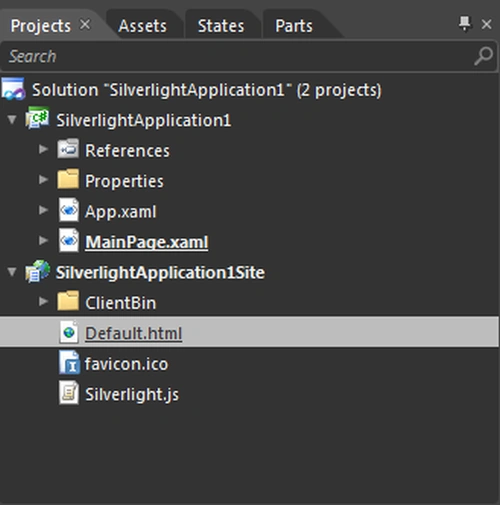
Hit F5 to build the application.
Summary
Through this article you can learn about XAML code, HTML code and various uses of Rectangle and Triangle shapes.
Join the conversation! Your thoughts help the community grow.