

Step 1
Open Expression Blend 4 -> select Silverlight-> select Silverlight Application -> change Name and Location accordingly -> hit OK, a Blank Window appears in the ArtBoard.
Step 2
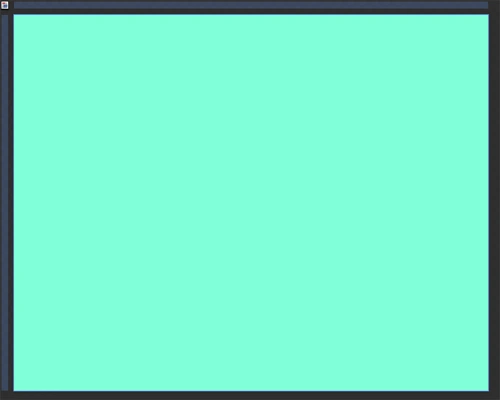
Select Layout Root from Object and Timeline Window and Fill Background Color accordingly using Solid Color Brush Tool from the Property Panel as shown below:
Step 3
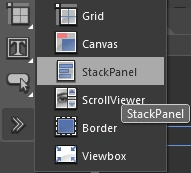
Select ToolBox -> StackPanel as shown below:
Step 4
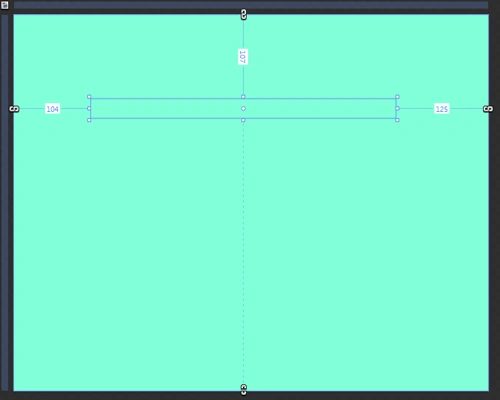
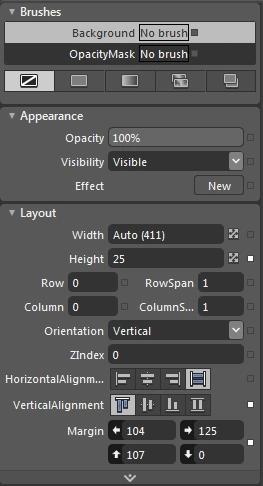
Draw StackPanel and manage Background color, Orientation, Alignment, Margin and Width & Height as shown below:
Step 5
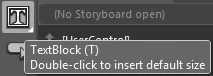
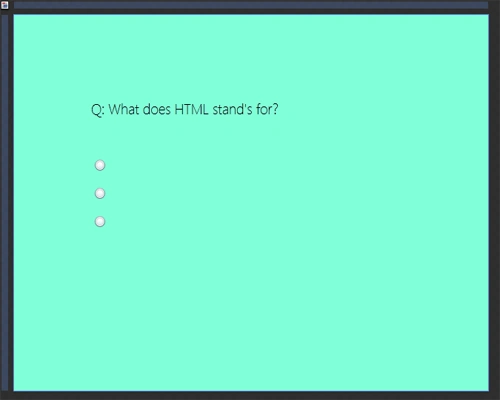
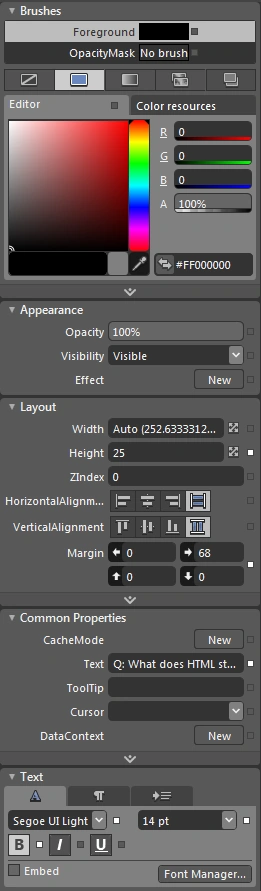
Select ToolBox -> TextBlock, draw a TextBlock, manage Background Color, Width & Height, Alignment, Orientation, Margin, Font Family and Font Size as shown below:
Step 6
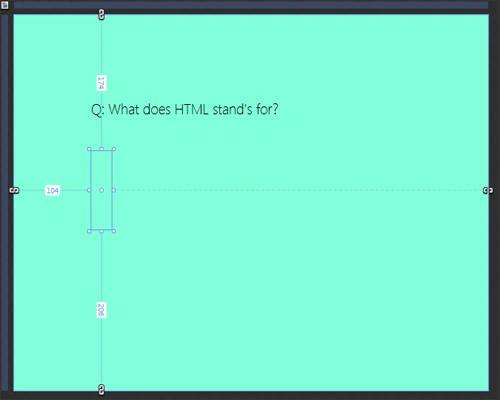
Follow Steps 3-4 to draw a StackPanel as shown below:
Step 7
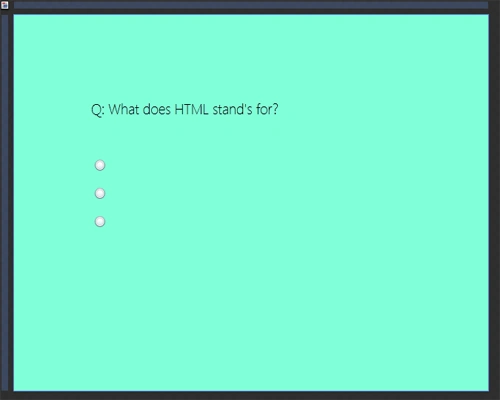
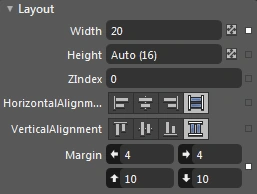
Select ToolBox -> Button, draw Buttons, manage Width & Height, Alignment and Margin as shown below:
Step 8
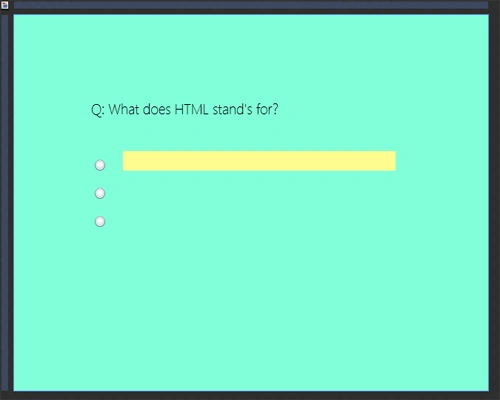
Follow Step 3, draw StackPanel, manage Width & Height, Margin, Alignment and Background Color as shown below:
Step 9
Follow Step 8 and draw 2 more StackPanels as shown below:
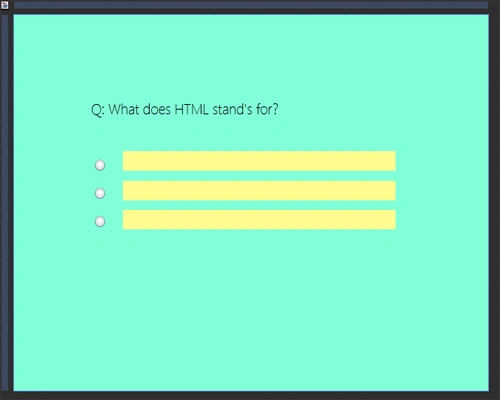
Step 10
Follow Step 5, draw 3 TextBlocks and Insert them in the StackPanels Step-By-Step as shown below:
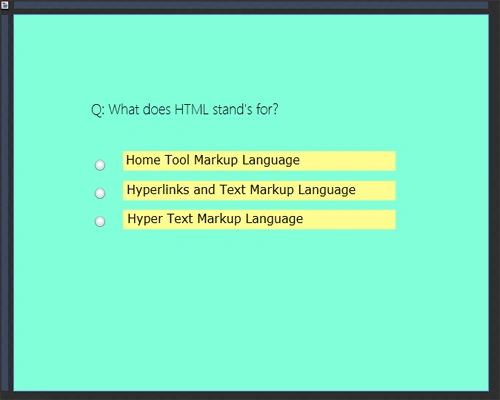
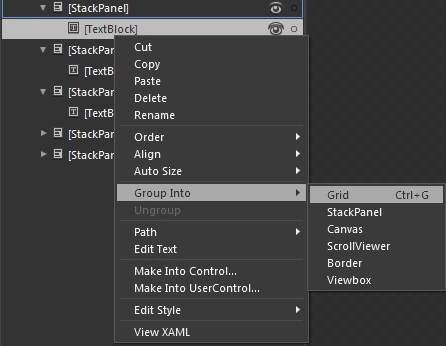
Note: Here, we can draw a TextBlock separately along with a StackPanel separately and by using the Groupinto Property group them as shown below:
Step 11
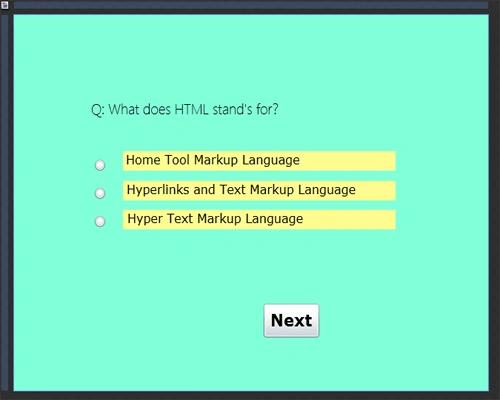
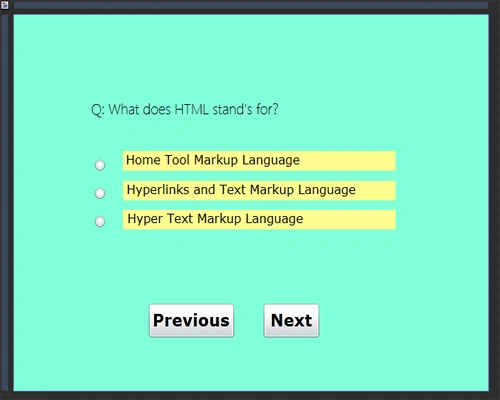
Follow Steps 4 and 7, draw 2 StackPanels and 2 Buttons for Previous and Next as shown below:
Step 12
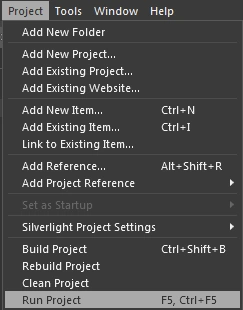
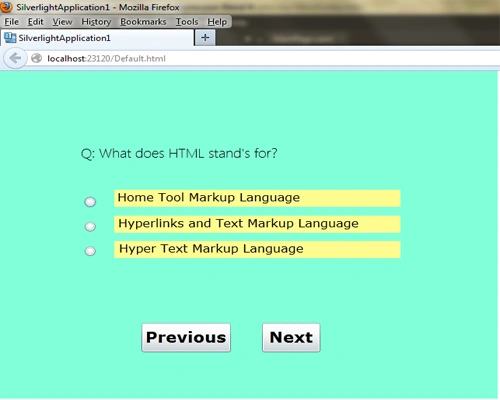
To Run the application in a browser hit F5 or Ctrl+F5 or select Project Menu -> Run Project and see the results after each and every step as shown below:
Summary
This article provides the knowledge about designing using StackPanel to manage the Layout of the screen.
Join the conversation! Your thoughts help the community grow.