

This article will show how to call a phone number in Windows Phone 7. For this use the following instructions.
Step 1
First we click on File -> New Project. Then the following window will be shown, here we select the following: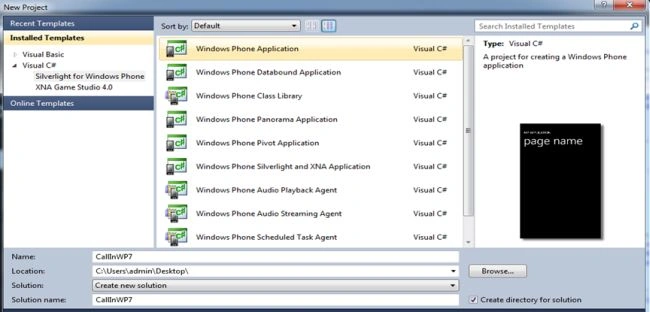
Step 2
Now we create the dialer of the phone application like this: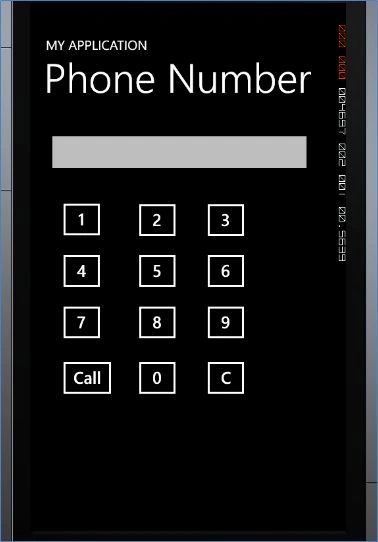
Here we create buttons for entering the phone number in the TextBox. And a Call Button will be present, which will be used when we are calling the Phone Number (TextBox value).
First we create the Buttons and TextBox in the .xaml page like this:
<Grid x:Name="ContentPanel" Grid.Row="1" Margin="12,0,12,0">
<Grid.RowDefinitions>
<RowDefinition Height="297*" />
<RowDefinition Height="310*" />
</Grid.RowDefinitions>
<TextBox Height="72" HorizontalAlignment="Left" Margin="10,10,0,0" Name="txtPhoneNumber" VerticalAlignment="Top" Width="410" />
<Button Content="1" Height="72" HorizontalAlignment="Left" Margin="27,112,0,0" Name="btnOne" VerticalAlignment="Top" Width="79" Click="btnOne_Click" />
<Button Content="2" Height="72" HorizontalAlignment="Left" Margin="142,113,0,0" Name="btnTwo" VerticalAlignment="Top" Width="79" Click="btnTwo_Click" />
<Button Content="3" Height="72" HorizontalAlignment="Left" Margin="246,113,0,0" Name="btnThree" VerticalAlignment="Top" Width="79" Click="btnThree_Click" />
<Button Content="4" Height="72" HorizontalAlignment="Left" Margin="27,190,0,0" Name="btnFour" VerticalAlignment="Top" Width="79" Grid.RowSpan="2" Click="btnFour_Click" />
<Button Content="5" Height="72" HorizontalAlignment="Left" Margin="142,190,0,0" Name="btnFive" VerticalAlignment="Top" Width="79" Click="btnFive_Click" />
<Button Content="6" Height="72" HorizontalAlignment="Left" Margin="246,190,0,0" Name="btnSix" VerticalAlignment="Top" Width="79" Click="btnSix_Click" />
<Button Content="7" Height="72" HorizontalAlignment="Left" Margin="27,268,0,0" Name="btnSeven" VerticalAlignment="Top" Width="79" Grid.RowSpan="2" Click="btnSeven_Click" />
<Button Content="8" Height="72" HorizontalAlignment="Left" Margin="142,268,0,0" Name="btnEight" VerticalAlignment="Top" Width="79" Grid.RowSpan="2" Click="btnEight_Click" />
<Button Content="9" Height="72" HorizontalAlignment="Left" Margin="246,268,0,0" Name="btnNine" VerticalAlignment="Top" Width="79" Grid.RowSpan="2" Click="btnNine_Click" />
<Button Content="0" Height="72" HorizontalAlignment="Left" Margin="142,49,0,0" Name="btnZero" VerticalAlignment="Top" Width="79" Grid.Row="1" Click="btnZero_Click" />
<Button Content="C" Height="72" HorizontalAlignment="Left" Margin="246,49,0,0" Name="btnClear" VerticalAlignment="Top" Width="79" Grid.Row="1" Click="btnClear_Click" />
<Button Content="Call" Height="72" HorizontalAlignment="Left" Margin="27,49,0,0" Name="btnCall" VerticalAlignment="Top" Width="96" Grid.Row="1" Click="btnCall_Click" />
</Grid>
Step 3
Now we write the code for the Phone Number Buttons:
private void btnOne_Click(object sender, RoutedEventArgs e)
{
txtPhoneNumber.Text = txtPhoneNumber.Text + "1";
}
private void btnTwo_Click(object sender, RoutedEventArgs e)
{
txtPhoneNumber.Text = txtPhoneNumber.Text + "2";
}
private void btnThree_Click(object sender, RoutedEventArgs e)
{
txtPhoneNumber.Text = txtPhoneNumber.Text + "3";
}
private void btnFour_Click(object sender, RoutedEventArgs e)
{
txtPhoneNumber.Text = txtPhoneNumber.Text + "4";
}
private void btnFive_Click(object sender, RoutedEventArgs e)
{
txtPhoneNumber.Text = txtPhoneNumber.Text + "5";
}
private void btnSix_Click(object sender, RoutedEventArgs e)
{
txtPhoneNumber.Text = txtPhoneNumber.Text + "6";
}
private void btnSeven_Click(object sender, RoutedEventArgs e)
{
txtPhoneNumber.Text = txtPhoneNumber.Text + "7";
}
private void btnEight_Click(object sender, RoutedEventArgs e)
{
txtPhoneNumber.Text = txtPhoneNumber.Text + "8";
}
private void btnNine_Click(object sender, RoutedEventArgs e)
{
txtPhoneNumber.Text = txtPhoneNumber.Text + "9";
}
private void btnZero_Click(object sender, RoutedEventArgs e)
{
txtPhoneNumber.Text = txtPhoneNumber.Text + "0";
}
The output will be: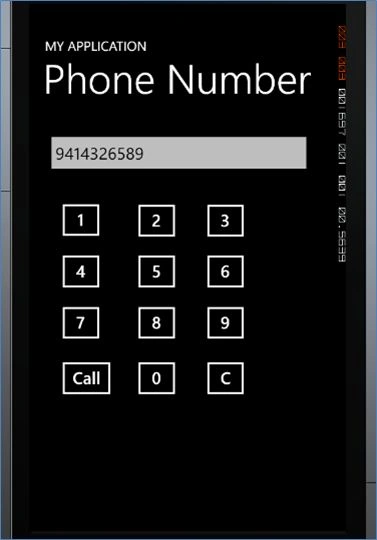
Step 4
Now we write the code for the Clear Button, which is used to remove the number in the TextBox:
private void btnClear_Click(object sender, RoutedEventArgs e)
{
int l = txtPhoneNumber.Text.Length-1;
txtPhoneNumber.Text = txtPhoneNumber.Text.Remove(l);
}
Here we use the Remove Method. Which is used to remove the data according to the index value.
Step 5
Now we write the code for the Call Button, for this first we write the following namespace:
using Microsoft.Phone.Tasks;
Now we write the following code in the Button Click event:
private void btnCall_Click(object sender, RoutedEventArgs e)
{
PhoneCallTask pct = new PhoneCallTask();
pct.PhoneNumber = txtPhoneNumber.Text;
pct.Show();
}
Here we take the TextBox (txtPhoneNumber) value as the Phone Number.
The output will be.
First we dial the Phone Number using the Buttons: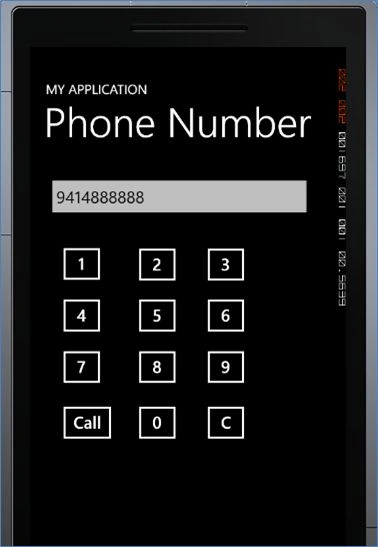
Now we will click on the Call Button: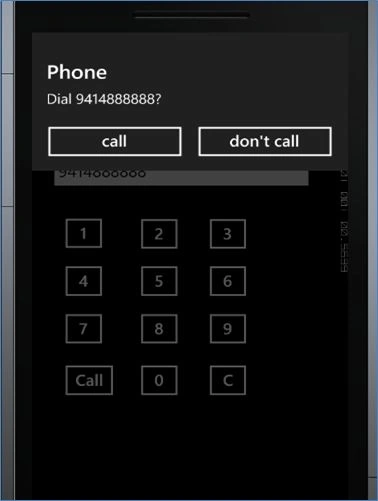
Again we will call on the Call Button, the following window will be shown: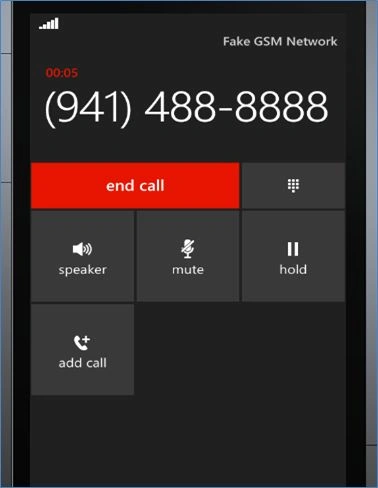
Vinay BavoorPosted Dec 30, 2014, 7:37 AM
Thanks for sharing a good article Miss.Mehta.Keep uploading articles related to windows phone application.i am also beginner to this application.your articles will defiantly help me to get knowledge about windows phone app. Best Regards Vinay.B(.Net Developer)
Sumit MehraPosted Oct 11, 2012, 12:20 AM
Thanks for sharing. Tone of Windows Phone is learning from you.
Tina GargPosted Oct 10, 2012, 11:50 PM
Through this can the ring goes to that number??????
Gaurav ChauhanPosted Oct 10, 2012, 11:18 PM
Its a very useful article for the windows phone users.
Varesh TuliPosted Oct 10, 2012, 11:08 PM
very knowledgeable article, thanks for sharing.