

WPF DoubleUpDown Control
I am sure you have used a NumericUpDown control in your
application in which the current value of the control increases or decreases by
using an up and down keys. WPF team has done a great job by extending this
feature in WPF Toolkit and now up and down keys can be used on DateTime,
decimal, double, and integer data types.
A DoubleUpDown control allows us to display, increment or
decrement double values including a number, currency, floating point, and even
a percentage.
This article demonstrates how to use the DoubleUpDown control
in a WPF application
using C#
and XAML.
Adding Reference to WPF Toolkit Extended
Assembly
The DoubleUpDown control is a part of the WPF Toolkit Extended and does not come with Visual Studio 2010. To use the Calculator control in your application, you must add reference to the WPFToolkit.Extended.dll assembly. You can download Extended WPF Tookit from the CodePlex or you can use the WPFToolkit.Extended.dll available with this download. All you need is the DLL. See Downloads section of this article. You can find more details in my blog Adding Reference to WPF Toolkit Extended.
Creating a DoubleUpDown
The DoubleUpDown element represents a WPF DoubleUpDown control in XAML. The DoubleUpDown control is defined in the System.Windows.Controls namespace. Listing 1 creates a simple DoubleUpDown control. The Value property is a numeric value. The FormatString property is used to format a value.
<wpfx:DoubleUpDown Height="30" Value="34.0909" FormatString="F" />
Listing 1
The default output of
Listing 1 generates Figure 1.
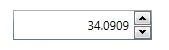
Figure 1
Format Types
To format a value, the DoubleUpDown control provides C, F, G, N, and P for Currency, Floating Point, General, Number, and Percent respectively.
The code Listing 2 creates three DoubleUpDown controls and
displays three different formats.
<wpfx:DoubleUpDown Height="30" Value="34.0909" FormatString="F" Margin="22,27,342,254"
/>
<wpfx:DoubleUpDown FormatString="F3" Height="30" Margin="22,74,342,207" Value="34.0909"
Increment="0.01" Maximum="1000"/>
<wpfx:DoubleUpDown FormatString="C" Height="30" Increment="0.01" Margin="22,129,342,152"
Maximum="1000" Value="34.0909" />
Listing 2
Figure 2 is an example of a number, floating point and
currency respectively.
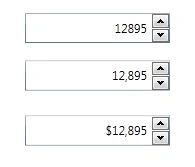
Figure 2
Summary
In this article, we discussed how to use the DoubleUpDown
control in a WPF
application using C# and XAML.
Join the conversation! Your thoughts help the community grow.