

Here in this article, I will describe how to attach a database in SQL Server.
One of the easiest way to distribute, copy or backup a database in SQL Server is to use attach and detach options.
A SQL Server database has two types of files. The first file is the main data file and it has extension of .MDF and the second file is the log file and it has an extension of .LDF. If you have the log file for a database, the easiest way to attach the database is to use the existing log file.
Follow these steps for attaching database:
-
To attach a database right click on the Database folder and select the Attach Database command to display the Attach Database dialog box then click on the Add button and use the resulting dialog box to select the .MDF file for the database. This should add both the data file and the log file for the database to the database details pane at the bottom of the dialog box and at last click OK to attach the database.
-
If you want to attach a database that does not have a log file or if you want to create a new log file for database, you can remove the log file for the database before you click on OK button. To do that select the log file in database details pane and click the Remove button.
-
To detach a database right click on the database and select Tasks/Detach command. The click on the OK button.
The default directory for SQL Server database is:
C:\Program Files\Microsoft SQL Server\MSSQL.1\MSSQL\Data
Open Object Explorer in SQL Server and right click on Databases and select Attach menu item as you see in the below image.
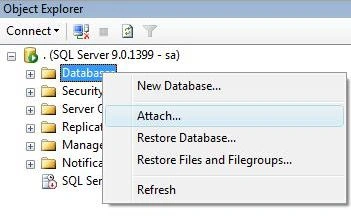
Figure 1.
Now, select a file option and use Browse button to browse your MDF and LDF files as seen in below image.
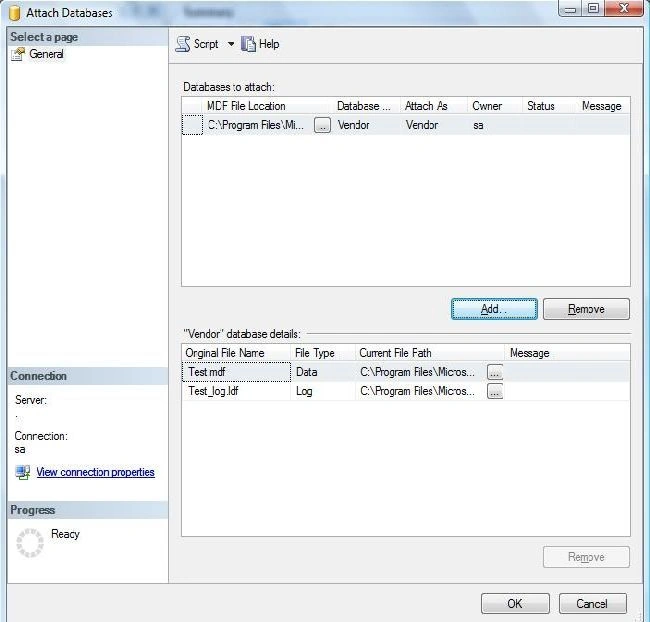
Figure 2.
That's it. Your database is attached now and ready to use.
The reverse operation of Attach is detach. The Detach option removes the database from the Databases list in the Object Explorer and saves the files to the given location.
Right click on the database name you would like to detach and select Detach menu item.
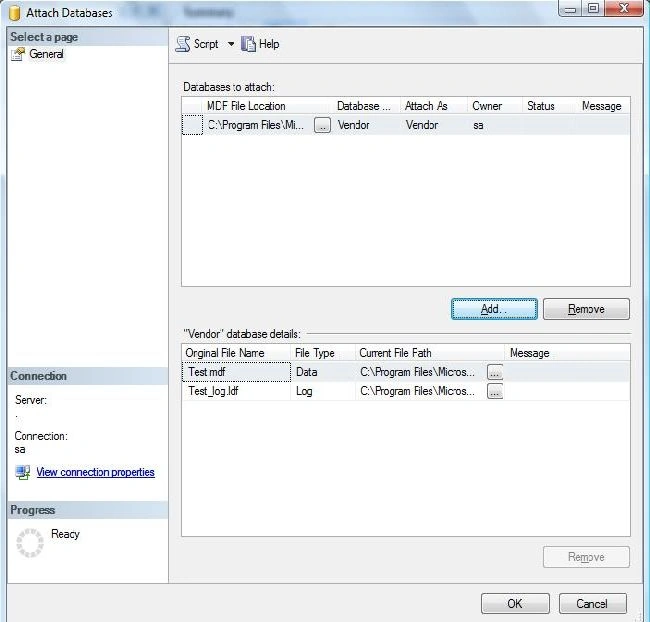
Figure 3.
Once a database is detached, you may distribute or back it up and once you're done, you may want to attach it again to start using it.
Hope this tip was useful for who are looking for attach and detach options in SQL Server.
Sylvester AlelelePosted Sep 20, 2011, 4:57 AM
Hello Raj! Very informative article, especially the other one on creating a database. Is it possible using VB.Net to detach the database, copy it, Reattach it and re-attach the new copy as well? Thanks in advance for your help
sachin tyagiPosted Dec 5, 2010, 1:02 PM
plz anu one tell me about attaching of downloaded .zip file to my database.......i am using asp.net 4.0......