
Introduction: Here we will discuss how to create a Zebra Style table by using jQuery. As we know, a zebra style means having multiple color, most recently two colors then by using jQuery we will create a zebra style table. As we know, jQuery is a JavaScript Library which is used to write JavaScript code which has cross browser compatibility. Most probably we have to write less code to do such type of things. Now, we are going to describe how to make a table with Zebra Style through jQuery.
Let's see the given step to create a table given below.
Step 1: Firstly you would have to create an ASP.NET application
-
Go to Visual Studio 2010.
-
Create a new project name as ASP. Net web application.
-
Give it a name as Zebra Style Table.
-
Click Ok.
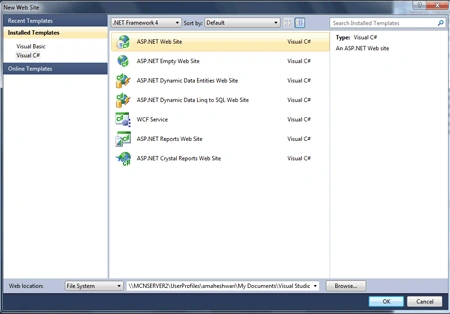
Step 2: Secondly you have
to add a web page let see how would you add it.
-
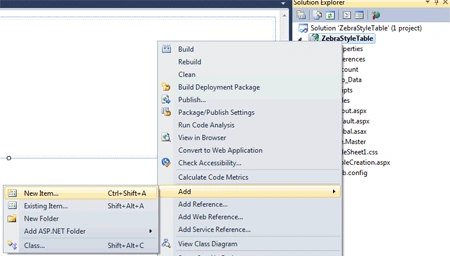
Go to Solution Explorer.
-
Right click on Website application name as Zebra Style Table.
-
Add a New Item
-
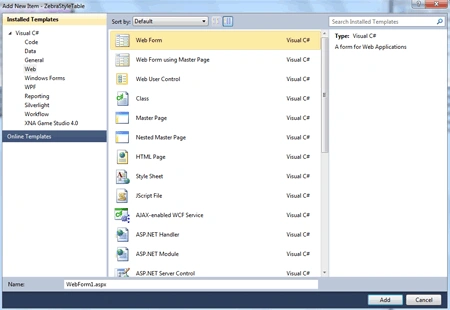
Select the Web form give it any name.
-
Click Ok, Let's see the figure given below.
Step 3: In this step we have to write the JavaScript code to add the source of jQuery for invoking all the method related to the jQuery.
Code: This code will be
written in the source file of .aspx page which was added later.
<script
type="text/javascript"
src="../Scripts/jquery-1.4.1.min.js">
</script>
Description: This cod will
load the source file of jQuery whenever it is placed if you are using the visual
studio 2010 it is already available in the Scripts folder of the website
application.
Due to this we can use the methods of the jQuery.
Step 4: Further we are going to write the jQuery method to make a table and every even no of column uses that style or odd that which is given below
Code:
<script
type="text/javascript">
$(function () {
$("table tr:nth-child(even)").addClass("ZS");
});
</script>
<style type="text/css">
body,td
{
font-size:
10pt;
}
table
{
background-color:
Lime;
border:
5px black solid;
border-collapse:
collapse;
}
th
{
border: 3px
outset silver;
background-color:
ThreeDFace;
color: Fuchsia;
}
tr
{
background-color:
ButtonShadow;
margin: 2px;
}
tr.ZS
{
background-color:
White;
}
td
{
padding: 2px
15px;
}
</style>
Step 5: In this step we are writing the complete code for the .aspx page name as TableCreation.aspx.
Complete Code:
<%@
Page Language="C#"
AutoEventWireup="true"
CodeBehind="TableCreation.aspx.cs"
Inherits="ZebraStyleTable.TableCreation"
%>
<!DOCTYPE
html PUBLIC
"-//W3C//DTD XHTML 1.0 Transitional//EN"
"http://www.w3.org/TR/xhtml1/DTD/xhtml1-transitional.dtd">
<html
xmlns="http://www.w3.org/1999/xhtml">
<head
runat="server">
<title>Create
a Zebra Style Table using JQuery</title>
<script
type="text/javascript"
src="../Scripts/jquery-1.4.1.min.js">
</script>
<script
type="text/javascript">
$(function () {
$("table tr:nth-child(even)").addClass("ZS");
});
</script>
<style
type="text/css">
body,td
{
font-size: 10pt;
}
table
{
background-color:
Lime;
border: 5px
black solid;
border-collapse:
collapse;
}
th
{
border: 3px
outset silver;
background-color:
ThreeDFace;
color: Fuchsia;
}
tr
{
background-color:
ButtonShadow;
margin: 2px;
}
tr.ZS
{
background-color:
White;
}
td
{
padding: 2px
15px;
}
</style>
</head>
<body>
<form
id="form1"
runat="server">
<div>
<table>
<tr>
<th>Emp_Name</th>
<th>Emp_Salary</th>
<th>Emp_Designation</th>
</tr>
<tr>
<td>Manish</td>
<td>15000</td>
<td>IT
Head</td>
</tr>
<tr>
<td>Rohatash</td>
<td>12000</td>
<td>Developer</td>
</tr>
<tr>
<td>Amit</td>
<td>10000</td>
<td>Training</td>
</tr>
<tr>
<td>Sujata</td>
<td>11000</td>
<td>HR
Manager</td>
</tr>
<tr>
<td>Suman</td>
<td>20000</td>
<td>Developer</td>
</tr>
<tr>
<td>Deepak</td>
<td>8000</td>
<td>Marketing</td>
</tr>
<tr>
<td>Rajesh</td>
<td>9500</td>
<td>Accounts</td>
</tr>
<tr>
<td>Alok
Pandey</td>
<td>9200</td>
<td>Jn.
Developer</td>
</tr>
<tr>
<td>Manoj
Pawar</td>
<td>9800</td>
<td>Designer</td>
</tr>
<tr>
<td>Vineet</td>
<td>8500</td>
<td>Tarinee</td>
</tr>
<tr>
<td>Amitabh</td>
<td>6000</td>
<td>Trainee</td>
</tr>
</table>
</div>
</form>
</body>
</html>
Code Description: Here we are
using the jQuery in which we have to make a function of table and given that
it's even row will have ZS type style from the Style. Further we have to declare
the Css style for the table row column or header whatever the color or
background pixels you want to use you can define here. After that we have to
write the table code what will the header row and so on. It will show the name
of employee and salary and also their designation.
Step 6: In this step let we see how the design page of .aspx file look's like.
Before Run: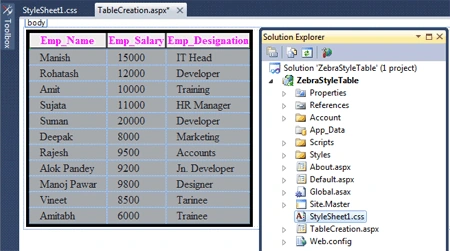
Step 7: Now it's time to run your application by pressing F5.
Output: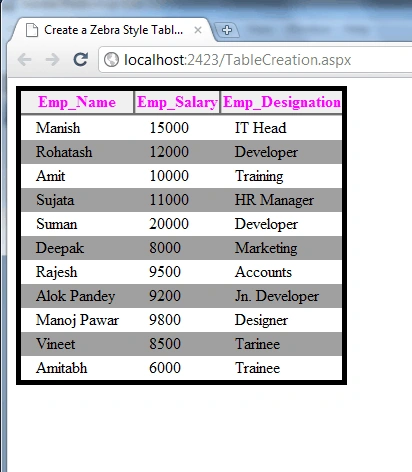
Join the conversation! Your thoughts help the community grow.