Introduction:
This article describes a quick
and simple approach to applying a spell check function to the rich text box
control and bundling both features into a single custom control. Of
course there is nothing novel or particularly interesting about performing spell
checking upon a selection of text using the Word.DLL, it has been done many
times and there is nothing new here with regards to the details of the
mechanization I've used other than the fact that it is all contained within a
custom control.
My interest in building this
control was two-fold; first I wanted the functionality placed into a custom
control so that is might more easily be dropped into multiple locations in a
form used to collect narrative information from the user, and the second element
of interest was to answer the question as to whether or not the control would
function on systems equipped with either Word 2003 or Word 2007.
With regards to the two versions of Word; I was able to run the control on
systems equipped with either Microsoft Word 2003 or 2007 and on both Vista and
XP. It does seem that an application
built using the control will at least survive the transition from Microsoft Word
2003 to Microsoft Word 2007.
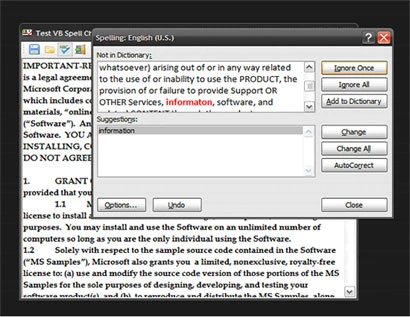
Figure 1: RTB with Spell Check Custom
Control in Use.
Getting Started:
In order to get
started, fire up the Visual Studio 2005 IDE and open the attached solution. The
solution consists of a Win Forms project with a single form and a control
project containing a single custom control. The Win Forms project main form is
used as a test bed for the custom control and the custom control is an extension
of the standard windows forms rich text box control.
Figure 2 shows the solution explorer for this project, note the addition of the
references to Microsoft Office contained in the control project:
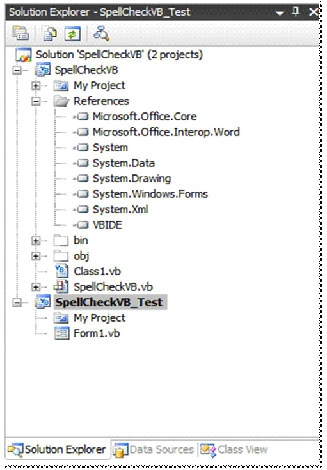
Figure 2: Solution Explorer
The Code: Main
Form
The main form of the
application serves only as a test project for the Spell Check custom control;
the project contains only a single form and that form contains only a toolbar
and the custom control. The
tool bar contains only the controls necessary to open or save a file from the
extended rich text box control, to execute the command to spell check the
contents of the rich text box, and to exit the application.
The code contained in the form follows; in imports are in the default
configuration with one exception which was the addition of the System.IO library
which is used to support opening and closing files. The
namespace and class declarations are in the default configuration.
Public Class Form1
The next section of code is
used to declare a string variable used to contain the path to the current file. The
constructor follows this variable declaration and it is in the default
configuration.
' String pointing the file path
of the current file
Private currentFile As String = String.Empty
public Form1()
{
InitializeComponent();
}
The next section of code
contained in the demo application is the click event handler used to command the
custom control to execute the Check Spelling function. This
function will launch the Word based spell check function against the contents of
the control's rich text box.
Private Sub tspSpellCheck_Click(ByVal sender As System.Object, ByVal e As System.EventArgs)Handles tspSpellCheck.Click
Me.SpellCheckVB1.CheckSpelling()
Me.Refresh()
End Sub
The next section of code in the
demo project is used to save the contents of the control into a file. There
is nothing unique about how this save method works, it is based upon the use of
a SaveFileDialog and relies upon the rich text box control’s Save File method
if the content is rich text. If
the content is not rich text, it will be saved using the alternative method
provided.
Private Sub tspSave_Click(ByVal sender As System.Object, ByVal e As System.EventArgs) HandlestspSave.Click
Try
SaveFileDialog1.Title = "Save
File"
SaveFileDialog1.DefaultExt = "rtf"
SaveFileDialog1.Filter = "Rich
Text Files|*.rtf|Text
Files|*.txt|HTML Files|*.htm|All
Files|*.*"
SaveFileDialog1.FilterIndex = 1
If SaveFileDialog1.ShowDialog()
= DialogResult.OK Then
If SaveFileDialog1.FileName
= "" Then
Return
End If
Dim strExt As String
strExt
= System.IO.Path.GetExtension(SaveFileDialog1.FileName)
strExt
= strExt.ToUpper()
If strExt
= ".RTF" Then
SpellCheckVB1.SaveFile(SaveFileDialog1.FileName,
RichTextBoxStreamType.RichText)
Else
Dim txtWriter As System.IO.StreamWriter
txtWriter = New
System.IO.StreamWriter(SaveFileDialog1.FileName)
txtWriter.Write(SpellCheckVB1.Text)
txtWriter.Close()
txtWriter = Nothing
SpellCheckVB1.SelectionStart
= 0
SpellCheckVB1.SelectionLength
= 0
End If
currentFile =
SaveFileDialog1.FileName
SpellCheckVB1.Modified = False
MessageBox.Show(currentFile.ToString()
+ "
saved.", "File Save")
Else
MessageBox.Show("Save
File request cancelled by user.", "Cancelled")
End If
Catch ex As Exception
MessageBox.Show(ex.Message.ToString(), "Error")
End Try
End Sub
Following the Save button's
click event handler, the piece of code is used to open a file into the rich text
box control. This
operation is supported through the use of an open file dialog control.
Private Sub tspOpen_Click(ByVal sender As System.Object, ByVal e As System.EventArgs) HandlestspOpen.Click
Try
OpenFileDialog1.Title
= "Open
File"
OpenFileDialog1.DefaultExt = "rtf"
OpenFileDialog1.Filter = "Rich
Text Files|*.rtf|TextFiles|*.txt|HTML
Files|*.htm|All Files|*.*"
OpenFileDialog1.FilterIndex = 1
OpenFileDialog1.FileName = String.Empty
If OpenFileDialog1.ShowDialog()
= DialogResult.OK Then
If OpenFileDialog1.FileName
= "" Then
Return
End If
Dim strExt As String
strExt =
System.IO.Path.GetExtension(OpenFileDialog1.FileName)
strExt = strExt.ToUpper()
If strExt
= ".RTF" Then
SpellCheckVB1.LoadFile(OpenFileDialog1.FileName,
RichTextBoxStreamType.RichText)
Else
Dim txtReader As System.IO.StreamReader
txtReader = New
System.IO.StreamReader(OpenFileDialog1.FileName)
SpellCheckVB1.Text =
txtReader.ReadToEnd()
txtReader.Close()
txtReader = Nothing
SpellCheckVB1.SelectionStart
= 0
SpellCheckVB1.SelectionLength
= 0
End If
currentFile =
OpenFileDialog1.FileName
SpellCheckVB1.Modified = False
Else
MessageBox.Show("Open
File request cancelled by user.","Cancelled")
End If
Catch ex As Exception
MessageBox.Show(ex.Message.ToString(), "Error")
End Try
End Sub
The last
bit of code in the demo is used to close the current form and terminate the
application.
Private Sub tspExit_Click(ByVal sender As System.Object, ByVal e As System.EventArgs) HandlestspExit.Click
Me.Dispose()
End Sub
That wraps up the discussion of
the form based demo project.
The Code: Spell
Check Control
The Spell Check control is a
custom control built to extend the standard Windows Forms Rich Text Box control;
the only additions made to the standard control were to add those items
necessary to implement the Word DLL spell check method against the rich text box
control. The control also exposes a
couple of properties used to configure the spell check control and to define
part of the spell check dialog available functionality.
If you open the code up and examine the imports, you will note following imports
prior to the namespace and class declaration.
Imports System
Imports System.Collections.Generic
Imports System.ComponentModel
Imports System.Data
Imports System.Drawing
Imports System.Text
Imports System.Windows.Forms
Imports Microsoft.Office.Core
Imports Microsoft.Office.Interop.Word
Public Class SpellCheckVB
Inherits System.Windows.Forms.RichTextBox
After the class declaration; the code defines a region containing a collection
of member variables used to support setting the control’s properties and to
configure the arguments passed to the check spelling function exposed by the
Word.DLL; note that these variables are declared as objects; this is essential
to working with the Word.DLL exposed check spelling argument list where all
arguments are passed by reference as objects.
#Region "Member
Variables"
Private emptyItem As Object =
System.Reflection.Missing.Value
Private oNothing As Object = Nothing
Private oTrue As Object = True
Private oFalse As Object = False
Private oAlwaysSuggest As Object = True
Private oIgnoreUpperCase As Object = False
Private mAlwaysSuggest As Boolean = True
Private mIgnoreUpperCase As Boolean = False
#End Region
The control exposes two public
properties, one is used to set the Word.DLL spell check method’s Always
Suggest option, and the other is used to set its Ignore Upper Case option. In
order work effectively in the IDE as design time; the type is set as a Boolean
(both properties) but when the Boolean is set, a shadowing object is also set to
equal true or false; it is the object and not the Boolean that is actually
passed to the Word.DLL check spelling method.
The Word.DLL check spelling method would also permit the user to pass custom
dictionaries to it through additional arguments; in this example, I did not
expose any properties to include any custom dictionaries however, using the same
approach, one could pass in these alternative custom dictionaries.
#Region "Properties"
Public Property AlwaysSuggest() As Boolean
Get
Return mAlwaysSuggest
End Get
Set(ByVal value As Boolean)
mAlwaysSuggest
= value
If mAlwaysSuggest
= True Then
oAlwaysSuggest
= True
Else
oAlwaysSuggest
= False
End If
End Set
End Property
Public Property IgnoreUpperCase() As Boolean
Get
Return mIgnoreUpperCase
End Get
Set(ByVal value As Boolean)
mIgnoreUpperCase
= value
If mIgnoreUpperCase
= True Then
oIgnoreUpperCase
= True
Else
oIgnoreUpperCase
= False
End If
End Set
End Property
#End Region
The following code covers the
control’s default constructor and On Paint method:
#Region "Constructor
and Defaults"
Public Sub New()
InitializeComponent()
End Sub
Protected Overrides Sub OnPaint(ByVal e As System.Windows.Forms.PaintEventArgs)
MyBase.OnPaint(e)
'Add
your custom paint code here
End Sub
#End Region
The next bit of code is that
which is required to perform the actual spell check function based upon the use
of the Word.DLL. This
section of code is annotated to describe the content.
#Region "Perform
Spell Check"
''' <summary>
'''
Perform spell check operation on control content.
'''
This operation displays the results of the spell
'''
check.
'''
'''
Alternatively, the function could be set to return
'''
a string and the results string could be returned
'''
to the caller
''' </summary>
Public Sub CheckSpelling()
'
declare local variables to track error count
'
and information
Dim SpellingErrors As Integer =
0
Dim ErrorCountMessage As String = String.Empty
'
create an instance of a word application
Dim WordApp As Microsoft.Office.Interop.Word.Application
= _ NewMicrosoft.Office.Interop.Word.Application()
'
hide the MS Word document during the spellcheck
WordApp.Visible
= False
WordApp.ShowWindowsInTaskbar
= False
'
check for zero length content in text area
If Me.Text.Length
> 0 Then
'
create an instance of a word document
Dim WordDoc As _Document
= WordApp.Documents.Add(emptyItem, _ emptyItem,
_emptyItem, _ oFalse)
'
load the content written into the word doc
WordDoc.Words.First.InsertBefore(Me.Text)
'
collect errors form new temporary document set to contain
'
the content of this control
Dim docErrors As Microsoft.Office.Interop.Word.ProofreadingErrors
=
WordDoc.SpellingErrors
SpellingErrors
= docErrors.Count
'
execute spell check; assumes no custom dictionaries
WordDoc.CheckSpelling(oNothing,
oIgnoreUpperCase, oAlwaysSuggest,
oNothing,
oNothing, oNothing, oNothing, oNothing, _
oNothing,
oNothing, oNothing, oNothing)
'
format a string to contain a report of the errors detected
ErrorCountMessage
= "Spell
check complete; errors detected: " +
SpellingErrors.ToString()
'
return corrected text to control's text area
Dim first As Object =
0
Dim last As Object =
WordDoc.Characters.Count - 1
Me.Text
= WordDoc.Range(first, last).Text
Else
'
if nothing was typed into the control, abort and inform user
ErrorCountMessage
= "Unable
to spell check an empty text box."
WordApp.Quit(oFalse,
emptyItem, emptyItem)
'
return report on errors corrected
'
- could either display from the control or change this to
'
- return a string which the caller could use as desired.
MessageBox.Show(ErrorCountMessage, "Finished
Spelling Check")
End If
End Sub
#End Region
End Class
At design time, the control
user may set properties in the property grid, or the values may be set in the
code.

Figure 3: Property for "Always
Suggest" Option
Summary
This article described an
approach to creating a text input control capable of checking the spelling
contained in the text area of the control. The
control is an extended version of the rich text box control and relies upon the
Word.DLL check spelling function in order to support internal spell checking. The
control may be useful if one were capturing free text entries from a user and
it was deemed desirable to check the content of those free text entries for
misspellings.


Join the conversation! Your thoughts help the community grow.