

In this article, we will be discussing the following using the new Azure Management Portal.
- Create a Virtual Machine using the new Azure Management Portal
- Connect to the Virtual Machine using RDP
Create a Virtual Machine using the new Azure Management Portal
- Click on “New”.
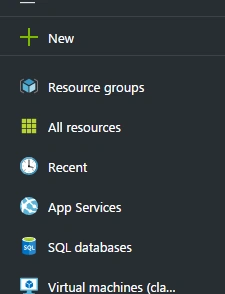
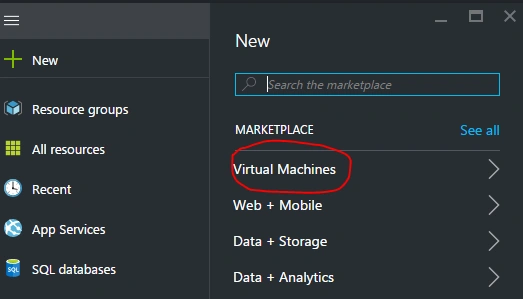
- Select Virtual Machines.
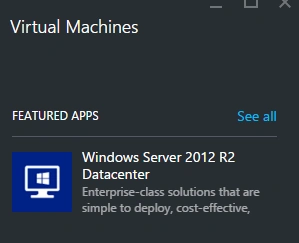
- Select “Windows Server 2013 R2 Datacenter”.
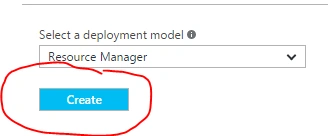
- Select the “Resource Manager” deployment model and click on “Create”.
- After you create a Virtual Machine you need to configure the VM in order to use it. You need to follow four steps to perform the Configurations. Configuring the first two steps “Basics” and “Size” is mandatory and the third step “Settings” is optional. If you don’t configure the settings options, Azure will automatically do that for you. For now, let us have Azure configure those settings. However, I suggest you configure them on your own when you are doing it for your customers.
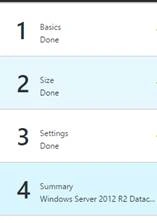
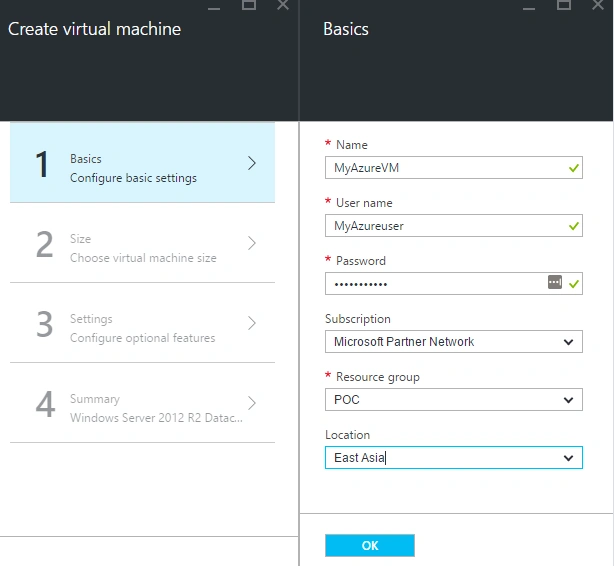
Step 1. Basics
Providing the details for the first step is straightforward. Please provide meaningful names to your server.
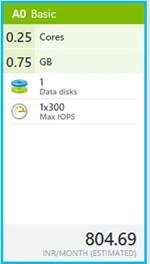
Step 2. Size
There are many types of Sizes that you would like to select. For demo purposes, I selected a small A0 Basic Instance.
Step 3. Settings
I would leave Azure to configure these settings for now.
Step 4. Summary
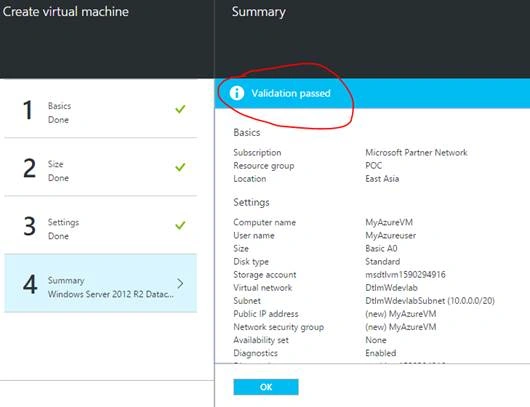
This step is just a summary of all the settings that we have configured. Once you click on “OK” It will run some validations as shown below.
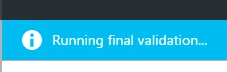
- Once the validation is done, you will see something as shown below.
- After you review all the settings, click on the “OK” button in the following screenshot.
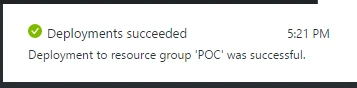
- It might take a few minutes (in my case, it took approximately 15+ minutes to create the VM.
Connect to the Virtual Machine using RDP
- In the previous step, we successfully created a Virtual Machine named “MyAzureVM”. Please go through the following steps to connect to the Virtual Machine.
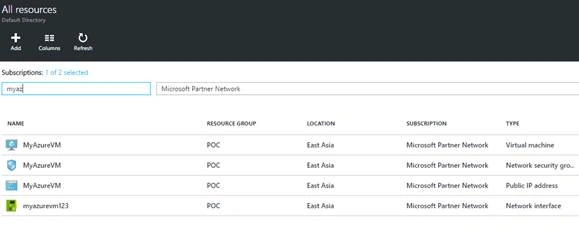
- Click on the “All Resources” menu on the left-hand side and select the VM that you have just created.
- We can connect to the Virtual Machine from your personal computer by clicking on the “Connect” button of the “Settings” blade of the Virtual Machine as shown below.
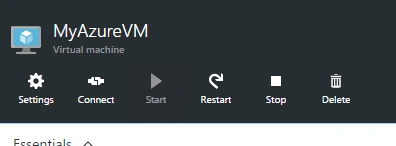
- Clicking on the “Connect” button will download you a file.
- Clicking on the above file, you will have been asked a warning. This is because the file was downloaded from the internet. Don’t worry and go ahead and click on “Connect”.
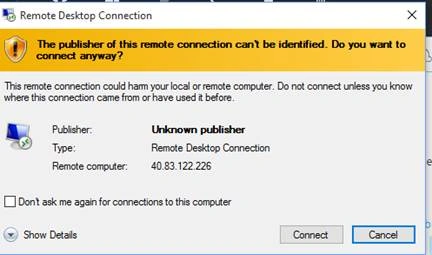 <
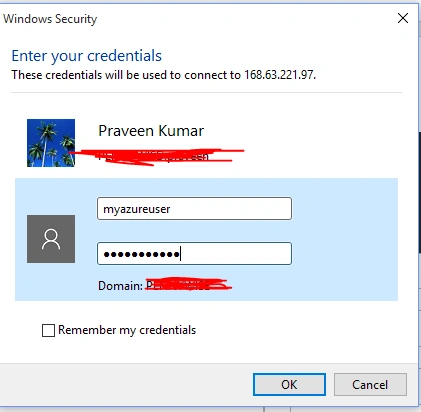
< - Once you click on “Connect” you will be asked for the credentials with which you would like to connect to the virtual Machine. Provide the credentials that you have provided while creating the VM – Basic Settings and click on the OK button.
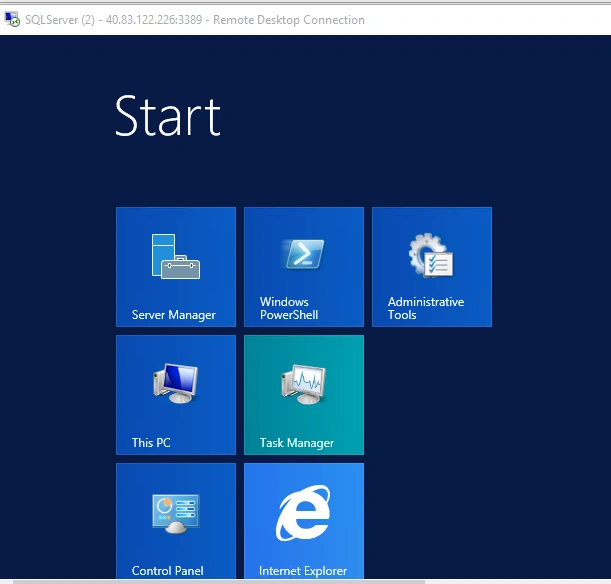
- That’s it – BOOM – you have successfully created a Virtual Machine on the Azure Platform and connected to the same remotely from your local machine. Below is the screen capture of the VM.
Praveen SreeramPosted Jun 5, 2016, 5:26 AM
Thanks Debasis Saha
Debasis SahaPosted May 24, 2016, 2:22 PM
Nice one..
Praveen SreeramPosted May 19, 2016, 8:20 AM
Thank you!
Kuppurasu NagarajPosted May 11, 2016, 9:14 AM
Nice Sharing..