

Custom user actions are commands that are available for user access at different locations within SharePoint. These custom actions can come up in any location within SharePoint, like ribbon view, site settings page, ECB menu etc. It can be an icon/text that implements a functionality, such as navigating to a landing page, starting of a workflow on an item, and so on . All the icons that come up in the List View ribbon are examples of custom actions.In many scenarios, we might want to add custom business functionality as a custom user action for ease of access. In this article, we will see how to add a custom user action to the Site Actions Gear menu. The site actions menu houses the default custom action, like Add an app, Site contents, Design Manager etc.
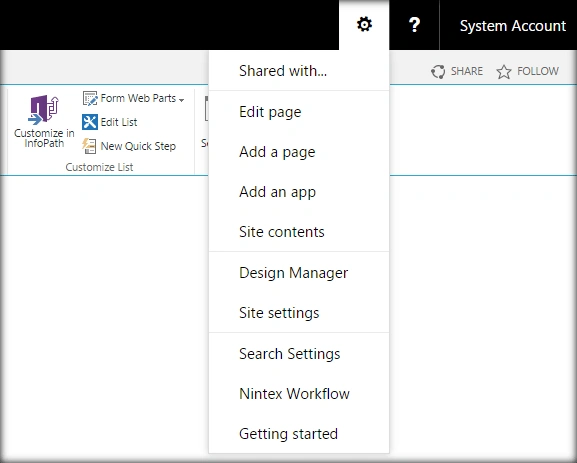
Image: SharePoint 2016 Site Actions
In addition to these, we will add a new custom user action in the Site Actions menu. It will act as a redirection shortcut to Advanced Search Settings page.
Internal Implementation
Let’s see how we can do the same programmatically using JavaScript object model,
- Add reference to jQuery file.
- <script language="javascript" type="text/javascript" src="//ajax.googleapis.com/ajax/libs/jquery/1.8.1/jquery.min.js"></script>
- <script language="javascript" type="text/javascript">
- Within Document ready function, call SP.SOD.executeFunc so as to load the on demand script SP.js. Call the main starting point function, say: AddCustomUserAction.
- SP.SOD.executeFunc('sp.js', 'SP.ClientContext', AddCustomUserAction);
- Instantiate client context, web, and list instance.
- //Get the client context and web object
- var clientContext = new SP.ClientContext();
- var oWeb = clientContext.get_web();
- Create a custom user action and add it to the custom user action collection.
- //Get the custom user action collection and add the new custom action to it
- var collUserCustomAction = oWeb.get_userCustomActions();
- var oUserCustomAction = collUserCustomAction.add();
- Assign the properties for the custom action.
- //Specify the location and properties for the new custom action
- oUserCustomAction.set_location('Microsoft.SharePoint.StandardMenu');
- oUserCustomAction.set_sequence(101);
- oUserCustomAction.set_group('SiteActions');
- oUserCustomAction.set_title("Search Settings");
- oUserCustomAction.set_url("/sites/Playground/_layouts/15/enhancedSearch.aspx?level=sitecol");
- oUserCustomAction.update();
Line number 2 specified the SharePoint location where the custom action should come up. Here, it is the Site Actions menu. The line number 6 assigns the URL for the custom action. It redirects itself to the enhanced search page. Thus, we are creating a shortcut for advanced search page in the Site Settings menu.
- Load the client context and execute the batch.
Output- clientContext.load(collUserCustomAction);
- clientContext.executeQueryAsync(QuerySuccess, QueryFailure);
Console Output.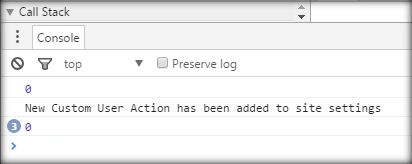
Full Code
The full code to add custom action to the Site Actions menu is, as shown below:
- <script language="javascript" type="text/javascript" src="//ajax.googleapis.com/ajax/libs/jquery/1.8.1/jquery.min.js"></script>
- <script language="javascript" type="text/javascript">
- $(document).ready(function() {
- SP.SOD.executeFunc('sp.js', 'SP.ClientContext', AddCustomUserAction);
- });
- function AddCustomUserAction() {
- //Get the client context and web object
- var clientContext = new SP.ClientContext();
- var oWeb = clientContext.get_web();
- //Get the custom user action collection and add the new custom action to it
- var collUserCustomAction = oWeb.get_userCustomActions();
- var oUserCustomAction = collUserCustomAction.add();
- //Specify the location and properties for the new custom action
- oUserCustomAction.set_location('Microsoft.SharePoint.StandardMenu');
- oUserCustomAction.set_sequence(101);
- oUserCustomAction.set_group('SiteActions');
- oUserCustomAction.set_title("Search Settings");
- oUserCustomAction.set_url("/sites/Playground/_layouts/15/enhancedSearch.aspx?level=sitecol");
- oUserCustomAction.update();
- //Load the client context and execute the batch
- clientContext.load(collUserCustomAction);
- clientContext.executeQueryAsync(QuerySuccess, QueryFailure);
- }
- function QuerySuccess() {
- console.log("New Custom User Action has been added to site settings");
- }
- function QueryFailure() {
- console.log(args.get_message());
- }
- </script>
SharePoint Implementation
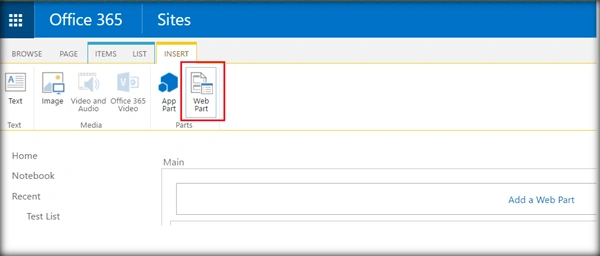
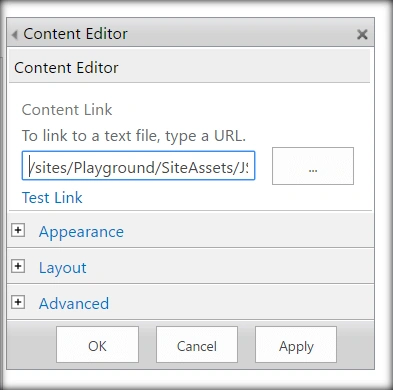
- Go to the edit settings of the SharePoint page and click on Web part from the Insert tab.
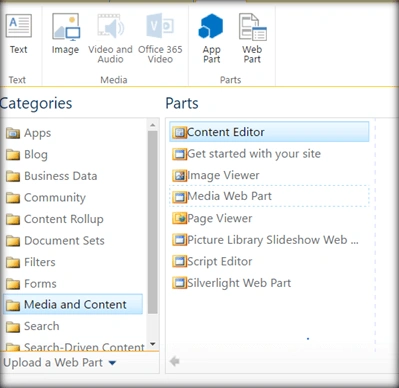
- Add Content Editor Web part.
- Click on Edit Web part from Content Edit Web part. Assign the URL of the script text file and click on Apply.
Thus, the new custom action has come up in the Site Actions menu.
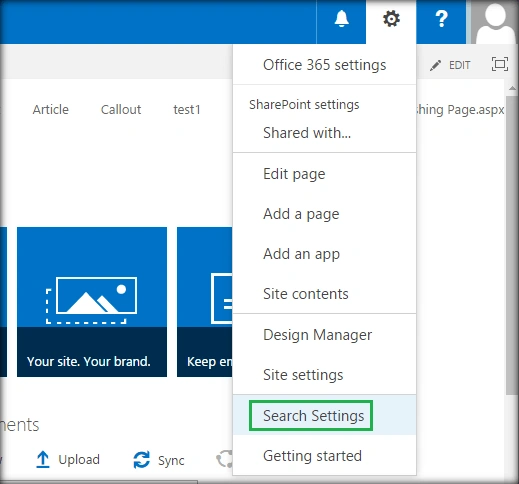
Image: Office 365 Site Actions
On clicking it, it navigates to the Site Collection Administration Search Settings Page.
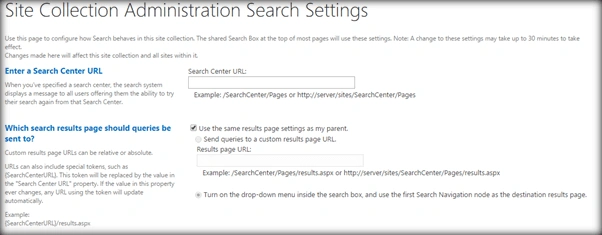
Summary
We have seen how to add the Advanced Search Settings page shortcut to the Site Actions gear menu as a custom user action, using JavaScript object model. This has been tried and tested in both SharePoint 2016 and Office 365.
Arun jayarajPosted Jul 5, 2017, 12:48 AM
Using JSOM, I have made some custom actions, custom designs and shown list in a page. But I failed to show sharepoint context menu, which is shown along with list items. I just want to show the custom sharepoint list context menu, with "share, Edit, Delete, View and Advanced" options. So is there any option to show this?
JoJo ChanPosted May 24, 2017, 12:17 PM
Hello, I tried using your code and for some odd reason, there is not just one action button added but a few... is there a possibility to remove the doubles?
Vignesh ManiPosted Aug 30, 2016, 8:41 AM
Good one
Tarun DPosted Aug 29, 2016, 12:48 AM
Thanks for sharing..
Delpin Susai RajPosted Aug 28, 2016, 10:36 PM
Good
Prasanna MuraliPosted Aug 28, 2016, 9:20 PM
Nice one....