

WCF stands for Windows Communication Foundation. Using the WCF Service, you can communicate with multiple types of clients. Here, you can say that WCF Service will communicate with both the Windows and Linux client. First, we make one simple WCF Service for “addition” and host it on console application; then, consume it from one Windows Form application.
- Open Visual Studio instance with "Run as administrator" and create one class library project. Name it “MathService”. It will generate one default class file. Now, you have to delete this “Class1.cs” file.
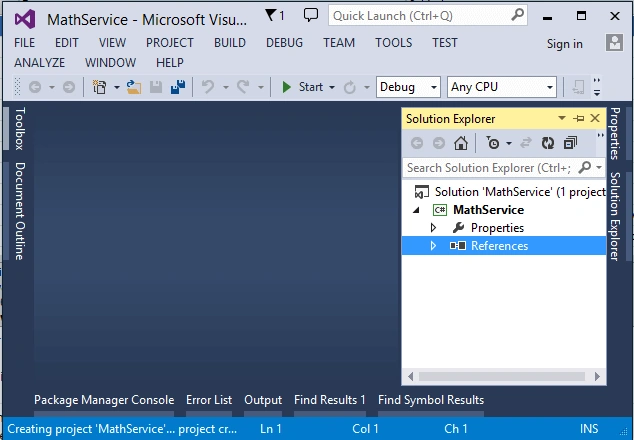
- Now, right click on the project and add a new item. It will open a new window. Select the “WCF Service” and give it the name “MathService”.
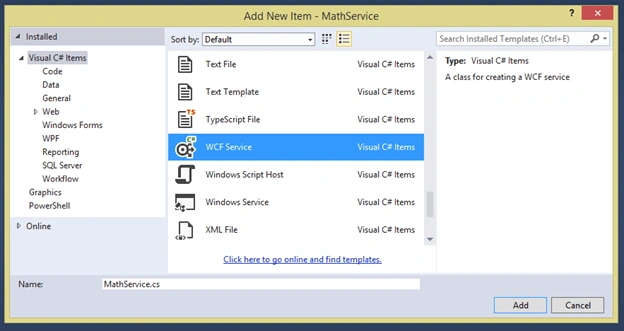
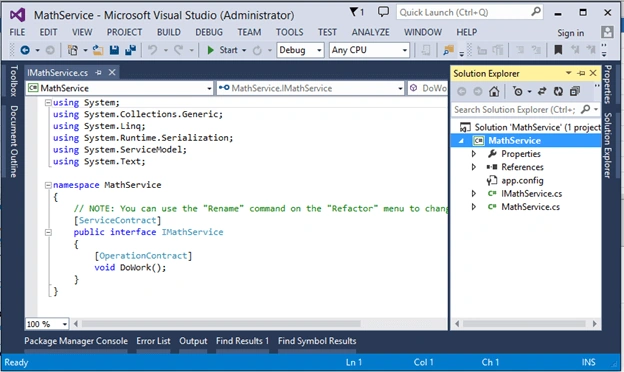
- It will generate 2 files - interface and class file.
- Now, open the interface file and add a new function. Name it “Addition.” It will accept 2 integers - input parameter and return type are also integers, as show in the below figure.
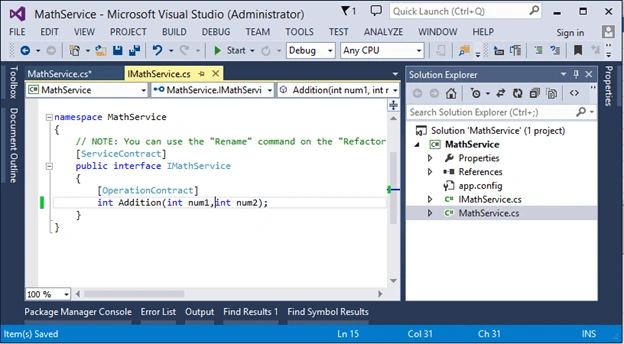
- Now, go to “MathService.cs” file and implement this interface, as shown in the below image.
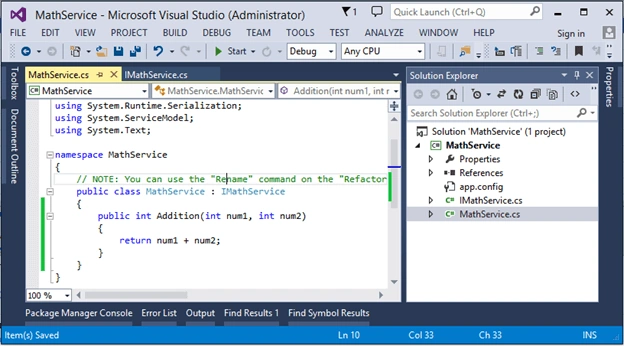
- Now, build the project. Our WCF service is ready now. We have to host it so that the client will consume it.
- Now, in same solution, add new project as console application and name it as ‘MathService_Host’.
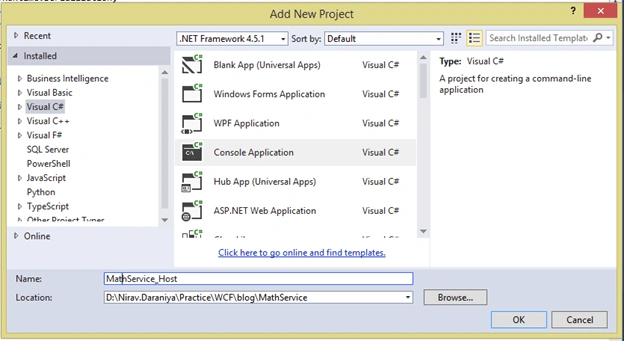
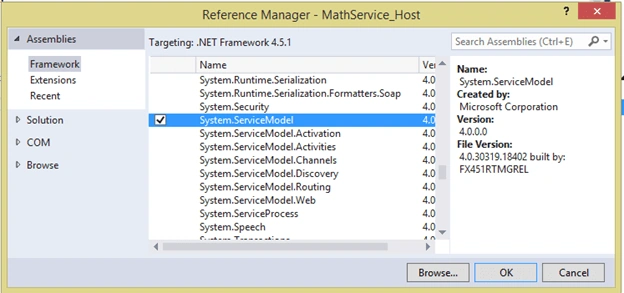
- Now, give solution reference of WCF Service to console application project and also give “System.ServiceModel” namespace reference to host project.
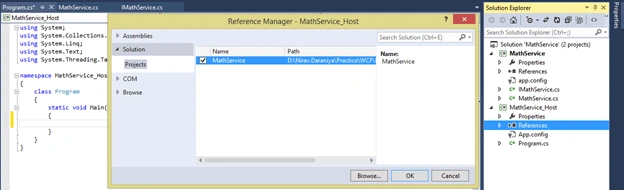
- Now, open ‘Program.cs’ file and write the below code.
- ServiceHost host = new ServiceHost(typeof(MathService.MathService));
- host.Open();
- Console.WriteLine("Service Hosted Sucessfully");
- Console.Read();
- Now, for communicating with client end-point, we have to add configuration file (if already in project, then no need to add). So, we first add App.config file to project, then write the below code to it.
Here, in the above code, we have to specify the binding configuration, end-point details, binding protocols, service behaviors, base address etc.- <?xml version="1.0" encoding="utf-8" ?>
- <configuration>
- <system.serviceModel>
- <behaviors>
- <serviceBehaviors>
- <behavior name="mexBehaviour">
- <serviceMetadata httpGetEnabled="true" />
- </behavior>
- </serviceBehaviors>
- </behaviors>
- <services>
- <service name="MathService.MathService" behaviorConfiguration="mexBehaviour">
- <endpoint address="MathService" binding="basicHttpBinding" contract="MathService.IMathService">
- </endpoint>
- <endpoint address="MathService" binding="netTcpBinding" contract="MathService.IMathService">
- </endpoint>
- <endpoint address="mex" binding="mexHttpBinding" contract="IMetadataExchange" />
- <host>
- <baseAddresses>
- <add baseAddress="http://localhost:8080/" />
- <add baseAddress="net.tcp://localhost:8090" />
- </baseAddresses>
- </host>
- </service>
- </services>
- </system.serviceModel>
- </configuration>
Here, we specify the “MathService.MathService” means you have to give full name of the service, like ‘Namespace Name.Service Name’
- Now, our host project is ready. Let's build the host project and run it. Check the output in console window.
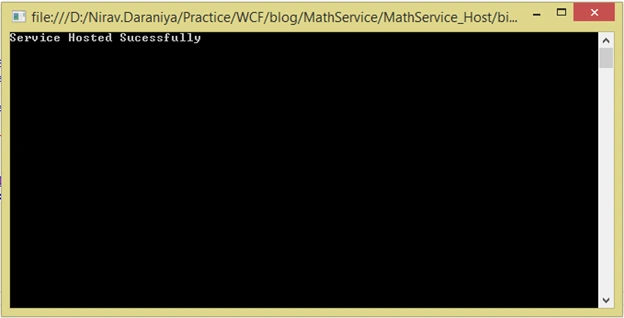
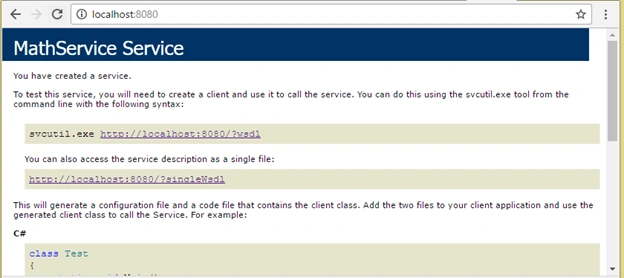
- Now, we will check this service in browser. So, open the http://localhost:8080/ URL in browser and the output will be as shown below.
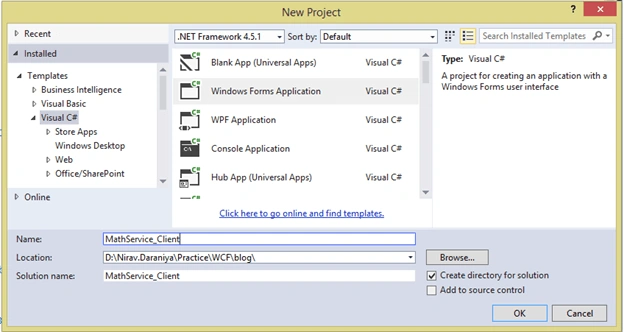
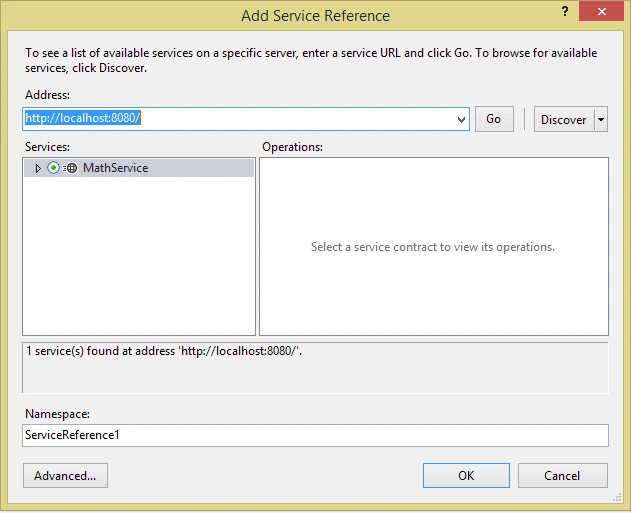
- Now, we have to create client. For that, open another instance of Visual Studio and run it as administrator. Create new Windows Form application named as “MachService_Client” and add service reference to it.
Give Service Reference.
- Now, design the client form as shown in the below image.
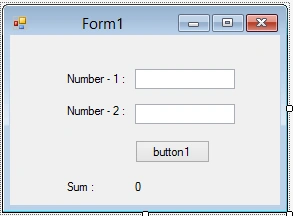
- Write the below code on ButtonClick event.
- ServiceReference1.MathServiceClient _obj = new ServiceReference1.MathServiceClient("NetTcpBinding_IMathService");
- lblResult.Text = _obj.Addition(Convert.ToInt32(textBox1.Text), Convert.ToInt32(textBox2.Text)).ToString();
- Now, run the project and check the output.
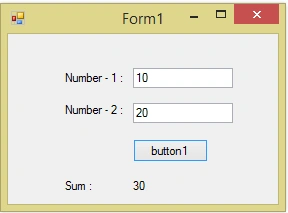
Thanks for reading my article. If you have any confusion regarding this article, please post your comment in the comment box.
Jaime LeonPosted Nov 10, 2020, 5:04 PM
Hi Bro, awesome tutorial. I have a question. Can I run the program from de .exe result? Because the service don't run, just the console app.
Abhay JadonPosted Apr 2, 2019, 7:28 AM
How can we consume it in xamarin forms????
mhamd abdPosted Feb 10, 2019, 2:28 PM
I have got an Error System.ServiceModel.EndpointNotFoundException: 'Could not connect to net.tcp://localhost:8090/MathService. The connection attempt lasted for a time span of 00:00:02.0653285. TCP error code 10061: No connection could be made because the target machine actively refused it 127.0.0.1:8090. '
Shubham KhandekarPosted Feb 25, 2017, 1:09 AM
<baseAddresses> <add baseAddress="http://localhost:8080/" /> <add baseAddress="net.tcp://localhost:8090" /> </baseAddresses> what o have to write here can u plz tell me ?