

Introduction
Sometimes, in our projects, we have to work with secure websites. And, most of the time, for development purposes it is not readily available before the development starts.
In this post, we will discuss the quickest way to arrange for a secure website, using self-signed certificates.
Let’s just start the process.
Create a locally signed certificate (IIS 7.5 is used here)
First of all, we need a certificate for creating an SSL website, and we know we don’t have any available SSL certificate. So, we will also create a local system certificate and use that to create an SSL website later.
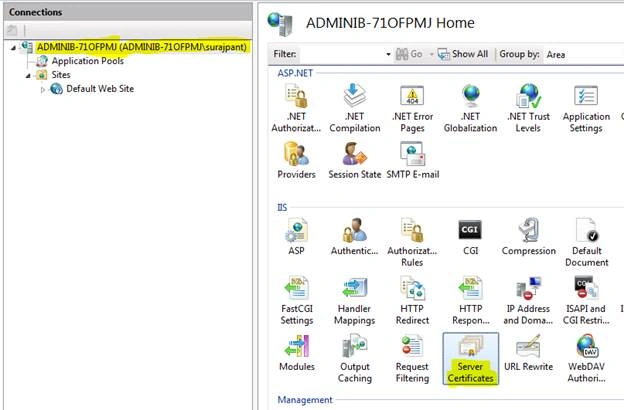
First, select the root machine node, and then select the"Server Certificates" icon in the feature pane, as highlighted below:
You will see a screen like the image shown below. All existing certificates (if any) will be visible here. Click on “Create Self-Signed Certificate…”, as highlighted in below screen. 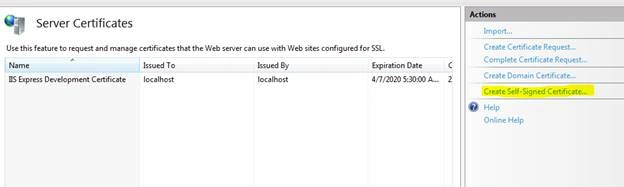
You will be asked to give your certificate a name. For now, give it a name “testSSL” and click on “OK”.
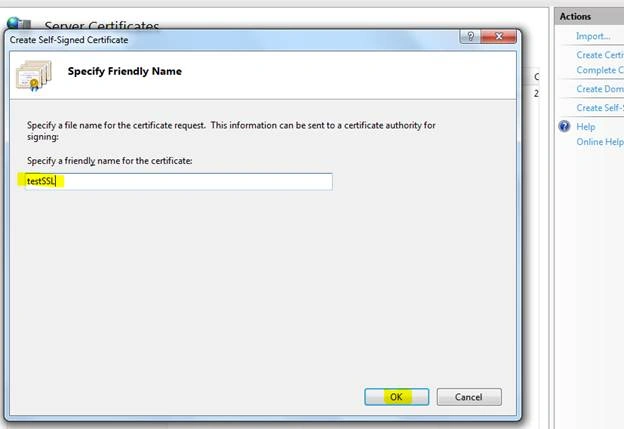
That’s it. You have a new certificate created and it will now be listed in certificate list, as shown below: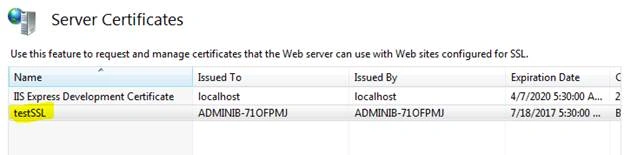
Create SSL site
OK, so the certificate creation part is now completed. Let’s now create a new SSL website using this certificate.
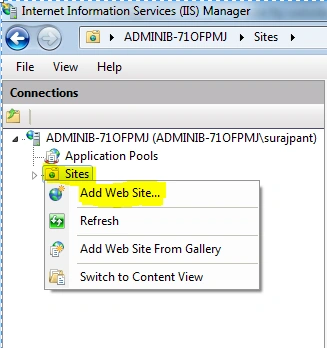
Open IIS. Right click on Sites and select “Add Web Site…”.
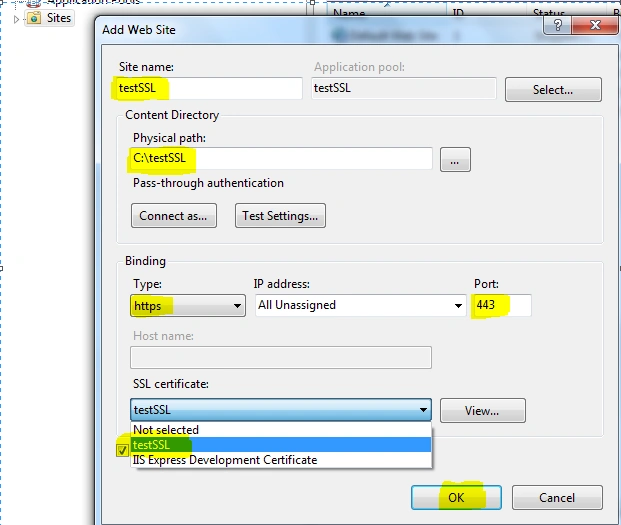
On clicking the “Add website…”, you will get a form, like below:
- Give your site a name - put “testSSL” for now.
- Provide a physical path where site content will be kept. In this example, I have created a simple one line HTML and put that in root folder. (HTML code snippet is provided at the end).
- In binding section, select https and Port as 443.
- Click on dropdown below SSL certificate and you will find the certificate we have just created above, listed there. Select that certificate.
- Click “OK”.
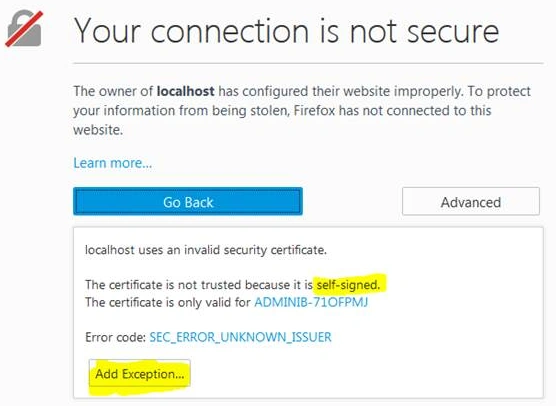
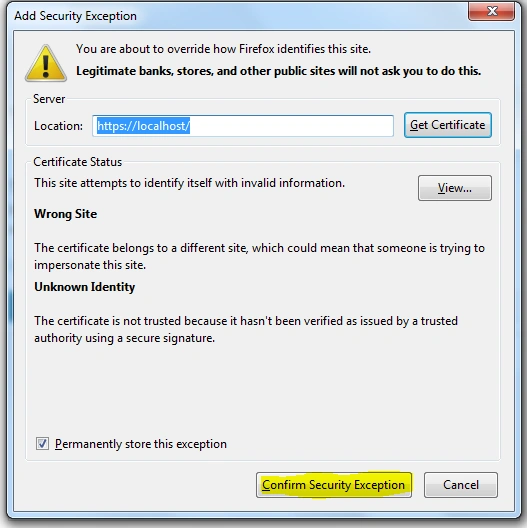
We are done. However, when you will run this newly created secured website, it will throw the following exception.
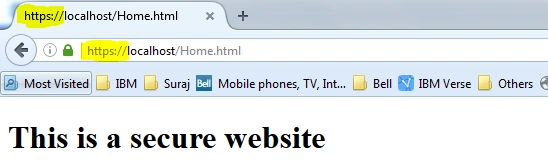
For testing purposes, I have just added a small HTML file named Home.html, inside our root folder “C:\testSSL”.
The code for that html is as shown below:
- <!DOCTYPE html>
- <html>
- <body>
- <h1>This is a secure website</h1> </body>
- </html>
Ravi KandelPosted Mar 8, 2017, 8:57 AM
Awesome Thanks for sharing
Suraj PantPosted Sep 16, 2016, 8:51 AM
Thanks Subash
SubashPosted Sep 15, 2016, 1:07 AM
Good one
Asad AliPosted Jul 19, 2016, 4:11 AM
A very good article
Shobana JPosted Jul 19, 2016, 2:45 AM
Nice one
kalu singh raoPosted Jul 19, 2016, 1:27 AM
Nice...