

Introduction
In this article will learn about how to create FAQ bot service using the power of QnA Maker cognitive services.
Prerequisite
- Microsoft Live Email ID
- Zeal to learn
Overview
In this era of modern web technology & fast-growing intelligence components, every organization is in the race to compete & get ahead. Bots play an important role as a component to provide convenient service with faster and smarter capabilities.
In this era of modern web technology & fast-growing intelligence components, every organization is in the race to compete & get ahead. Bots play an important role as a component to provide convenient service with faster and smarter capabilities.
Bot automate some program so as to act or react on any action or request. In this article we will have a look at the most important section in an organization’s official website; i.e. the FAQ, or Frequently Asked Questions. Every organization has to convey or present some information with respect to their product, service, roadmaps, careers, events etc.
If organizations implement a bot for FAQs, and have it in their websites and social channels, just imagine the impression they could make in the industry, along with ease to tackle the crowd bombarding them with queries with no resource cost. Usually there comes a scenario wherein such FAQs are owned by business domain experts. This domain experts are not always a programmer (to code bot), again not every programmers are domain experts, as it's a complex combination.
Developing a bot involves tedious code & sometimes complex architecture designing. But what if it was:
Developing a bot involves tedious code & sometimes complex architecture designing. But what if it was:
- Easy to build a FAQ bot
- Not a single line of code.
- No expertise needed,
Sounds cool right! Yes, Microsoft knowledge base Cognitive service QnAMaker service solves all problem listed above when it comes to creating bots.
QnAMaker service is a cognitive service that falls in the knowledge category. As the name suggest it develops question & answers as a knowledge base for a FAQ bot. So if you have your FAQ content ready, in any form, web page or document, QnA Maker can create a knowledge base restful endpoint. All you have to do is hit endpoint with desired questions & get answers as response.
Creating QnA Maker Service
Creating QnA Maker Service
Will create knowledge base from MVP FAQ page,
Open web browser and enter URL https://qnamaker.ai/
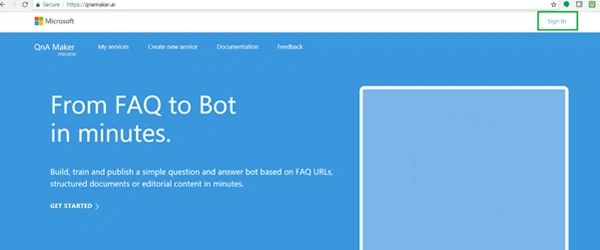
As mentioned above in prerequisites, sign-in with Microsoft Live ID.
It will ask permission for accessing few details, read it carefully and
Click on Yes,
Open web browser and enter URL https://qnamaker.ai/
As mentioned above in prerequisites, sign-in with Microsoft Live ID.
It will ask permission for accessing few details, read it carefully and
Click on Yes,
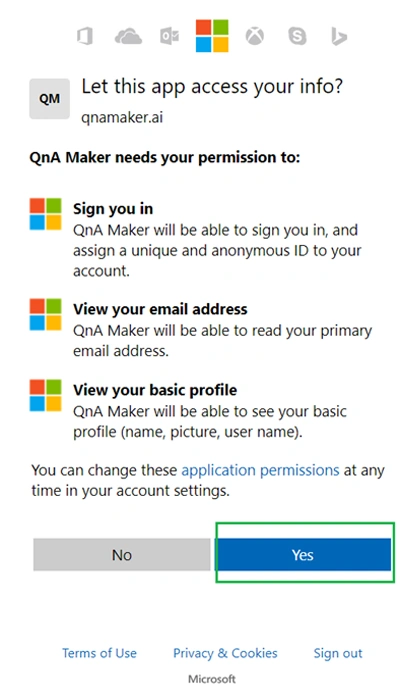
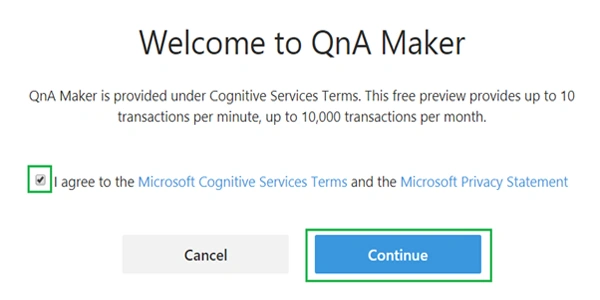
Once you grant qnamaker is accessed, you will be prompted to agree with Microsoft .Net Cognitive services terms & conditions and privacy policies.
It also says about transaction limit per day & per month basis,
Read it all carefully & check on ‘I agree’ checkbox and
Click on Continue
Read it all carefully & check on ‘I agree’ checkbox and
Click on Continue
Now you are done with all formalities to use the QnA Maker service.
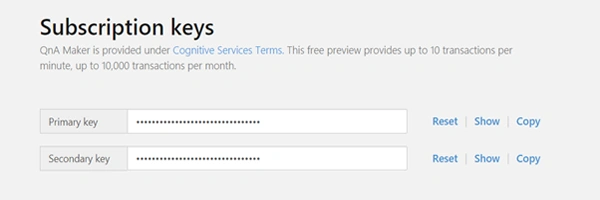
A subscription key will get associated with your account.
Click on Right Top corner on your Account name => Click Subscription Keys.
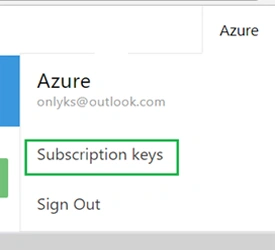
Subscription Keys, both primary & secondary could be copied and reset from here. We may need this further when calling service from applications.
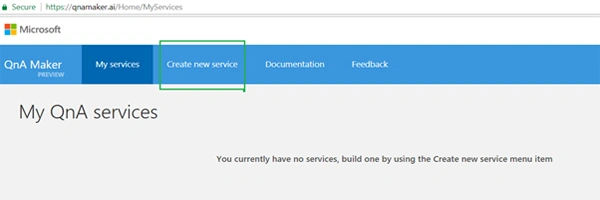
It will land you on the ‘My Services’ section, wherein all future created services will be listed.
As we just signed up, it has no service listed.
Click on ‘Create new service’ for creating a new service.
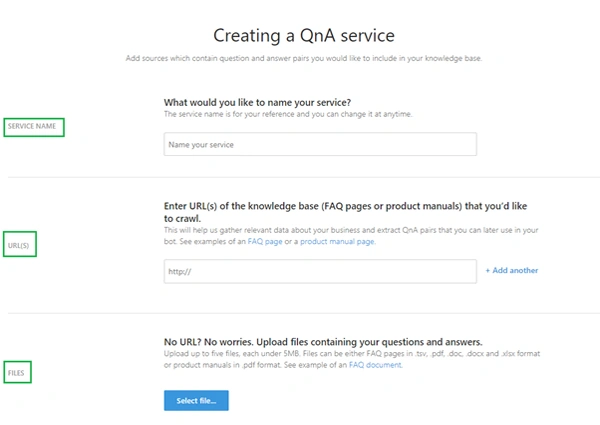
Here we need to provide,
- Service Name
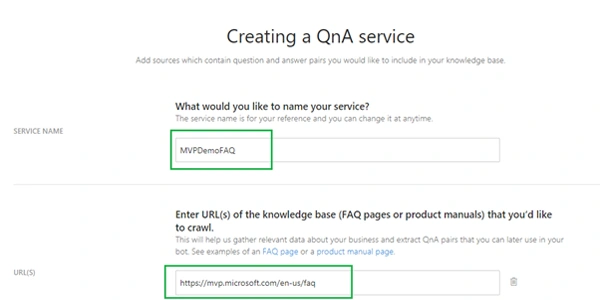
Name of Knowledgebase or Service. We can change this later. For this blog, name it as ‘MVPDemoFAQ’ - URL
As mentioned above, we can have source as Webpage of FAQ content. This URL should be publicly accessible. For instance, we will be providing below FAQ page public URL, https://mvp.microsoft.com/en-us/faq
You can add number of URLs, by clicking link name ‘+Add another’ the only limit is knowledgebase should not exceed 30 MB of data.
Note
The URL web content is extracted only once and its not sync with service with any future updates on web page. - Along with URL, you can also add files as source for service knowledge base. This file can be in. tsv, .pdf, .docx format.
If. tsv, then should be on Question tab space Answer format. You can download sample tsv format file from link given below,
For any other format, it should be as Question and Answer format. Will add files as a source when updating the knowledge base.
For any other format, it should be as Question and Answer format. Will add files as a source when updating the knowledge base.
Below after adding above-mentioned details.
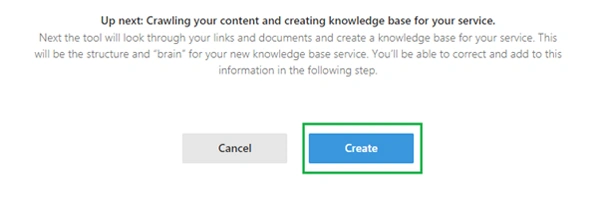
Click on Create to proceed,
Here the tool will extract all question & answer from given URL & files and create a knowledge base for our service. It would act as a brain for out Bot.
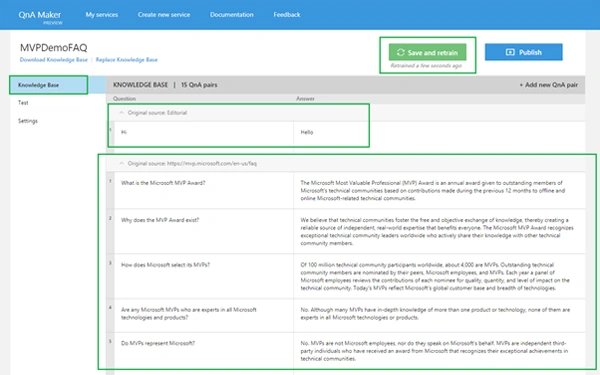
In a few seconds it will extract all the questions & answers from FAQ web page, and create a knowledge base with questions in one column & answers in the next column.
Also, it adds an editorial greeting message.
You can change, add to, and/or modify this knowledge base.
Make sure you click on ‘Save and Train’ button after every addition and modification, so as to update the knowledge base and get trained.
Click on ‘Test’ tab from left tab, to test our knowledge base service in Chat interface.
Click on ‘Test’ tab from left tab, to test our knowledge base service in Chat interface.
Chat box opens with a greet message being added as our knowledge base.
Just try entering any question, and you can get its answer in response.
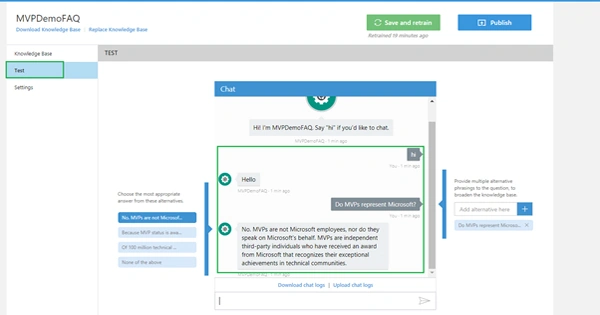
You can choose the appropriate answer for any questions, and can add multiple questions for the same answer. As you keep editing, the knowledge base gets updated, only after clicking ‘Save and Train’ button.
You can choose the appropriate answer for any questions, and can add multiple questions for the same answer. As you keep editing, the knowledge base gets updated, only after clicking ‘Save and Train’ button.
Let’s add some different questions for the above-mentioned Question and answer.
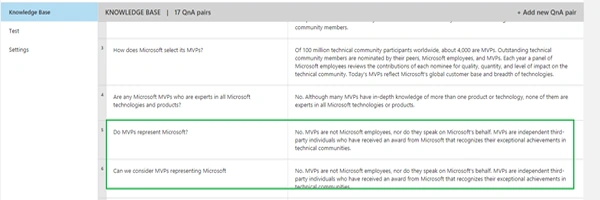
The question is, Do MVPs represent Microsoft? We even got the answer. Let’s frame this question in a different way like, Can we consider MVPs as representing Microsoft? Now for both these questions we should get the same answer. But the earlier one is part of FAQ web page content and the second one needs to be added now.
To do so, in Test section, at right frame, you can see Text box along with ‘+’ button. You need to add new question over here. And click ‘Save and Train’
Refer to the below image,
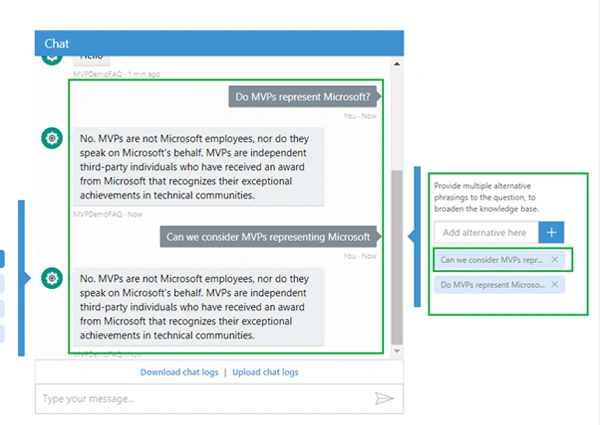
Similarly, if you want to change the answer for Questions in knowledge base, you can do it from Left tab, in the same way.
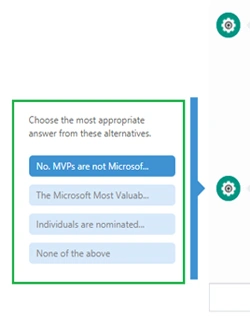
This modification reflects in Knowledge base tab, by addition of rows & updating contents in columns.
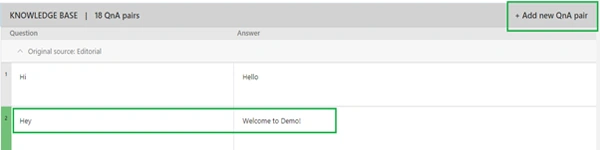
Also, you can manually add questions & answer from this interface too.
Click on “+ Add new QnA pair”
Enter question under Question column and Answer under Answer column.
Click on ‘Save and Train’ button.
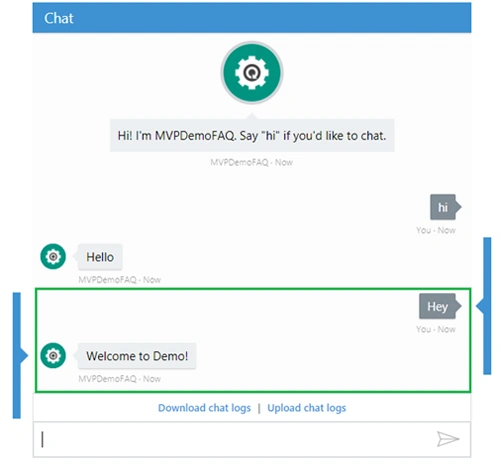
Test this, going to Test tab and entering newly added Question in Chat box,
Now once we are done with building our knowledge base, it's time to publish it for the outer world.
Click on ‘Publish’ button at right hand top of screen next to ‘Save and Train’

This will open up page to review all entries made by different sources.
Once reviewed, Click on Publish.
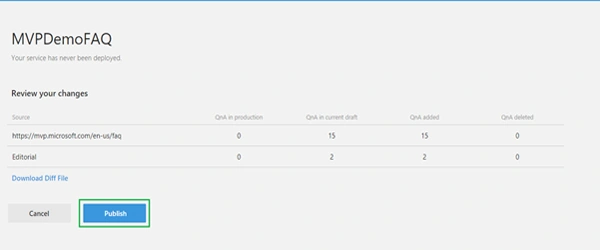
This will open up page to review all entries made by different sources.
Once reviewed, Click on Publish.
And Whoa! Your Service is ready.
This will provide you with Restful endpoints along with two very important parameters. First the QnAMaker Service ID & QnAMaker Subscription key.
The two parameters will be the key inputs for connecting knowledgebase with any Bot Framework or application we are calling in from.
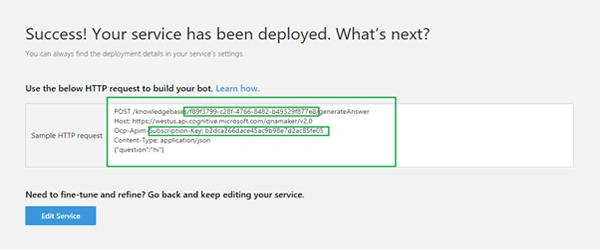
Let's now edit the service knowledge base.
There are two ways to edit,
Click on Edit Service button shown in above image, or
Go to Menu, ‘My Services’ => Click on pen icon to edit.
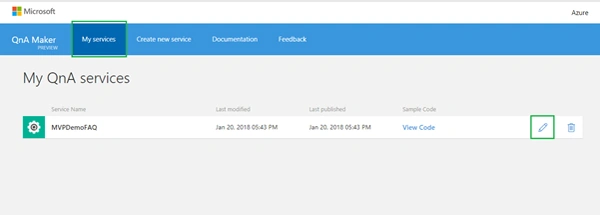
This will allow us to modify service knowledge base, by modifying existing question & answers through Knowledgebase tab.
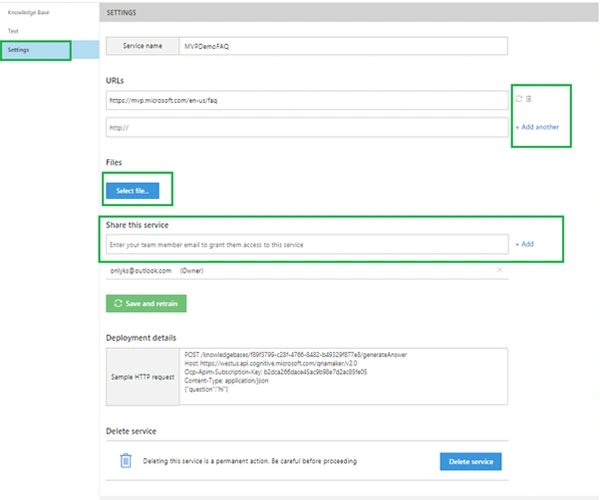
Also, click on Settings tab.
So here you can do following,
Let's now edit the service knowledge base.
There are two ways to edit,
Click on Edit Service button shown in above image, or
Go to Menu, ‘My Services’ => Click on pen icon to edit.
This will allow us to modify service knowledge base, by modifying existing question & answers through Knowledgebase tab.
Also, click on Settings tab.
So here you can do following,
- Change Service Name
- Add more FAQ content Web Public URLs
- Upload any files with supported format to add to knowledge base. (Will be doing this later in article)
- You can share this Knowledge base service with other team members by adding there Microsoft Live email ids.
- Get service endpoints details.
- And also, can delete the created service.
For this blog, I have created two files one with .docx & another as. tsv as format. And added few questions.
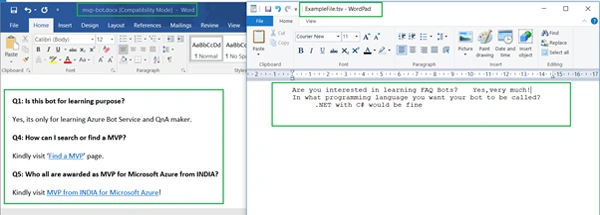
I have purposely entered wrong question numbers, so as to show how intelligently it extracts the question and answers from the source files.
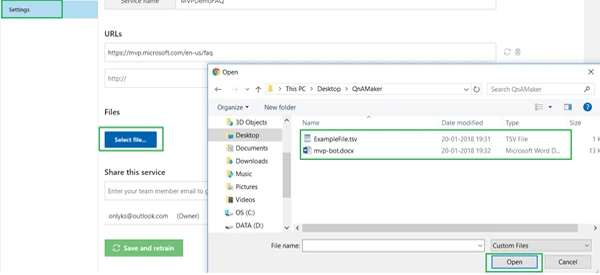
Click on Select File and upload both files.
Once done with uploading, Click Save and Train.
Navigate to Knowledge base tab, and we can find our file content being added.
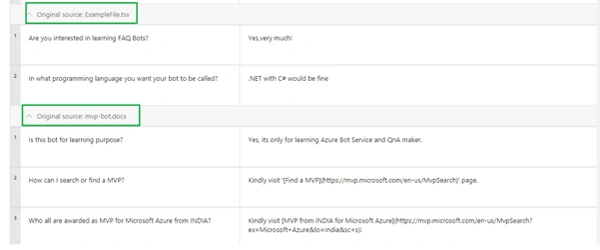
Navigate to Test tab, to test our newly added content.
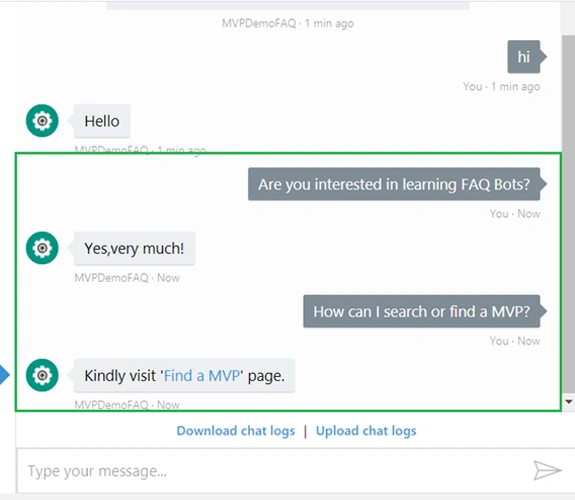
If you notice carefully, I have added a link in response, which as is came from Chat Box as response.
Once we're done with adding content, click Publish to make the content available for the outside world.
Note
If you don’t publish knowledge base, it will not be available publicly.
Verifying the service calls
We will test our knowledge base service. For this article will go with Postman tool, for calling service restful endpoint.
Enter the service endpoint, add Subscription key as headers, and body with any question. This can be seen in the below image,
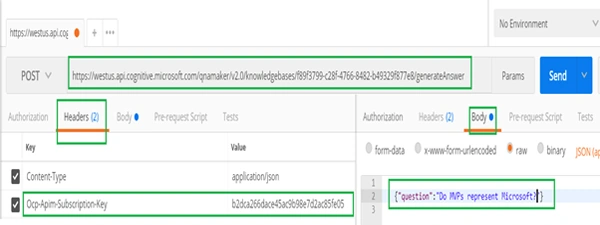
And click on Send to post the request.
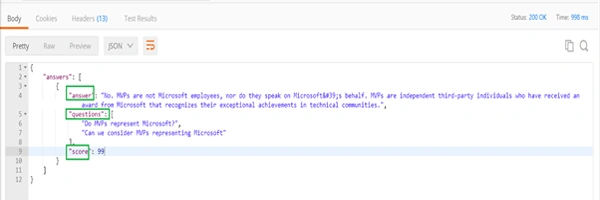
You will get the below as response,
- Answer: An answer for the question posted.
- Questions: Notice carefully there comes two questions as we added two questions for the same answer.
- Score: Score comes as accuracy of response to be a correct answer, from 0 as not an answer to 100 as the accurate answer.
Summary
We learned how easy it is to create an intelligent knowledgebase service for our FAQ content, with any form of webpage, file, etc as source. In coming articles we will integrate this knowledge base service with Azure Bot service and connect to live channels. Until then try this out and be ready with your knowledge base. Thank you for reading.
Naresh SinghalPosted Feb 1, 2018, 10:18 PM
Very Good James....