

In this post, you will learn about the below two custom actions.
- Ribbon custom action
- Menu Item custom action
We have so many types of Custom Actions in SharePoint 2013.
- Menu Custom Action
- Page Custom Action
- Central Administration Custom Action
- Server Ribbon Custom Action
In this post, we will see how to add and remove Menu(ECB) and Ribbon custom actions to different types of lists (Custom List, Document Library and Calendar) in SharePoint online using CSOM (.NET managed) code.
Menu Custom Actions(ECB )
- Take an empty ASP.NET web application and add the Microsoft.SharePointOnline.CSOM nuGet package to your solution using NuGet Package Manager.
- Add a web form (CustomActions.aspx) to the empty project.
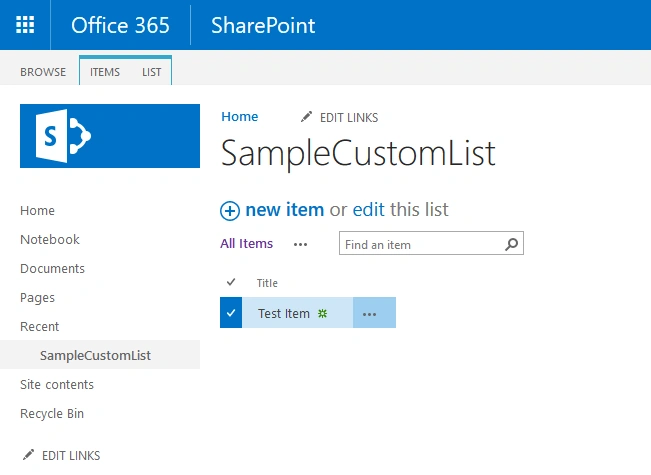
- Create a custom list in SharePoint online Site Collection, (say SampleCustomList) and add some sample items in that.
- Add the SharePoint online Site Collection URL, username, and password in the web.config as below.

- Add an ASP button (btn_clEcbCustomActions) in ASPX form and also, add the below code in the click event.Note
- try
- {
- string Pwd = ConfigurationManager.AppSettings["Password"].ToString();
- string UserName = ConfigurationManager.AppSettings["Username"].ToString();
- string spsiteurl = ConfigurationManager.AppSettings["SPSiteUrl"].ToString();
- var secure = new SecureString();
- foreach (char c in Pwd)
- {
- secure.AppendChar(c);
- }
- using (var clientContext = new ClientContext(spsiteurl))
- {
- clientContext.Credentials = new SharePointOnlineCredentials(UserName, secure);
- var customlist = clientContext.Web.Lists.GetByTitle("SampleCustomList");
- clientContext.Load(customlist);
- clientContext.ExecuteQuery();
- Microsoft.SharePoint.Client.UserCustomActionCollection collUserCustomAction = customlist.UserCustomActions;
- UserCustomAction newcustomaAction = collUserCustomAction.Add();
- newcustomaAction.Location = "EditControlBlock";
- newcustomaAction.Sequence = 100;
- newcustomaAction.Title = "Custom List ECB Menu";
- newcustomaAction.Url = "javascript:alert('Custom List ECB custom Action')";
- clientContext.ExecuteQuery();
- lbl_Success.Text = "Custom List ECB Menu Created Successfully";
- }
- }
- catch (Exception ex)
- {
- lbl_Error.Text = ex.Message.ToString();
- }
Please refer to the MSDN link for more details on Custom Action Custom Action Locations and IDs. - Now, run that web application and click on the btn_clEcbCustomActions button.
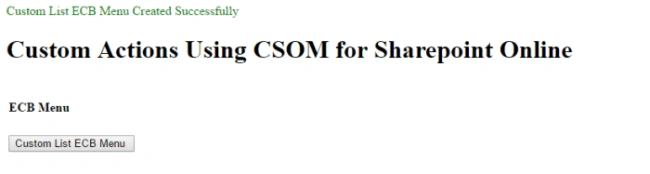
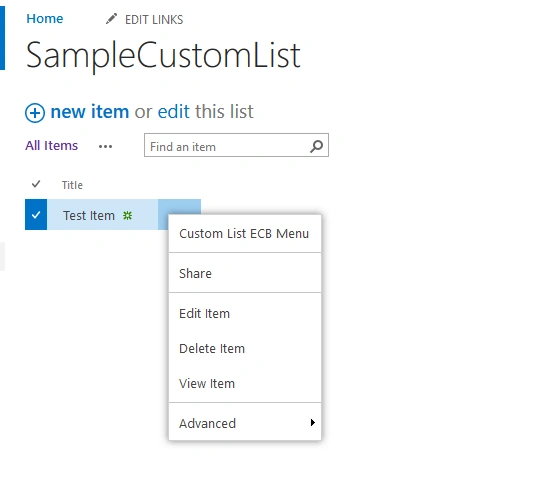
- Custom action is created successfully for the list in ECB menu.
- When clicking on the custom action, we will get an alert as defined in the newcustomaAction.Url property.
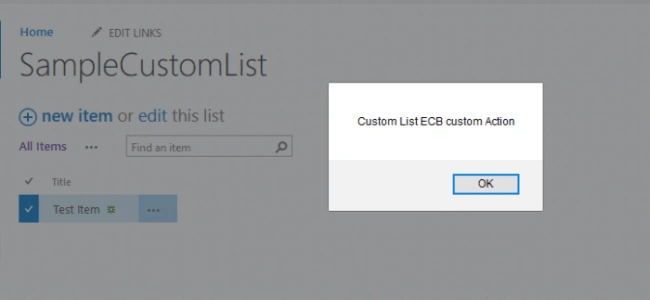
- For the demo, I have given the alert message for the URL property.If you want to open a page in the popup, update the url property as below.
- newcustomaAction.Url = "javascript:alert('Custom List ECB custom Action')";
- newcustomaAction.Url = "javascript:OpenPopUpPageWithTitle('https://tenant.sharepoint.com/sites/sharepointmates/Lists/SampleCustomList/AllItems.aspx', RefreshOnDialogClose, 600, 400,'SampleCustomList')";
- Now, the popup will come with the specified URL.
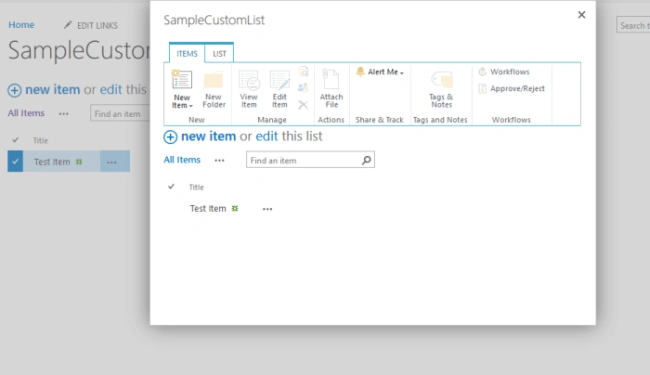
Like this, we can create ECB Menu custom actions for all type of lists in SharePoint online. In the next article, we will see how to create Ribbon action for lists in SharePoint Online.
Fahad Khalid BhattiPosted Dec 16, 2020, 11:48 AM
Its not working.
Piyush AgarwalPosted Mar 8, 2018, 2:26 AM
Really help full article to add custom actions however just wondering if this can be done with clicking the button in web.
Mahesh BabuPosted Jul 19, 2017, 1:02 AM
Good one Tarun....
Rajkiran SwainPosted Jul 18, 2017, 3:13 PM
Nice Article. Keep it up .